Kochava provides a flexible account system which gives customers the granular control needed to manage team members’ access, permissions and settings across your portfolio of applications.
Create a Member Account
- Log in to Kochava.
- Select the desired Account.
- Select Team > Members.
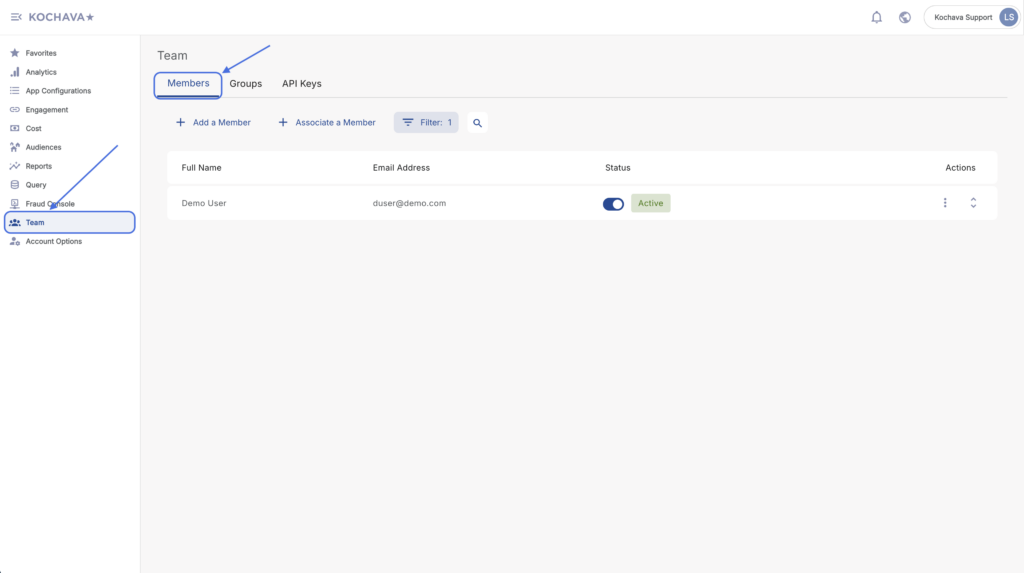
- Click + Add a Member.
- Enter the user’s Full Name.
- Enter the user’s User Name.
- Enter the user’s Email Address.
- Enter a Password.
- Enter the same Password into the Confirm field.

- Select any Groups the user will belong to.
- Select the Time Zone.
- Select the default Currency.
- Click Save.
Editing User Settings
- Locate the desired User.
- Select Edit.
- Update settings as needed.
- Click Save.


Associate a User
Users from different accounts may be associated with a different account. This feature is currently only available for Kochava employees. If you need a user to be disassociated from your account please contact your Client Success Managers.
Disassociate a User Account
Account admins can disassociate a user from their account directly in the Kochava dashboard. Disassociating a user removes that user’s access to your account.
- Log in to the Kochava dashboard as an Account Admin and select the account the user should be removed from.
- In the left navigation, go to Account Options > Team.
- Select the Members tab.
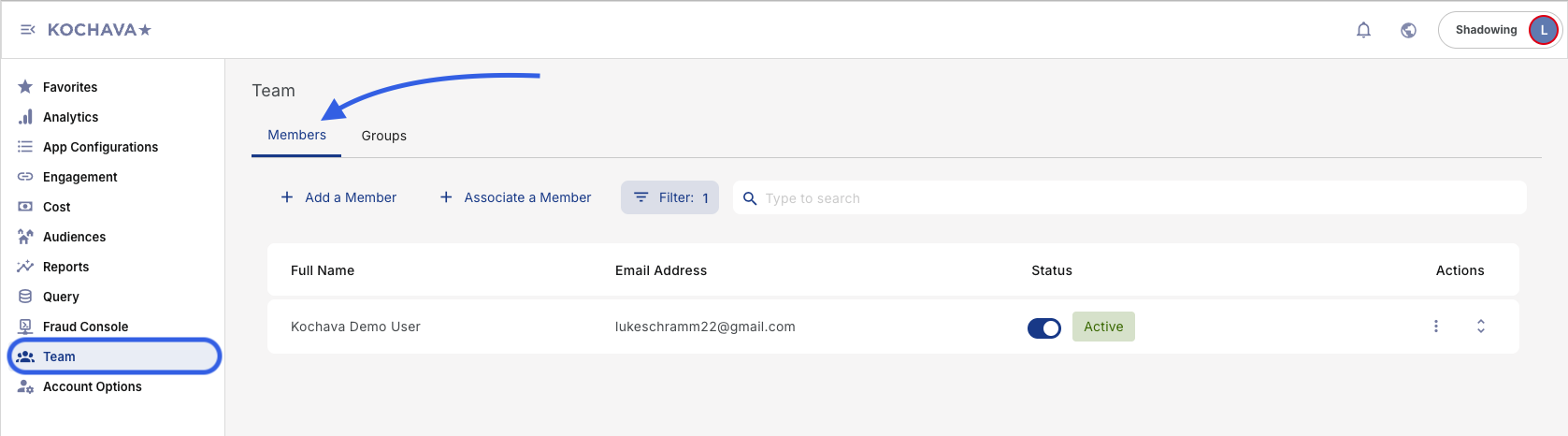
- Locate the user you want to disassociate. You can use the Filter option to search by name or email address.
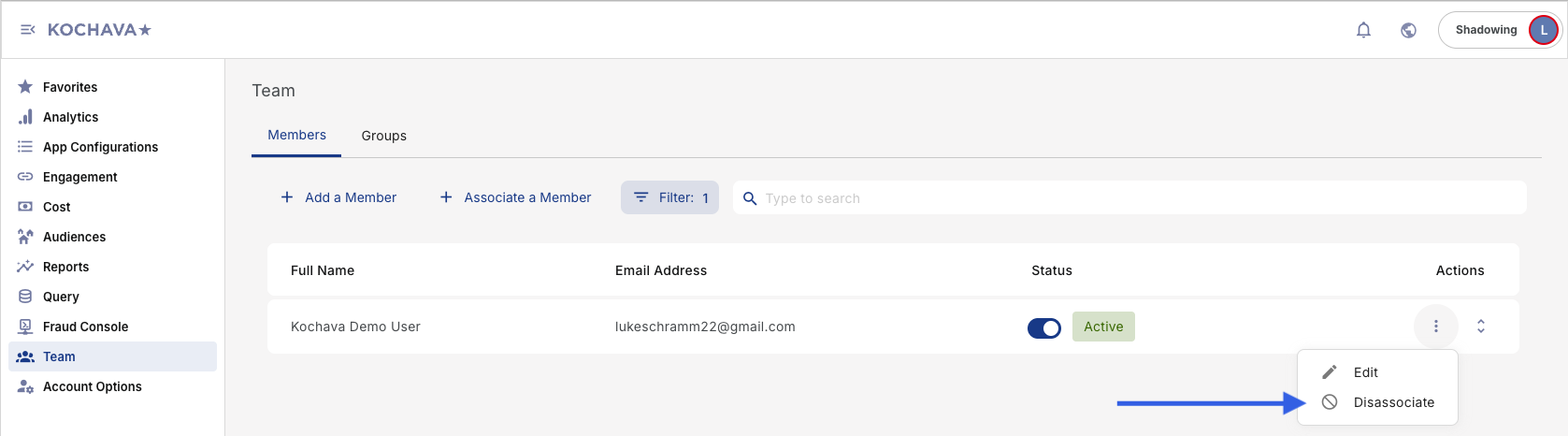
- In the Actions column for that user, click the three-dot menu.
- Select Disassociate.
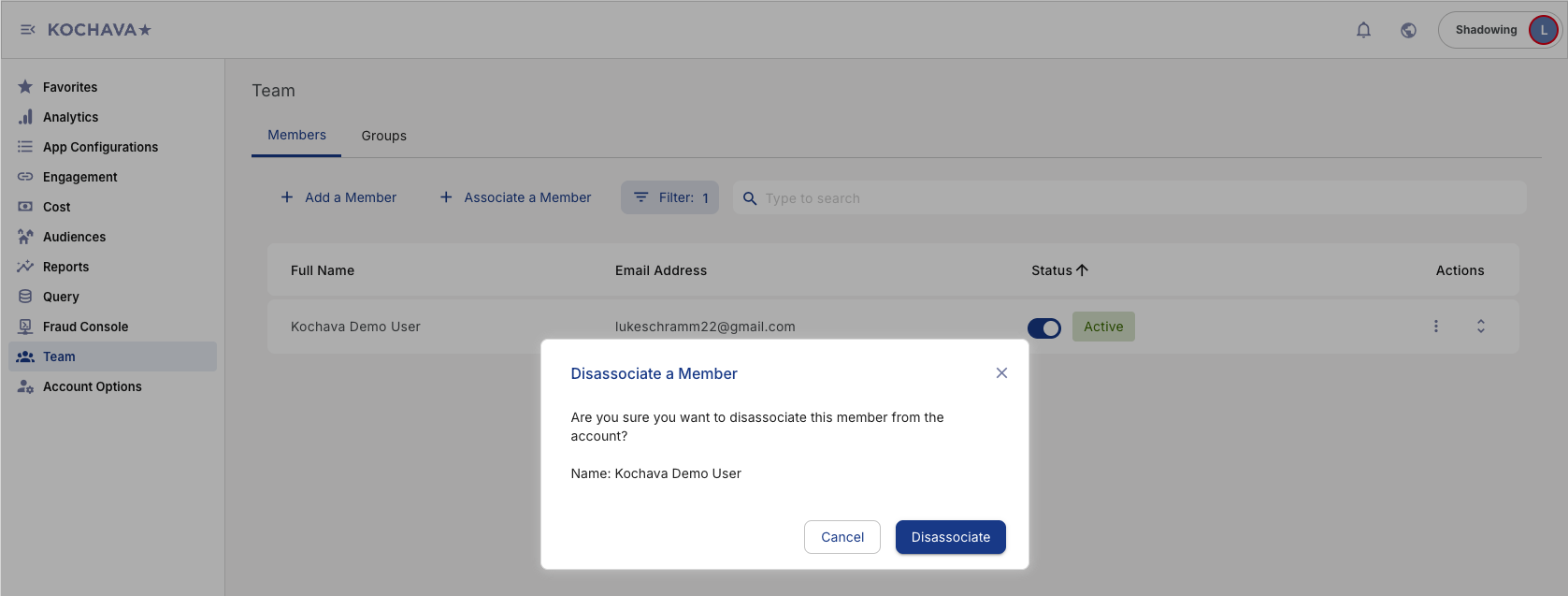
- Review the confirmation prompt and confirm that you want to disassociate the user.
- Verify that the user no longer appears in the Members list.