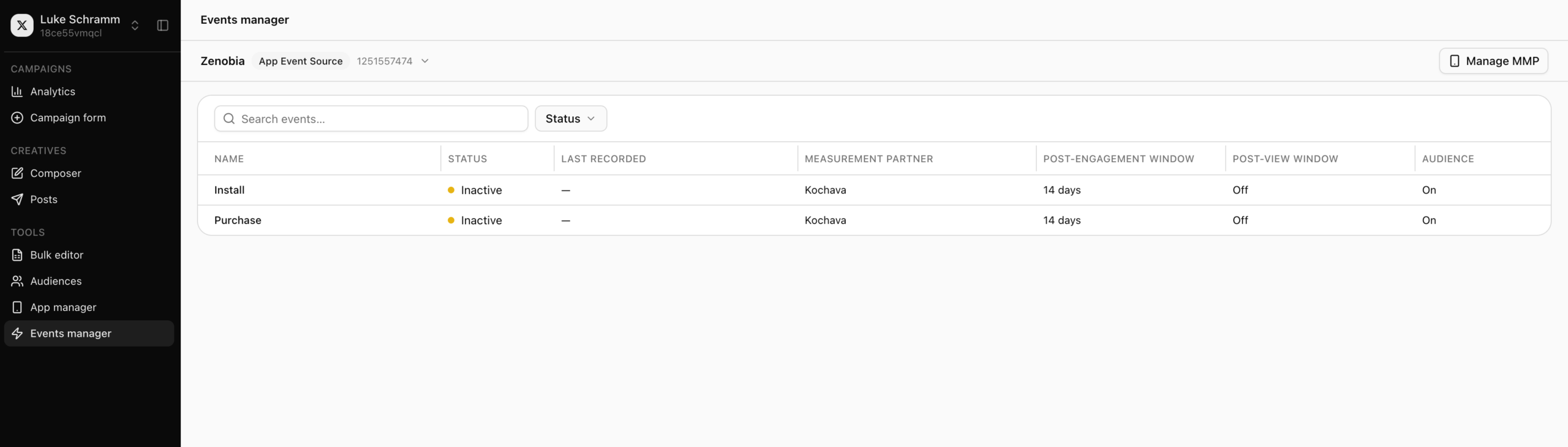
X is a SAN (Self-Attributing Network) and can be configured to claim events as re-engagement conversions. The following document defines the process for creating an X reengagement campaign within Kochava.
Create an X Reengagement Tracker
- Log in to Kochava.
- Select the desired Account and App.
- Select Engagement > Campaign Manager.
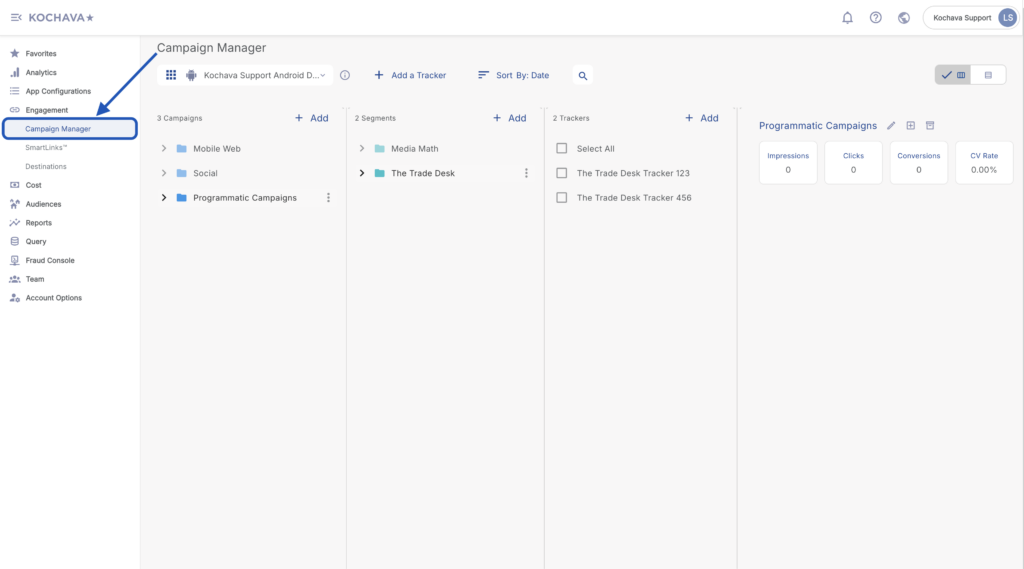
- Select the desired Campaign & Segment, or create new ones.
- Click + Add (Tracker).
- Enter a unique Tracker Name.
- Select Tracker Type > Reengagement.
- Select a Network > X:
- X—Android (Android)
- X—iOS (iOS)
- Select Default Tracker:
- On
- Off (default)
- Select the desired X account(s).
- Enter the App Bundle ID (If not entered during app creation/editing). For further information about locating the Bundle ID, click here.
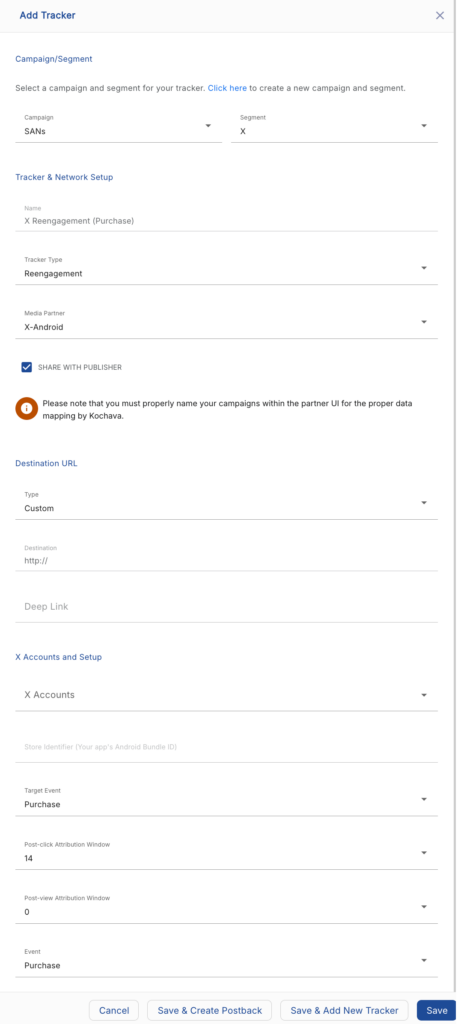
- Select the Target Event.
- Select the Post-Engagement Attribution Window.
- Select the Post-View Attribution Window.
- Select the Event Matching Event.
- Click Submit. (If no further trackers need to be created)
- Click Save and Add Another Tracker. (If additional trackers need to be created)
- Click Save & Create Postback. (To navigate directly to the Partner Configuration page)
Create an X Event Postback
- Log in to Kochava.
- Select the desired Account and App.
- Select App Configurations > Partner Configuration.
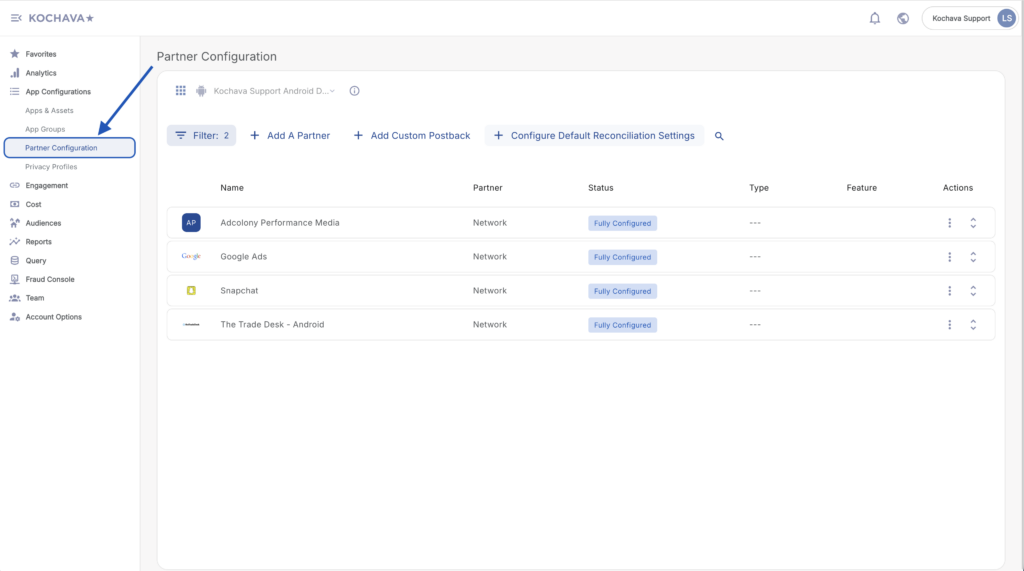
- Locate and expand Network Configuration > X:
- X—iOS
- X—Android
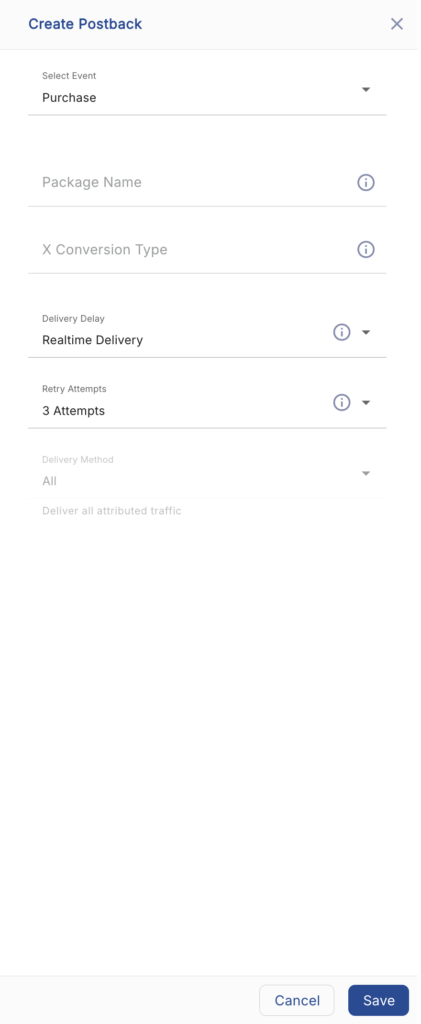
- Select + Add a Postback.
- Select the desired Event.
- Enter the App ID:
- iTunes App ID (iOS)
- Package Name (Android)
- Enter the X Conversion Type.
- Select a Delivery Delay.
- Select the number of Retry Attempts.
- Select the Delivery Method.
- Click Save.