
The following document describes how to set up a campaign for Venatus SAN. Kochava enhances your install and event data with the Venatus SAN ad impression or click metadata directly from Venatus SAN to allow for extremely accurate and complete data.
Data Needed Before Beginning Process:
- Venatus Product ID
- Venatus Event Name
Create a Link for a Venatus SAN Install Campaign
- Log in to Kochava.
- Select the desired Account and App.
- Select Engagement > Campaign Manager.
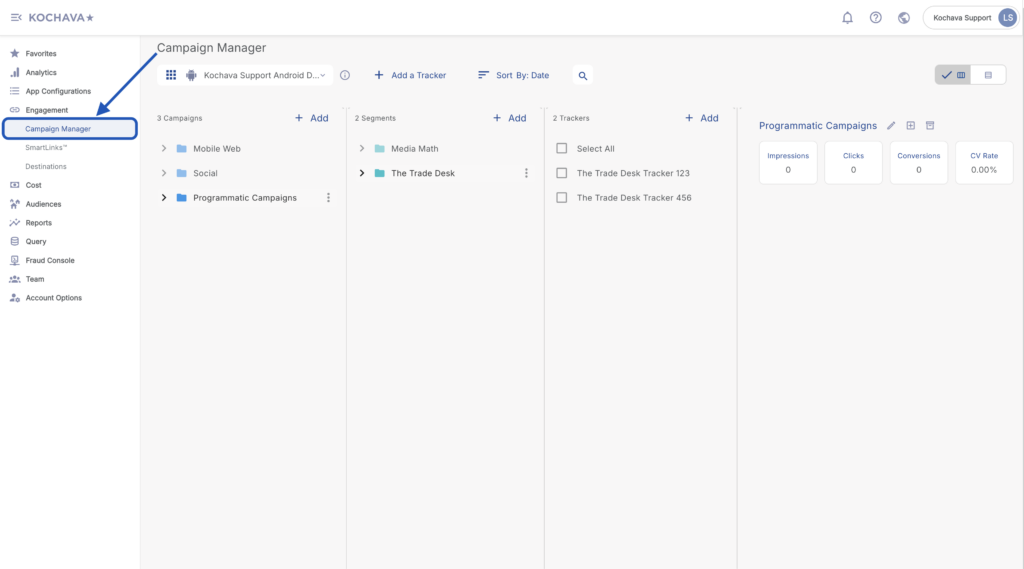
- Select the desired Campaign & Segment, or create new ones.
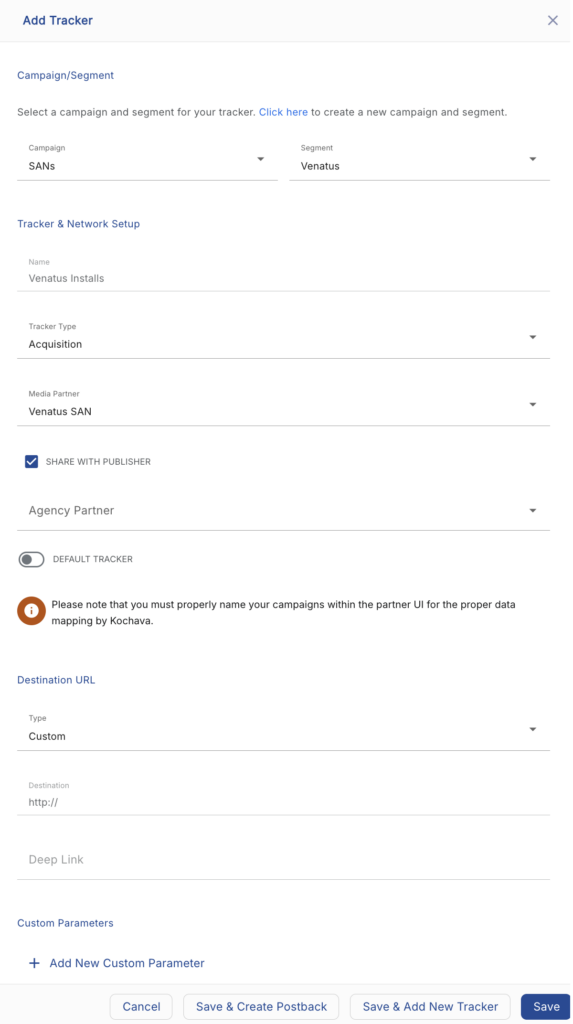
- Click + Add (Tracker).
- Enter the Tracker Name.
- Select Tracker Type > Acquisition. (default setting)
- Select Media Partner > Venatus SAN.
- Select Agency Partner. (optional)
- Enter the Destination URL.
- Enter a Deep Link. (optional)
- Enter any Custom Parameter(s). (optional)
- Click Save. (If no further trackers need to be created)
- Click Save & Add Another Tracker. (If additional trackers need to be created)
- Click Save & Create Postback (to navigate directly to the Partner Configuration page).
Install Postback Configuration
- Select App Configurations > Partner Configuration.
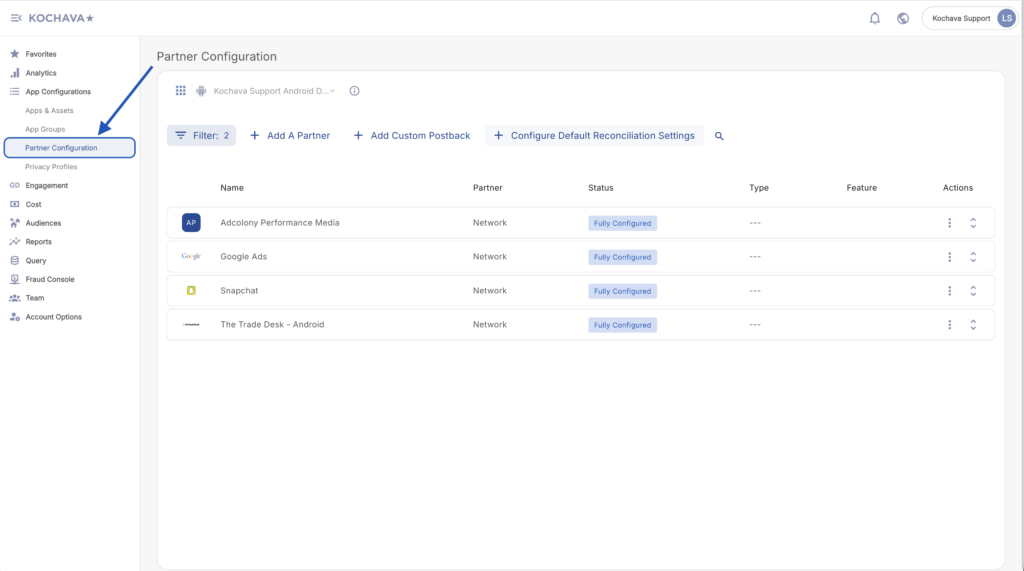
- Click + Add a Partner.
- Select Media Partner > Venatus SAN.
- Click Next.
- Verify Status: Active.
- Click Save.
- Select Install > ⚙ (Edit).
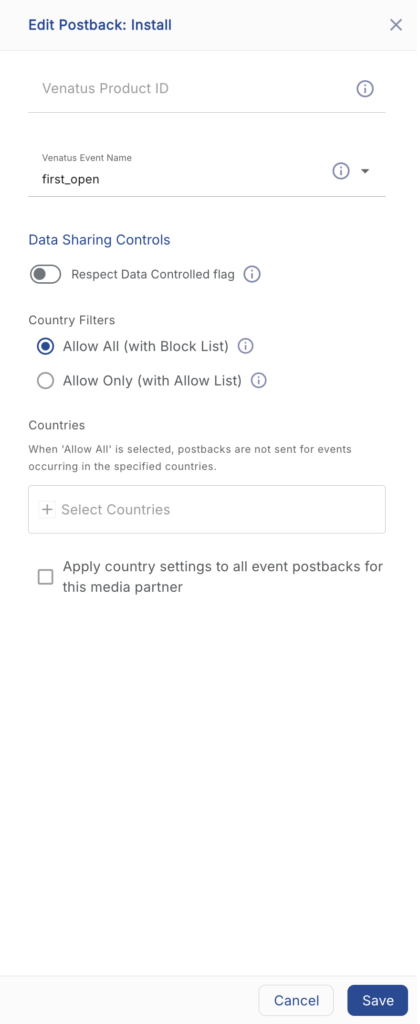
- Enter the Venatus Product ID.
- Select the Venatus Event Name > first_open.
- Click Save.
Reengagement Configuration
The information within this section provides the steps necessary to establish a reengagement campaign. If a reengagement campaign does not need to be created, the information in this section may be disregarded.
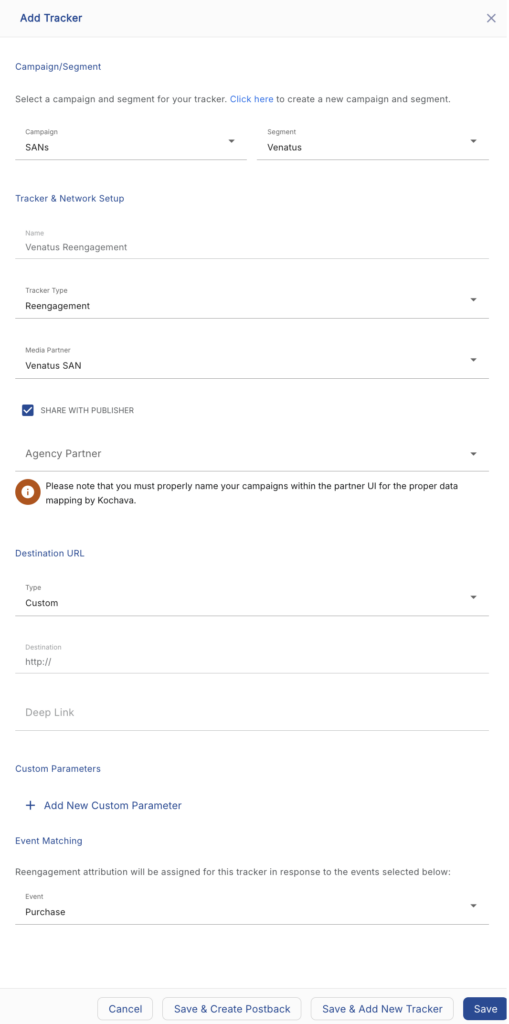
Create a Reengagement Tracker:
- Navigate to Engagement > Campaign Manager.
- Select the desired Campaign & Segment, or create new ones.
- Click + Add (Tracker).
- Enter a Tracker Name.
- Select Tracker Type > Reengagement.
- Select Media Partner > Venatus SAN.
- Select an Agency Partner. (optional)
- Select the Venatus Event that will map to the selected Kochava event.
- Add Reengagement Event.
- Click Save (If no further trackers need to be created).
- Click Save & Add Another Tracker (If additional events need to be created).
- Click Save & Create Postback (to navigate directly to the Partner Configuration page).
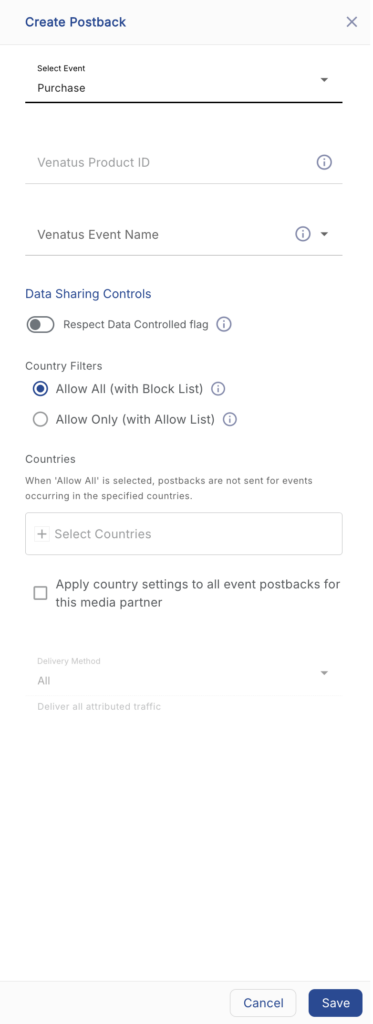
Post-Install Event Postback Configuration:
- Select App Configurations > Partner Configuration.
- Expand the Venatus SAN Partner Configuration.
- Select + Add a Postback.
- Select the desired Event.
- Enter the Venatus Product ID.
- Select the Venatus Event Name.
- Click Save.
Standard Post-Install Event List:
| Key | Description |
|---|---|
| first_open | When a user launches your app for the first time. |
| trial | When a user successfully signs up for a given trial product. |
| subscription | When a user pays for a subscription. |
| sign_up | When a user completes an app sign up. |
| share_with_friend | Link shared with contact. |
| purchase | Item has been purchased. |
Click and Impression Attribution Macros:
Click-through attribution, also known as click tracking, is the term used when a click leads to a user action within a certain attribution window. View-through attribution, also known as impression tracking, is the term used when an impression leads to a user action within a certain attribution window. The attribution window is supported for 7 day click lookback and 14 day impression lookback to meet your business needs.
| URL Parameters | Description | Type |
|---|---|---|
| campaign_name | Name of the campaign. | string |
| campaign_id | ID of the campaign. | string |
| creative_name | Name of the creative. | string |
| creative_id | ID of the creative. | string |
| country | 2 Digit country code where ad was served. | string |
| platform | The platform of the device where the ad was served. | string |
| device_model | Device Model of device where the ad was served. | string |
| os_name | Name of the operating system of the device where the ad was served. | string |
| os_version | Operating system version of the device where the ad was served. | string |
| user_agent | User agent of the device where the ad was served. | string |
| ad_type | The type of ad served. | string |
Example Attribution Response
Match:
{
"success": true,
            "attributionMode": "BMA",
	"type": "impression",
	"metadata": {
		"creative_id": "Sample Creative",
		"site_id": "7774bc1af39681954243777812cb7009",
		"unix_date": "1476137388"
	},
	"match": {
		"idfa": "777583CD-A667-48BC-B806-444CB2B48606"
	}
}
No Match:
{
    "success": false,
    "attribution_mode": "BMA",
    "type": null,
    "matched_by": null,
    "matched_by_keys": null,
    "metadata": null,
    "match": null
}