
The following document describes how to set up a campaign for TitanOS – SAN. Kochava enhances your install and event data with the TitanOS – SAN ad impression or click metadata directly from TitanOS – SAN to allow for extremely accurate and complete data.
Data Needed Before Beginning Process:
- TitanOS Product ID.
- TitanOS Event Name.
Create a Link for a TitanOS – SAN Install Campaign
- Select Engagement > Campaign Manager.
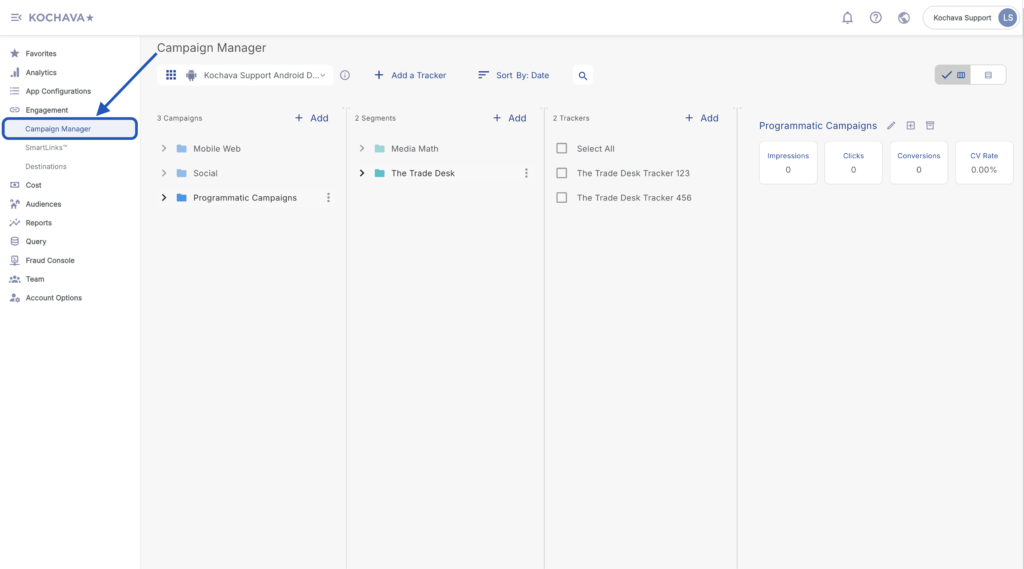
- Select the desired Campaign & Segment, or create new ones.
- Click + Add (Tracker).
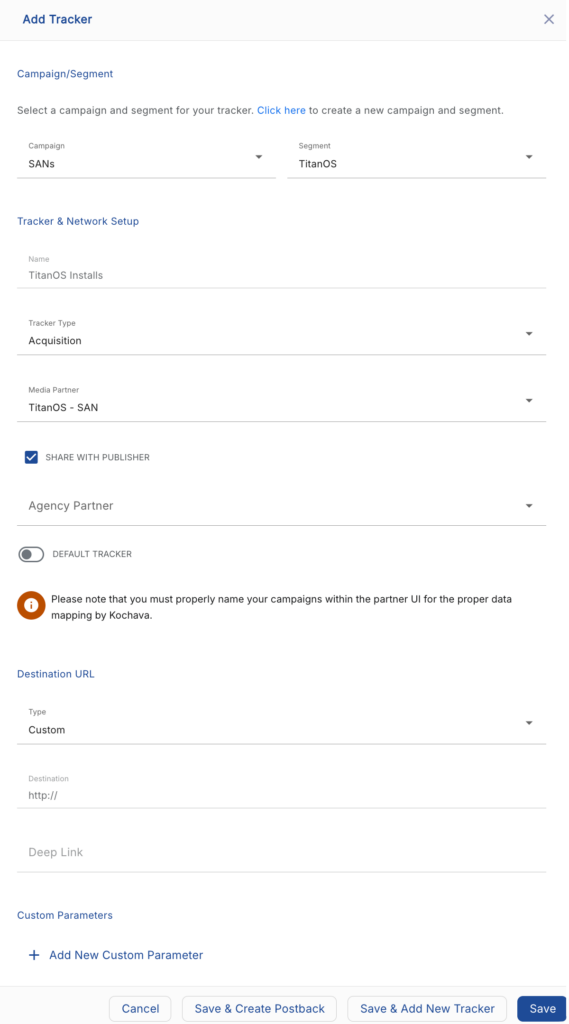
- Enter the Tracker Name.
- Select Tracker Type > Acquisition. (default setting)
- Select Media Partner > TitanOS – SAN.
- Select Agency Partner. (optional)
- Enter the Destination URL.
- Enter a Deep Link. (optional)
- Enter any Custom Parameter(s). (optional)
- Click Save. (If no further trackers need to be created)
- Click Save & Add Another Tracker. (If additional trackers need to be created)
- Click Save & Create Postback (to navigate directly to the Partner Configuration page).
Install Postback Configuration
- Select App Configurations > Partner Configuration.
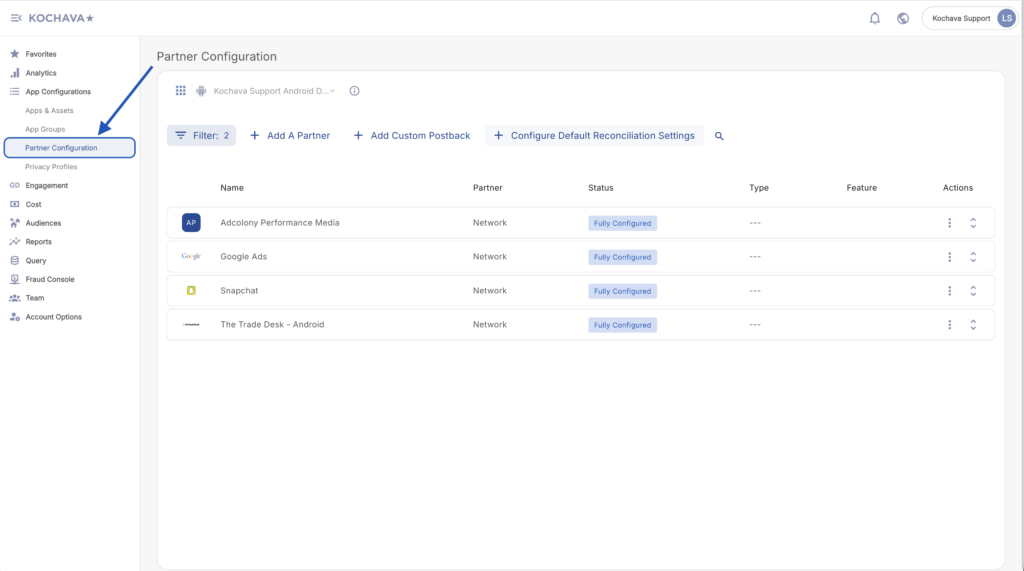
- Click + Add a Partner.
- Select Media Partner > TitanOS – SAN.
- Click Next.
- Verify Status: Active
- Click Save.
- Expand the TitanOS – SAN Partner Configuration.
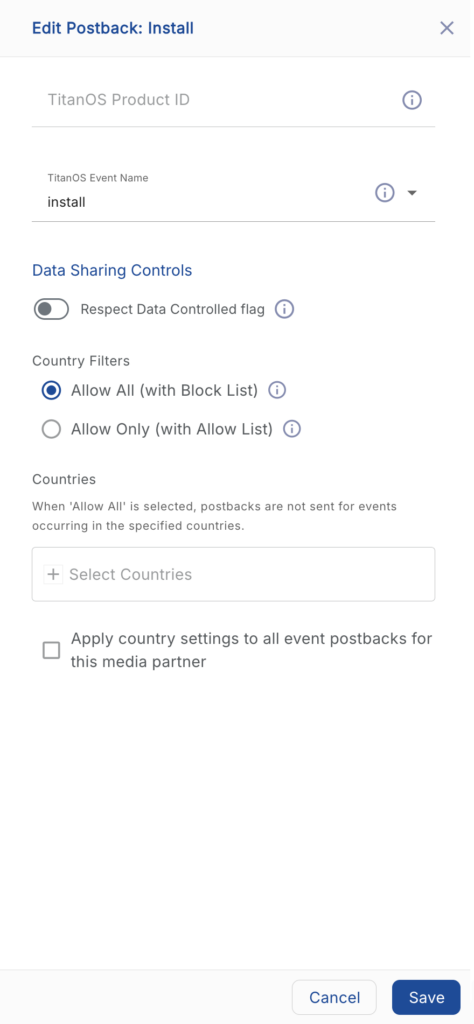
- Select Install > ⚙ (Edit).
- Enter the TitanOS Product ID.
- Enter the TitanOS Event Name for the product.
- Click Save.
Reengagement Configuration
The information within this section provides the steps necessary to establish a reengagment campaign. If a reengagment campaign does not need to be created, the information in this section may be disregarded.
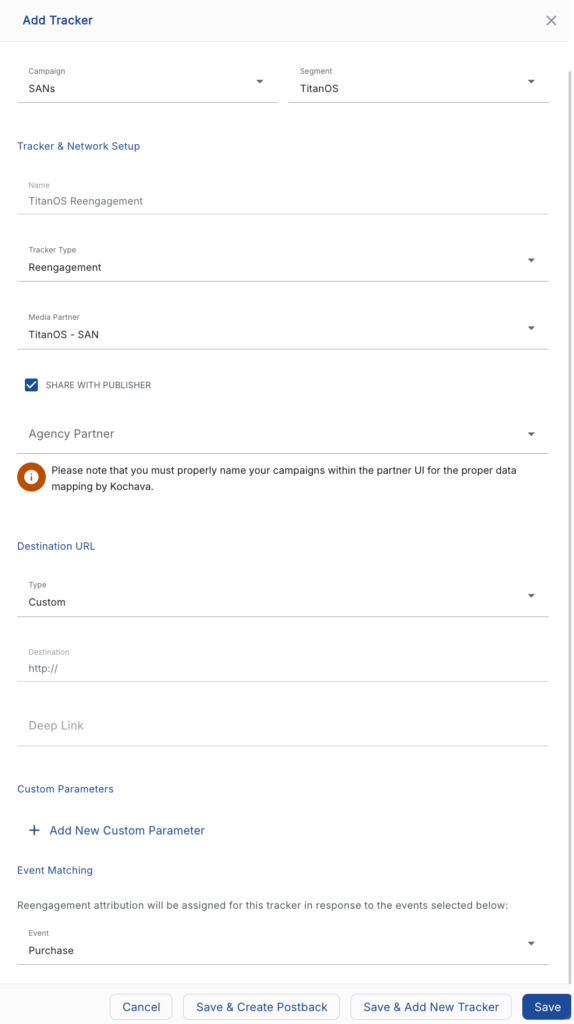
Create a Reengagement Tracker:
- Navigate to Engagement > Campaign Manager.
- Select desired Campaign & Segment, or create new ones.
- Click + Add (Tracker).
- Enter a Tracker Name.
- Select Tracker Type > Reengagement.
- Select Media Partner > TitanOS – SAN.
- Select an Agency Partner. (optional)
- In the Event Matching section, select the desired Reengagement Events(s).
- Click Save (If no further trackers need to be created).
- Click Save & Create Postback (to navigate directly to the Partner Configuration page).
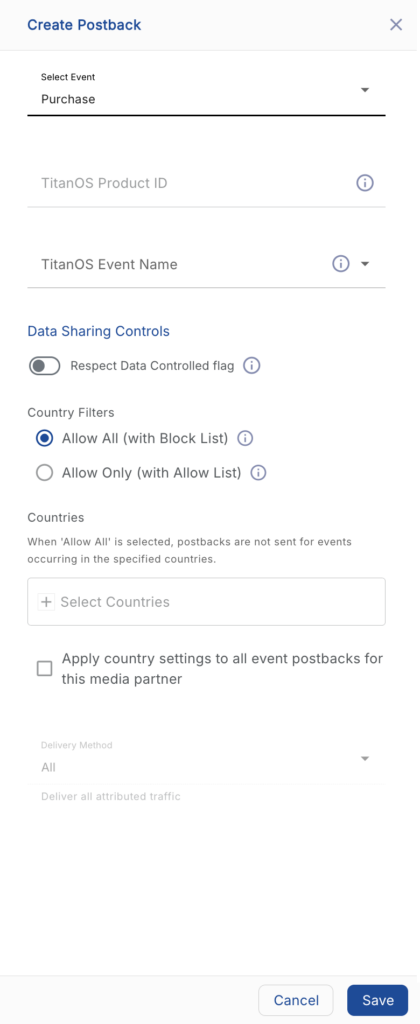
Post-Install Event Postback Configuration:
- Select App Configurations > Partner Configuration.
- Expand the TitanOS – SAN Partner Configuration.
- Select + Add a Postback.
- Select the desired Event.
- Enter the TitanOS Product ID.
- Enter the TitanOS Event Name.
- Click Save.
Standard Post-Install Event List:
| Key | Description |
|---|---|
| first_open | The install or first launch of the application. |
| session_start | When a user successfully launches an instance of the app. |
| trial | When a user successfully signs up for a given trial product. |
| sign_up | When a user completes an account sign up. |
| subscription | When a user pays for a subscription. |
| checkout_start | User has begun checkout of items in cart. |
| level_complete | When the user completes a level within the app. |
| purchase | Item has been purchased. |
| share_with_friend | Link shared with contact. |
| ad_initiate | Ad has been started. |
| first_video_view | When the user makes the initial video view. |
| vieo_view | Video complete. |
Click and Impression Attribution Macros:
Click-through attribution, also known as click tracking, is the term used when a click leads to a user action within a certain attribution window. View-through attribution, also known as impression tracking, is the term used when an impression leads to a user action within a certain attribution window. The attribution window is supported for 30 day click lookback and 14 day impression lookback to meet your business needs.
| URL Parameters | Description | Type |
|---|---|---|
| campaign_id | Campaign ID of impression and click. | string |
| campaign_name | The campaign name associated with impression and click. | |
| ad_type | The type of ad served. | string |
| ad_size | The size of the ad served. | string |
| device_model | The device model where the ad was served. | string |
| country | 2 Digit country code where ad was served. |