
The following document describes how to set up a campaign for Amazon’s Self Attributing Network (SAN). Kochava enhances your install and event data with the Amazon ad impression or click metadata directly from Amazon to allow for extremely accurate and complete data.
Data Needed Before Beginning Process:
- Amazon Ads Advertiser ID
- Amazon Ads Conversion Type
- Bundle ID
- Amazon Ads ASIN
Create an Install Tracker:
- Log in to Kochava.
- Select the desired Account and App.
- Select Engagement > Campaign Manager.
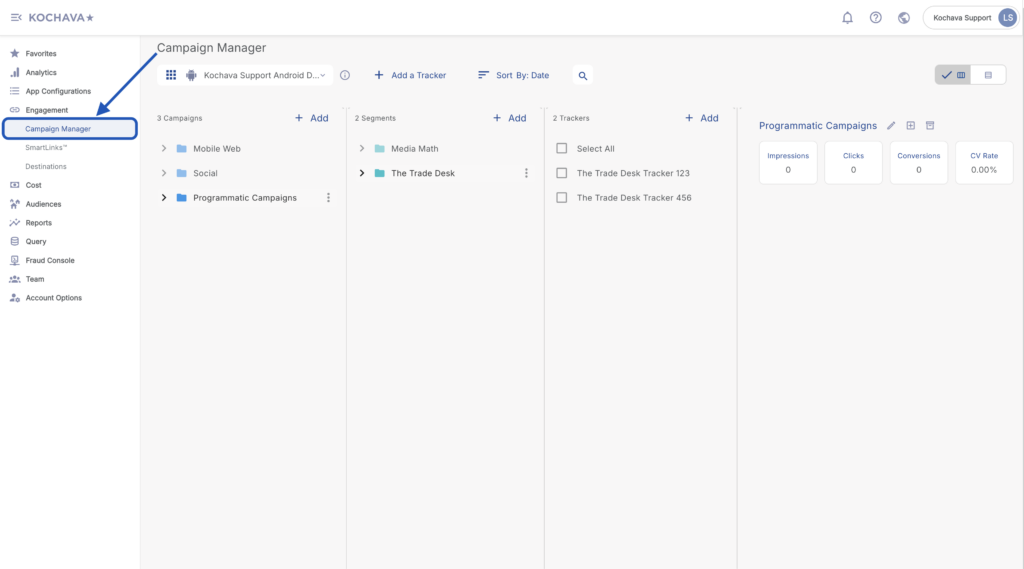
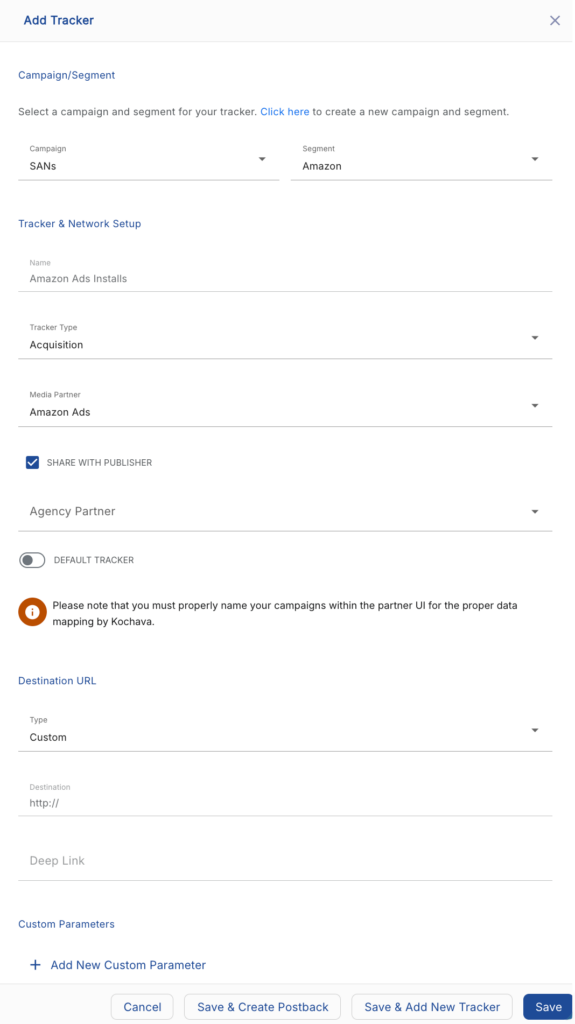
- Select the desired Campaign & Segment, or create new ones.
- Click + Add (Tracker).
- Select Tracker Type > Acquisition. (default setting)
- Select Media Partner > Amazon Ads.
- Select Agency Partner. (optional)
- Select Default Tracker:
- On
- Off (default)
- Enter a Deep Link. (optional)
- Enter any Custom Parameter(s). (optional)
- Click Save. (If no further trackers need to be created)
- Click Save & Add Another Tracker. (If additional trackers need to be created)
- Click Save & Create Postback (to navigate directly to the Partner Configuration page).
Install Postback Configuration:
- Select App Configurations > Partner Configuration.
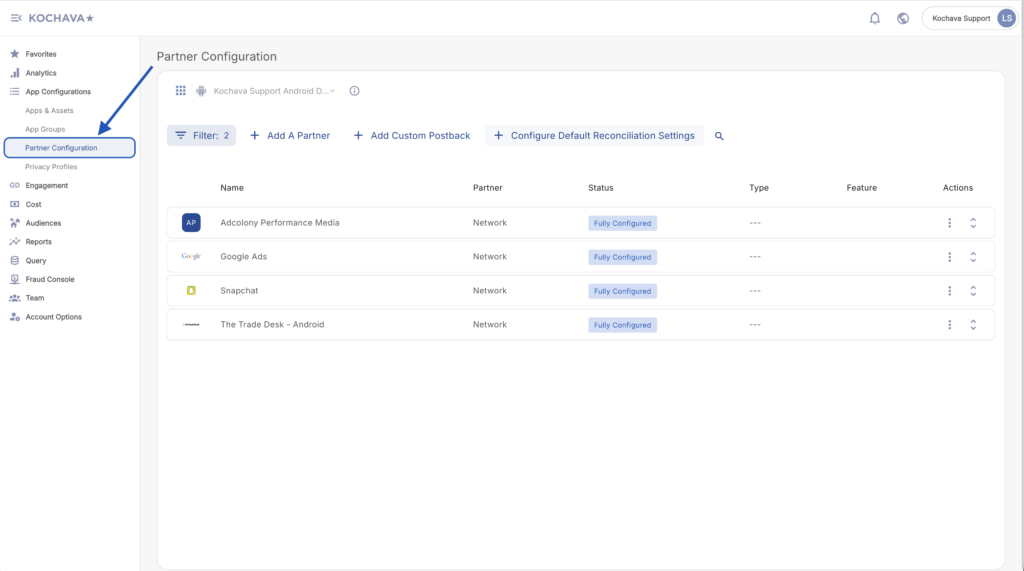
- Click + Add a Partner.
- Select Media Partner > Amazon Ads.
- Click Next.
- Verify Status: Active.
- Click Save.
- Expand the Amazon Ads Partner Configuration.
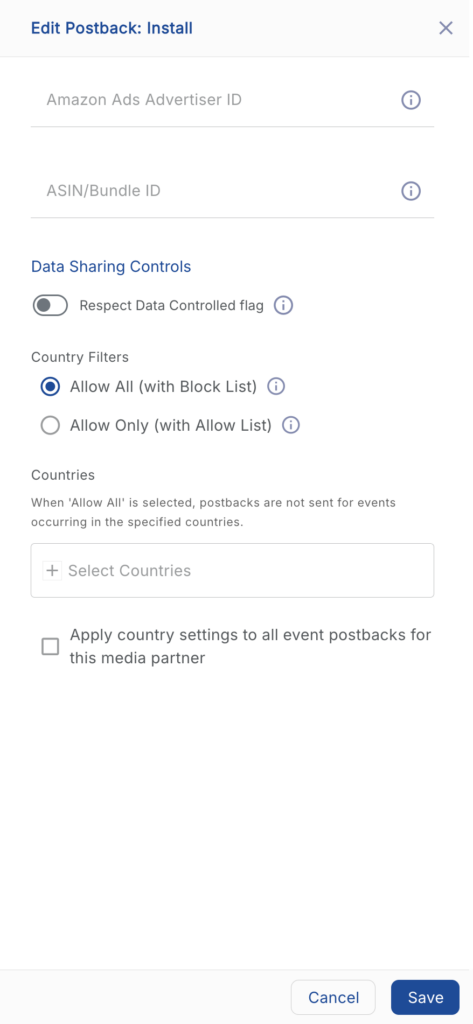
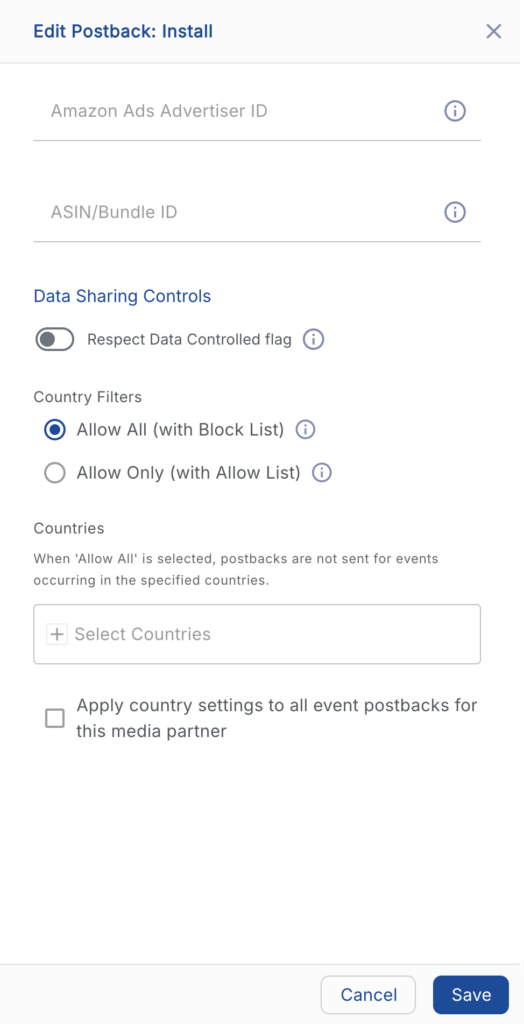
- Select Install > ⚙ (Edit) .
- Enter the Amazon Ads Advertiser ID.
- Enter the Amazon Ads ASIN or Bundle ID as guided by Amazon.
- Click Save.
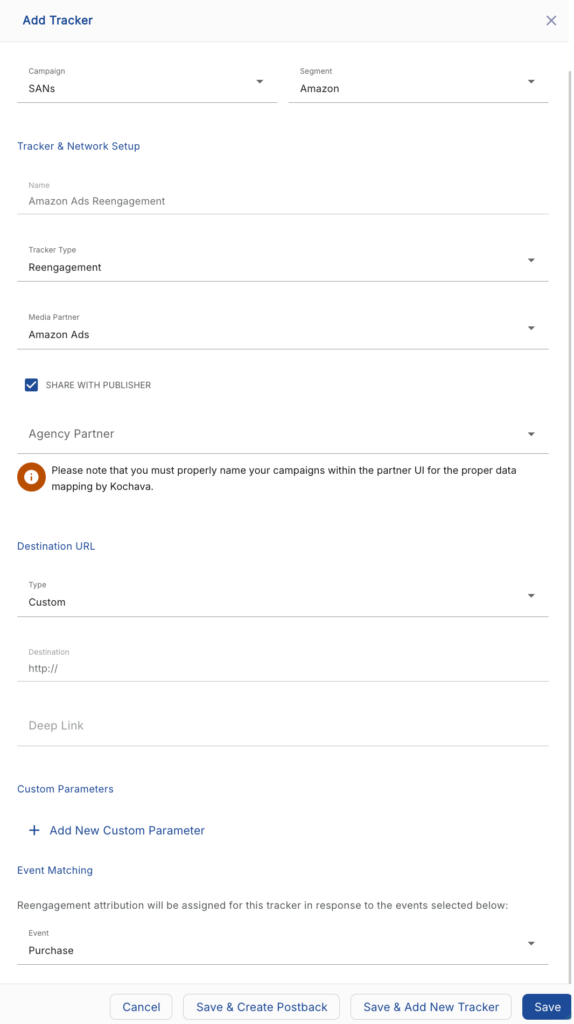
Create a Reengagement Tracker:
- Navigate to Engagement > Campaign Manager.
- Select the desired Campaign & Segment, or create new ones.
- Click + Add (Tracker).
- Enter a Tracker Name.
- Select Tracker Type > Reengagement.
- Select Media Partner > Amazon Ads.
- Select an Agency Partner. (optional)
- Select the Amazon Ads Event that will map to the selected Kochava event.
- Add Reengagement Event.
- Click Save (If no further trackers need to be created).
- Click Save & Add Another Tracker (If additional events need to be created).
- Click Save & Create Postback (to navigate directly to the Partner Configuration page).
Reengagement Postback Configuration:
- Select App Configurations > Partner Configuration.
- Expand Amazon Ads Postbacks.
- Select + Add a Postback.
- Select the desired Event.
- Enter the Amazon Ads Advertiser ID.
- Select the desired Amazon Ads Conversion Type.
- Enter the Amazon Ads ASIN or Bundle ID as guided by Amazon.
- Click Save.
Standard Post-Install Event List:
- Add_to_Shopping_Cart – When a user adds a product to their shopping cart.
- Application – When a user submits an application.
- Checkout – When a user goes to the checkout page.
- Contact – When a user supplies contact information, such as email, phone number, etc.
- Lead – When a user performs an action that initiates a sales lead.
- Off_Amazon_Purchases – When a user makes a purchase for a service or product.
- Page_View – When a user visits a page on your website.
- Search – When a user performs a search for a product.
- Sign_Up – When a user signs up for a product or service.
- Subscribe – When a user signs up for your service.
- Other – User events that don’t fit the definition of the standard conversion types.
- Mobile_App_First_Start – When a user launches the mobile app for the first time.
Example — Successful Attribution Response:
{
  "ad_name": "777835295469351497-AMZN US Fire TV Inline Home",
  "ad_size": "1200x102",
  "app_id": "ad777a07b44840eee7984e9994b8adad",
  "campaign_name": "777942549829950444-Sling FTV Rotational Q1 Campaign - AMZN US Fire TV Inline Home - News",
  "creative_id": "777579093742755999",
  "device_id": "---",
  "device_id_type": "adid",
  "event_id": "---",
  "fire_adid": "---",
  "site_id": "77799247d0c04edea1baaa73fbd52fff-FireTV Service",
  "site_name": "77799247d0c04edea1baaa73fbd52fff-FireTV Service",
  "source_name": "MOBILEAPP_AMAZON_FIRE_TV",
  "timestamp": "2022-05-01T03:58:45Z",
  "unix_date": 1651377525000,
}