1. Home
  2. Marketers
  3. Campaign Management
  4. Create an X Reengagement Campaign
  1. Home
  2. Marketers
  3. Create an X Reengagement Campaign

Create an X Reengagement Campaign


X is a SAN (Self-Attributing Network) and can be configured to claim events as re-engagement conversions. The following document defines the process for creating an X reengagement campaign within Kochava.

NOTE: Before the X reengagement campaign can be setup within Kochava, ensure that an X Ads account has been created, and at least one X Ads account has been authenticated within Kochava. For more information on authenticating with X, refer to our Create an X Install Campaign support documentation.

NOTE: Before post-install events will appear in your X Ads account for use in X app reengagement campaigns, you must complete the steps in this document. Specifically, you must create a Kochava reengagement tracker with a single post-install event selected, along with a corresponding postback configured for that same event. Once complete, Kochava will begin sending event data to X.

NOTE: The reengagement tracker and corresponding postback set up in Kochava sends event data to X to build audiences, retarget known users, and track conversions from reengagement efforts. If no corresponding app reengagement campaigns are set up within X, Kochava will still send event data to X for audience construction and targeting, but conversion events will not be attributed to any reengagement campaign.

CAUTION: With a recent X update, a key/value pair was added called is_granular_data_sharing_allowed. When the value for this key is set to false the end user has requested that their data not be shared with the advertiser and Kochava will reject the claim and move to the next best attribution fit. Kochava HIGHLY recommends that advertisers join the X Advanced Mobile Measurement Program (AMMP). Once the advertiser has joined AMMP, X can provide the data needed for accurate measurement and you may receive expanded device-level data after granting X the right to perform an audit to ensure that X data is being used exclusively for measurement purposes. This is consistent with common practices throughout the industry. By joining X’s AMM Program, you’ll receive more complete device-level data, which will in turn reduce the discrepancy between our report and X’s dashboard. If AMMP is not joined, discrepancies between Kochava and X reporting will exist.


Create an X Reengagement Tracker

  1. Log in to Kochava.
  2. Select the desired Account and App.
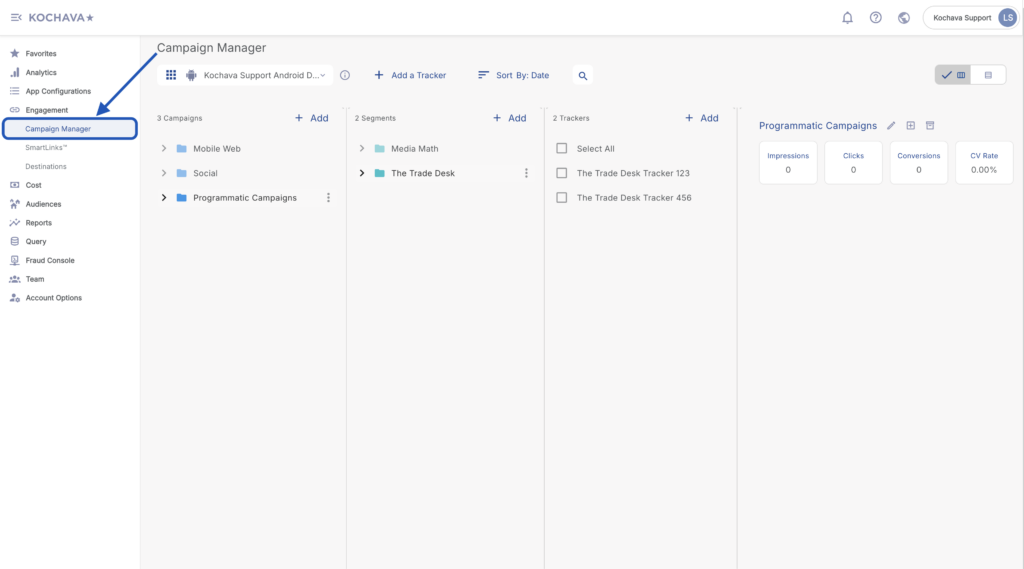
  3. Select Engagement > Campaign Manager.

Feature Note: To add this menu item to your Favorites Menu, select the “+” sign that appears when you hover over the menu. The Features Menu provides quick access to your most frequently visited areas of the Kochava UI.

  1. Select the desired Campaign & Segment, or create new ones.
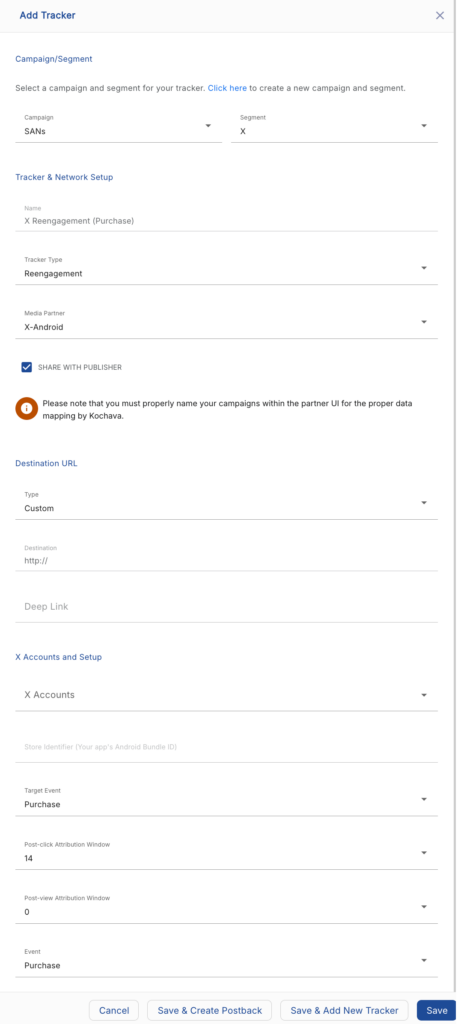
  2. Click + Add (Tracker).
  3. Enter a unique Tracker Name.
  4. Select Tracker Type > Reengagement.
  5. Select a Network > X:
    1. X—Android (Android)
    2. X—iOS (iOS)
  1. Select Default Tracker:
    1. On
    2. Off (default)

NOTE: Selecting On will allow SAN network traffic to funnel to the default tracker when no tracker ID is present. If a default tracker is not set up and the tracker ID is not appended to the partner campaign name, that data will be bucketed in the most recently set up tracker for that network.

NOTE: A destination URL is not necessary as X handles the click redirects.

Only a user who has Authenticated with X will have access to the “X Accounts and Setup” section to complete the Tracker Setup.

  1. Select the desired X account(s).

NOTE: Multiple X accounts may be selected as long as they have been authenticated.

  1. Enter the App Bundle ID (If not entered during app creation/editing). For further information about locating the Bundle ID, click here.
NOTE: The App Bundle ID may be entered when the app was added to Kochava. If the App Bundle ID is entered when an app is created or edited, the ID will be automatically populated into the tracker.

  1. Select the Target Event.

NOTE: The X Target Event should match the event that will be tracked through Kochava. If there is not an exact match for the events listed in the Event Matching section, choose the closest match to maintain a handle on changes to event naming convention between X/Kochava.

  1. Select the Post-Engagement Attribution Window.

NOTE: By default, the Post-Engagement Attribution Window is set to 14 days.

  1. Select the Post-View Attribution Window.

NOTE: By default, the Post-View Attribution Window is set to 0 days. The Attribution Window setting selected here is recommended to match the attribution window that is within X. If the attribution windows do not match, there will be discrepancies in the data reported.

  1. Select the Event Matching Event.

NOTE: Reengagement attribution will be assigned for the created tracker in response to the event that is selected within the Event Matching drop-down.

  1. Click Submit. (If no further trackers need to be created)
  2. Click Save and Add Another Tracker. (If additional trackers need to be created)
  3. Click Save & Create Postback. (To navigate directly to the Partner Configuration page)

Create an X Event Postback

  1. Log in to Kochava.
  2. Select the desired Account and App.
  3. Select App Configurations > Partner Configuration.
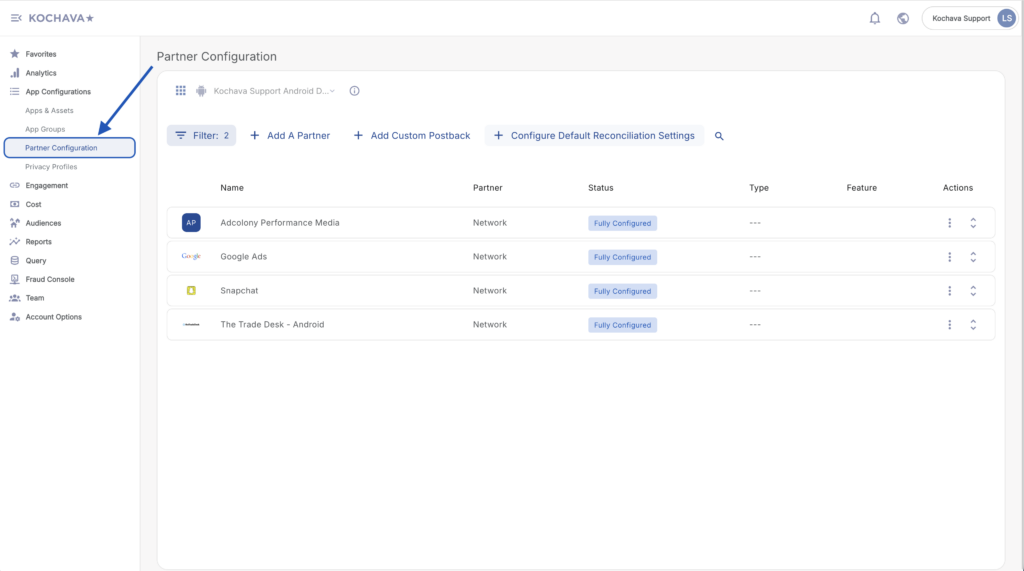
Feature Note: To add this menu item to your Favorites Menu, select the “+” sign that appears when you hover over the menu. The Features Menu provides quick access to your most frequently visited areas of the Kochava UI.

  1. Locate and expand Network Configuration > X:
    1. X—iOS
    2. X—Android
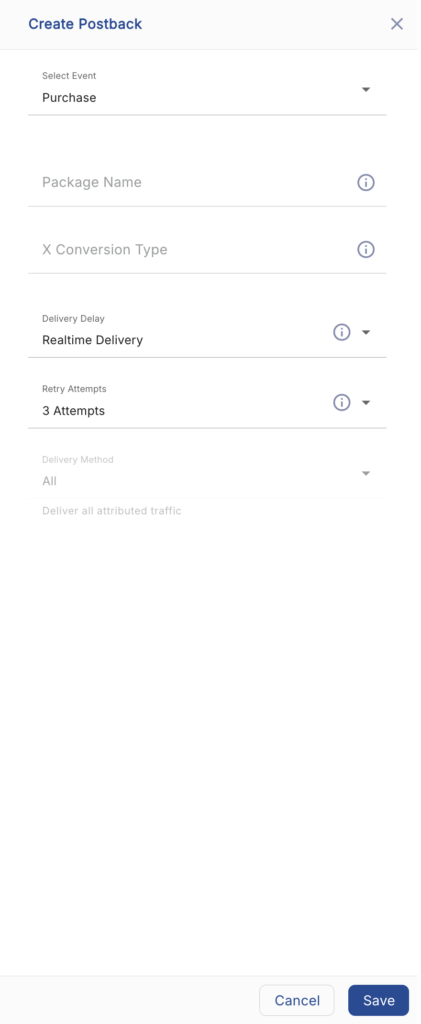
  2. Select + Add a Postback.
  3. Select the desired Event.
  4. Enter the App ID:
    1. iTunes App ID (iOS)
    2. Package Name (Android)
  5. Enter the X Conversion Type.

NOTE: The X Conversion Type must match the conventions established by X. For a list of X events, click here.

  1. Select a Delivery Delay.

NOTE: By default, the Delivery Delay is set to Realtime Delivery.

  1. Select the number of Retry Attempts.

NOTE: By default, the number of Retry Attempts is set to 3 Attempts.

  1. Select the Delivery Method.

NOTE: By default, the Delivery Method is set to All.

  1. Click Save.

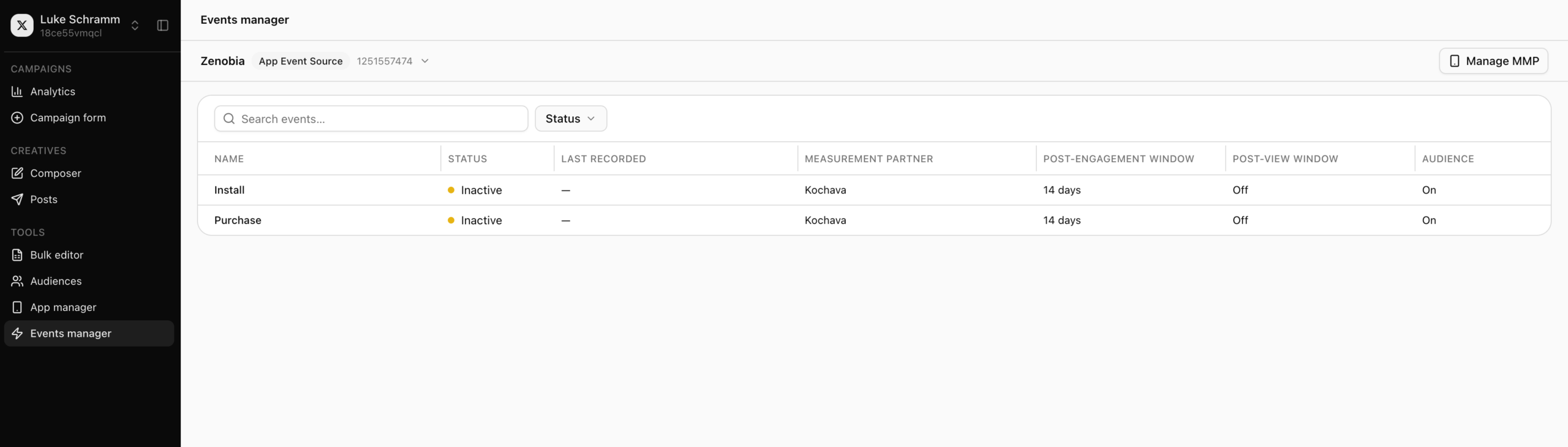
NOTE: As soon as you save your event Postback for X, Kochava’s system will begin sending event claim requests to X as soon as events are tracked for the app in Kochava.

As soon as the first event claim request is sent to X for the app, you will see the event appear in your Events manager page in your X Ads Account dashboard as seen in the screenshot below.

Updated on June 26, 2026

Was this article helpful?