
Custom Link Previews give marketers control over the branded card displayed when a SmartLink is shared via iMessage, SMS, or social media. Previews are powered by Open Graph metadata and can be configured at the App Group level (as a default) or overridden at the individual SmartLink level. This article covers how to configure both.
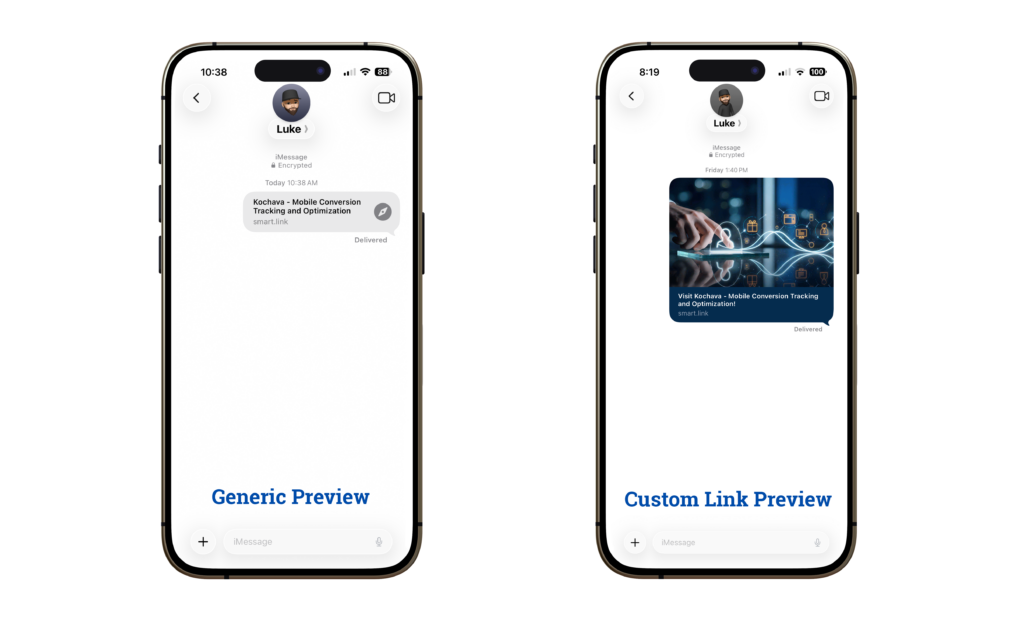
Marketers can configure previews at two levels:
- App Group level — Sets a brand-wide default that is automatically inherited by all SmartLinks within that group.
- Individual SmartLink level — Optionally overrides the App Group default with campaign- or link-specific branding.
High-Level Steps: How to Use the Tool
Custom Link Previews are configured in two places: at the App Group level (for a shared default) and optionally at the individual SmartLink level (for an override).
Prerequisites
Before configuring a Link Preview, confirm the following:
- An existing App Group, or permission to create one.
- An image asset ready to use. See the image specification callout in Part 1 below for sizing and format guidance.
Configuring the Link Preview at the App Group Level
The Link Preview configured at the App Group level serves as the default for all SmartLinks associated with that group. Complete this step first before configuring any SmartLink-level overrides.
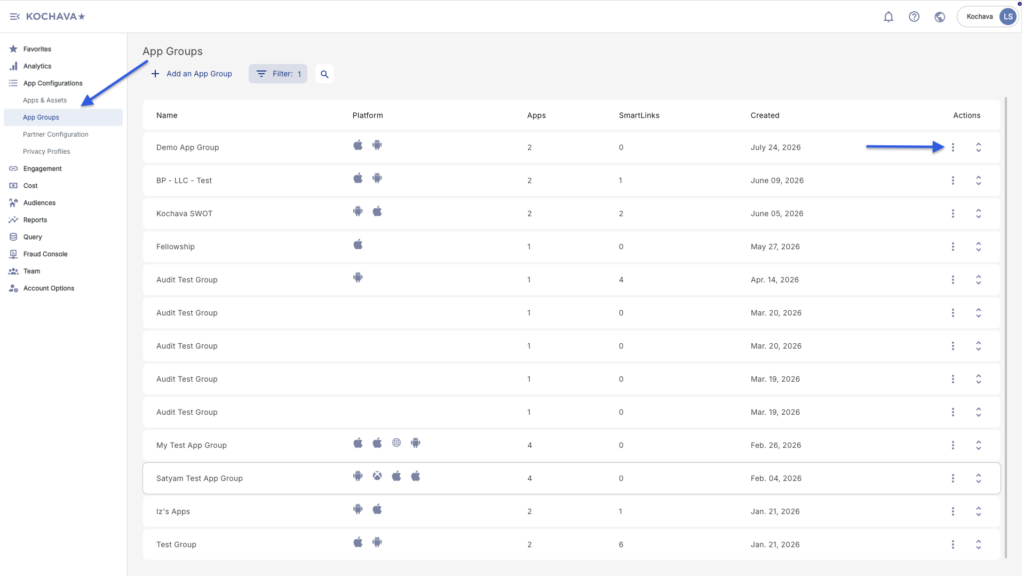
- Navigate to App Configurations → App Groups.
- Locate the App Group you want to configure. Click its action menu and select Edit.
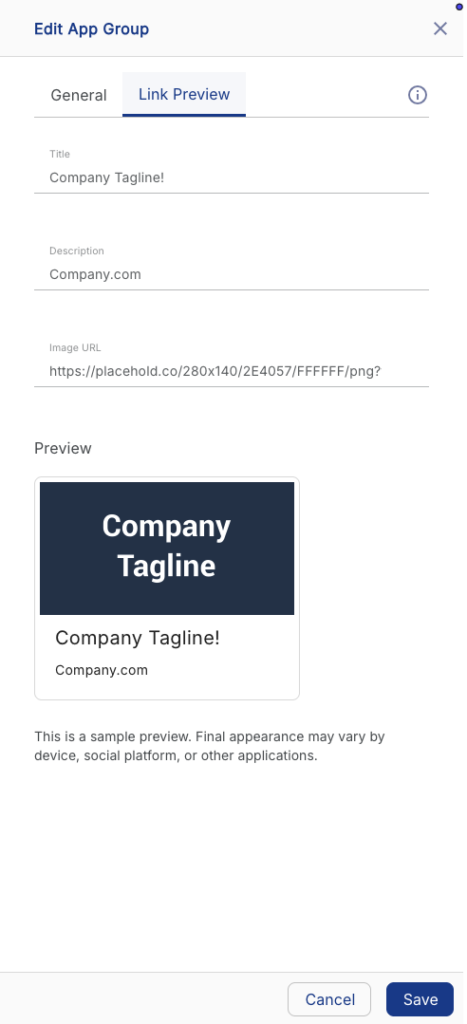
- In the Edit App Group drawer, click the Link Preview tab.
- Complete the following fields:
- Title — The headline text displayed in the preview card (e.g., your brand name or campaign tagline).
- Description — A short supporting line displayed below the title (e.g., your website domain or a brief call to action).
- Image URL — A direct URL to the image you want displayed in the preview card.
- Review the Live Preview card on the right side of the drawer. It renders a real-time preview of how the image, title, and description will appear when the link is shared. Confirm the preview looks correct before saving.
- Click Save. This preview becomes the default inherited by all SmartLinks in this group.
Applying the Link Preview to a SmartLink
Once an App Group has a Link Preview configured, that preview is automatically inherited by any SmartLink associated with that group. No additional configuration is required to apply the default.
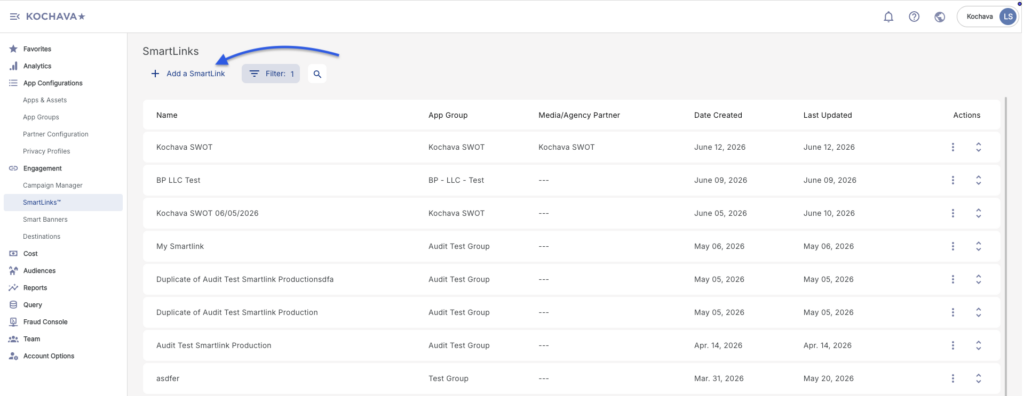
- Navigate to Engagement → SmartLinks™.
- Click Add a SmartLink (or open an existing one).
- On the General tab, select the appropriate App Group from the dropdown.
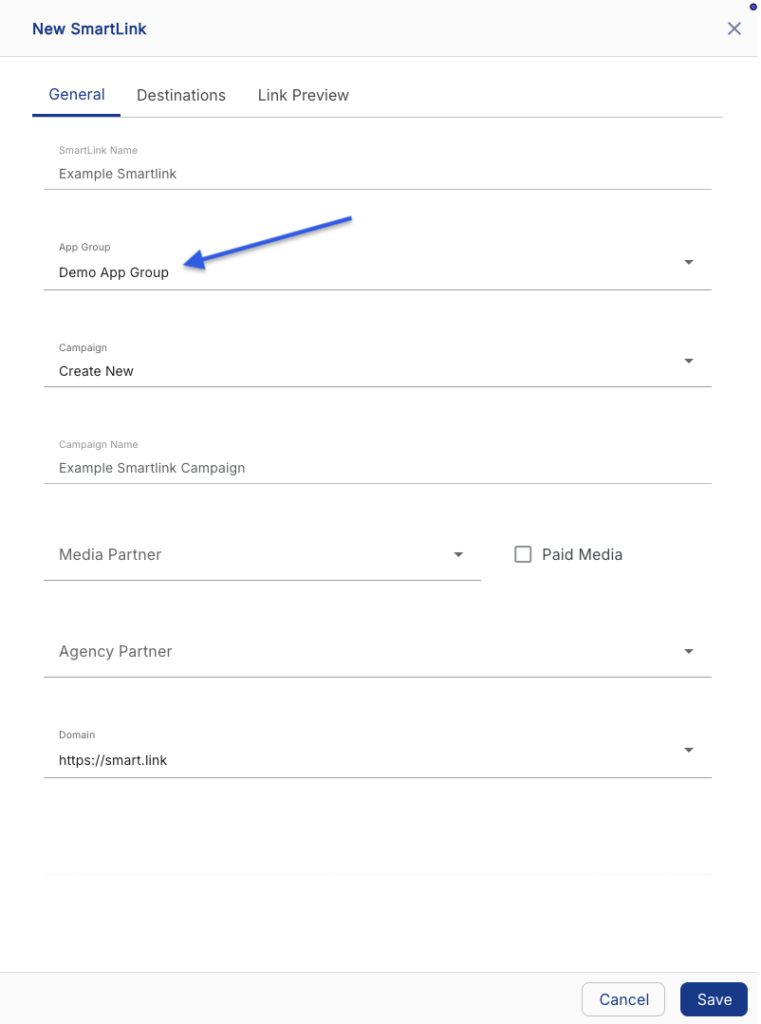
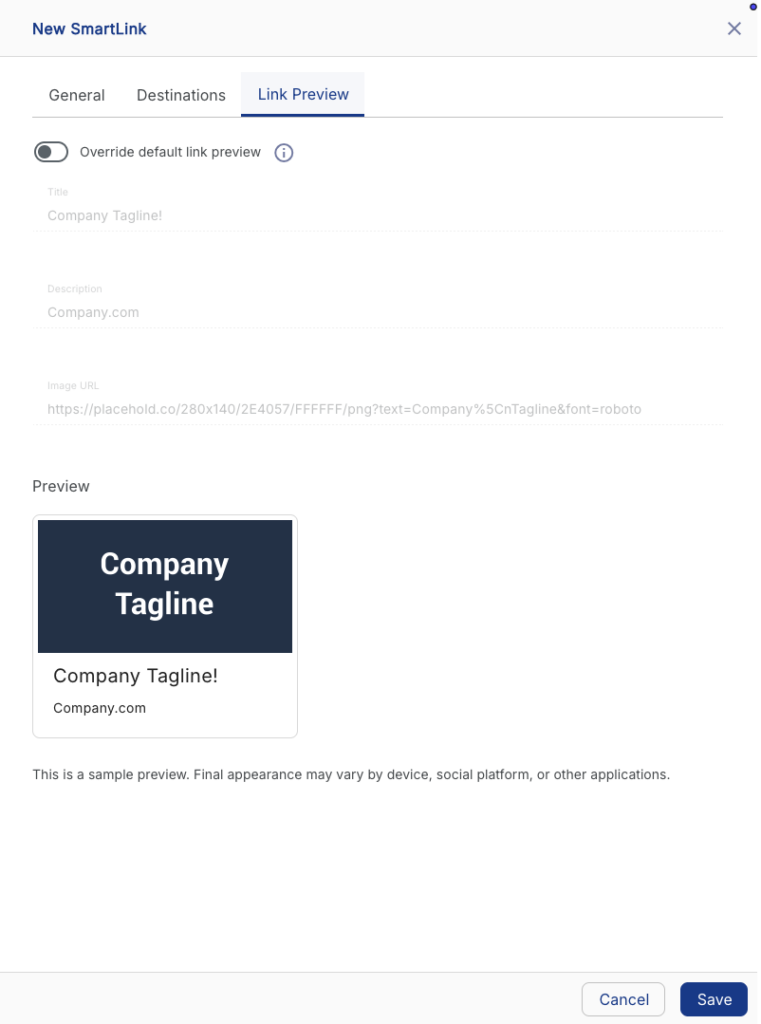
- Click the Link Preview tab — you’ll see the inherited App Group values displayed as read-only in the preview.
By default, the Override default link preview toggle is OFF. In this state:
- The Title, Description, and Image URL fields are pre-filled and read-only, showing the values inherited directly from the App Group.
- The Preview card renders the inherited values so you can confirm how the link will appear when shared.
- No changes are needed.
- Click Save to apply the inherited preview to this SmartLink.
Overriding the Link Preview for an Individual SmartLink
If a specific SmartLink requires different preview content than the App Group default — such as a campaign-specific image or custom call to action — you can override the inherited values at the SmartLink level.
- With the SmartLink open, click the Link Preview tab.
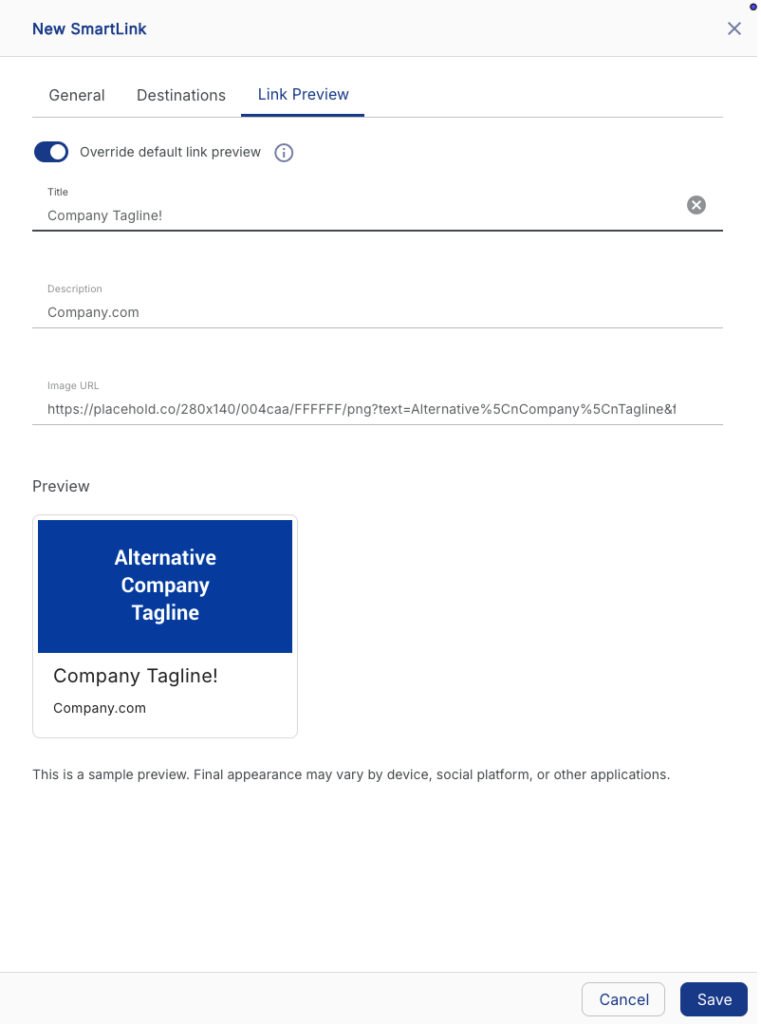
- Toggle Override default link preview to the ON position.
Once the toggle is enabled:
- The Title, Description, and Image URL fields become editable.
- The fields are pre-filled with the App Group’s values as a starting point, so you only need to change what’s different for this link.
- Update the Title, Description, and/or Image URL with the values specific to this SmartLink.
- Review the updated Preview card to confirm the branding looks correct.
- Click Save.
Platform-Specific Caching Behavior
Some social and messaging platforms cache link previews, which can affect how quickly a new or updated Custom Link Preview appears to recipients. Review the platform-specific behaviors below before sharing SmartLinks publicly.
Facebook, Messenger, and Instagram
Facebook caches link previews for up to 30 days. This has two practical implications:
- Existing links that were already shared — If a SmartLink was shared on Facebook before Custom Previews were configured, Facebook will continue to serve the old (generic) preview until the cache expires (~30 days). To force an immediate update, use the Facebook Sharing Debugger:
- Paste the SmartLink URL into the debugger.
- Click Scrape Again (click twice if needed to fully process a new image).
- The updated preview will appear for all future shares of that link.
- Posts that are already published — Once a SmartLink is embedded in a live Facebook post, that post’s preview is permanently locked to what was cached at the time of sharing. Re-scraping the URL will update the preview for future shares, but will not change the appearance of existing published posts.
Snapchat
SmartLinks shared on Snapchat prior to the Custom Previews feature launch may no longer route correctly. Because Snapchat content is designed with short natural expiration, this is unlikely to require action. SmartLinks shared after the feature launch will route as expected.
Summary & Quick Reference
The table below summarizes the two levels at which Link Previews can be configured and how they interact.
| Level | Where Configured | Behavior | When to Use |
|---|---|---|---|
| App Group Default | App Configurations → App Groups → Edit → Link Preview tab | Sets the default Title, Description, and Image URL inherited by all SmartLinks in the group. Read-only on the SmartLink unless overridden. | Use for brand-level or campaign-level defaults that apply across multiple SmartLinks. |
| SmartLink Override | Engagement → SmartLinks™ → [SmartLink] → Link Preview tab → Override toggle ON | Replaces the inherited App Group preview with SmartLink-specific values. Does not affect the App Group default or other SmartLinks. | Use when a specific SmartLink needs its own image, title, or description distinct from the group default. |