The following document defines the process for creating an InMobi campaign within Kochava.
Data Needed Before Beginning Process:
- InMobi Property ID
Create an InMobi Campaign
- Log in to Kochava.
- Select the desired Account and App.
- Select Engagement > Campaign Manager.
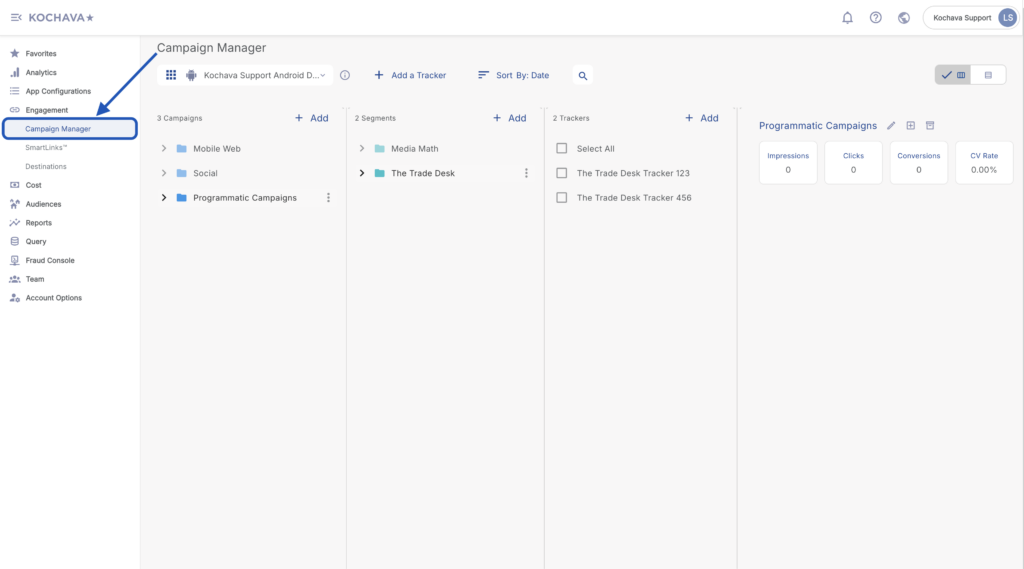
- Select the desired Campaign & Segment, or create new ones.
- Click + Add (Tracker).
- Enter the Tracker Name.
- Select Tracker Type > Acquisition. (default setting)
- Select a Media Partner:
- InMobi — iOS
- InMobi — Android
- InMobi — Windows
- Select an Agency Partner. (optional)
- Select the Destination URL Type:
- Custom
- Google Referrer (Android Only)
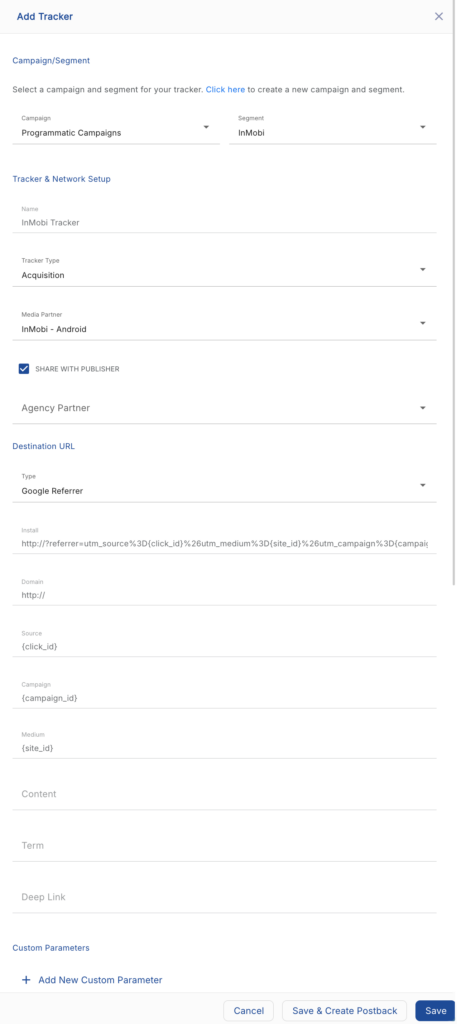
- Enter or update the Install Destination URL.
- Enter a Deep Link. (optional)
- Add a Custom Parameter. (optional)
- Click Add New Parameter.
- Enter the Custom Parameter.
- Add additional Custom Parameters. (optional)
- Click Save. (If no further trackers need to be created).
- Click Save & Add Another Tracker. (If additional trackers need to be created).
- Click Save & Create Postback. (To navigate directly to the Partner Configuration page).
Create a Postback Configuration
- Select App Configurations > Partner Configuration.
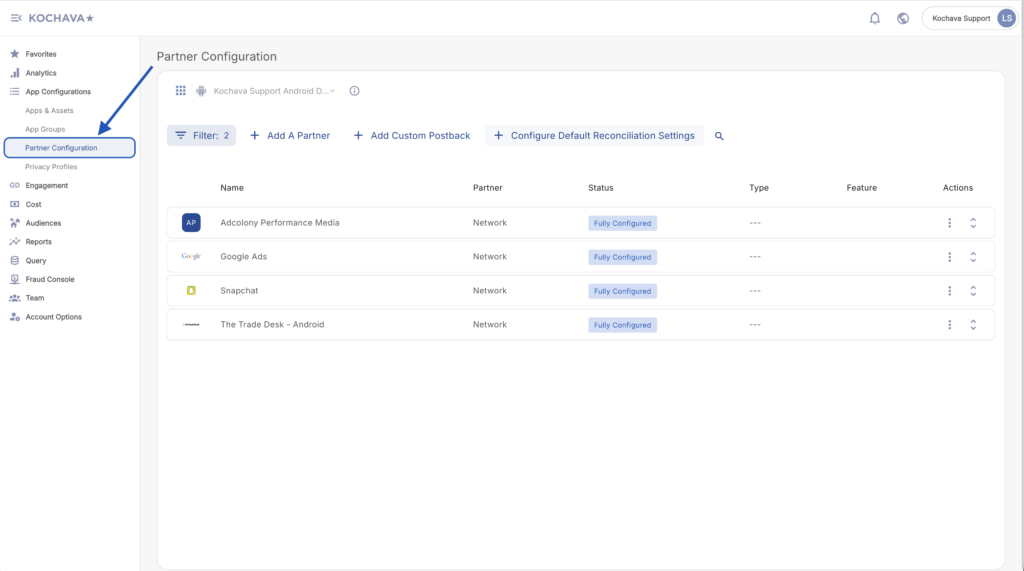
- Click + Add a Partner.
- Select a Network Partner:
- InMobi — iOS
- InMobi — Android
- InMobi — Windows
- Click Next.
- Verify Status: Active.
- Click Save.
- Expand InMobi Partner Configuration.
- Select Install > ⚙ (Edit).
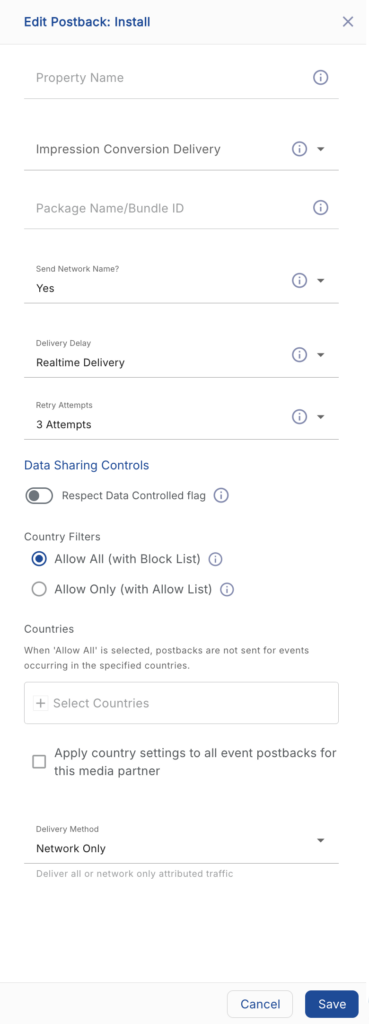
- Enter the Property Name. (obtained from InMobi)
- Select the Impression Conversion Delivery.
- Enter the Package Name/Bundle ID.
- Select the Delivery Delay.
- Select the number of Retry Attempts.
- Select the Delivery Method.
- Click Save.