1. Home
  2. Marketers
  3. Campaign Management
  4. Create a Localytics Campaign
  1. Home
  2. Marketers
  3. Create a Localytics Campaign

Create a Localytics Campaign


The following document defines the process for creating a Localytics campaign within Kochava.

Data Needed Before Beginning Process:

  • Localytics App ID
  • App Bundle ID or App Package Name

Create a Localytics Campaign

  1. Log in to Kochava.
  2. Select the desired Account and App.
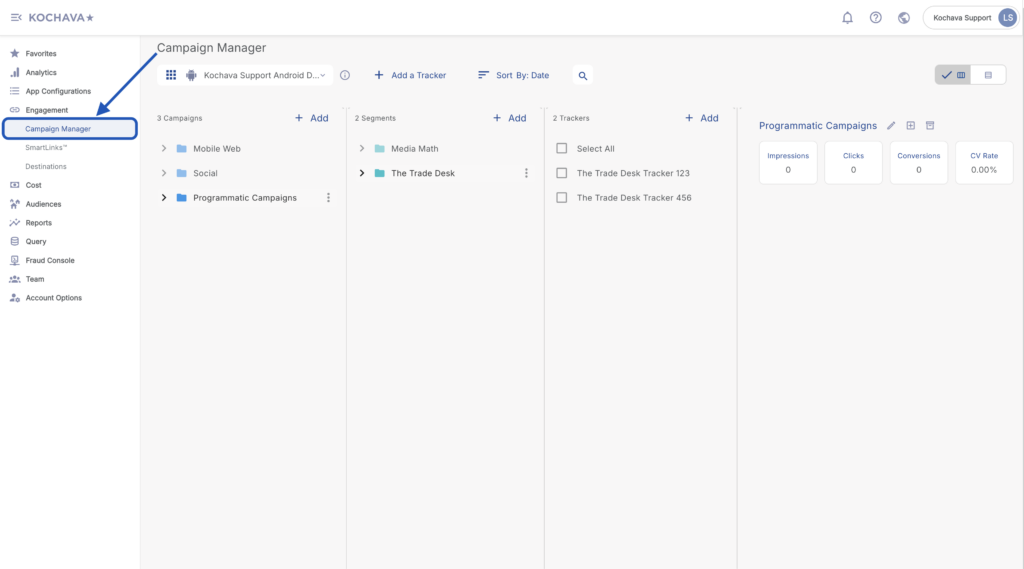
  3. Select Engagement > Campaign Manager.

Feature Note: To add this menu item to your Favorites Menu, select the “+” sign that appears when you hover over the menu. The Features Menu provides quick access to your most frequently visited areas of the Kochava UI.

  1. Select the desired Campaign & Segment, or create new ones.
  2. Click + Add (Tracker)

NOTE: In order to streamline the Campaign/Segment/Tracker creation process a feature has been added to allow the creation of campaigns and segments while creating a new tracker. For more information about creating a campaign or segment while adding a new tracker, refer to our Create an Install Campaign support document.

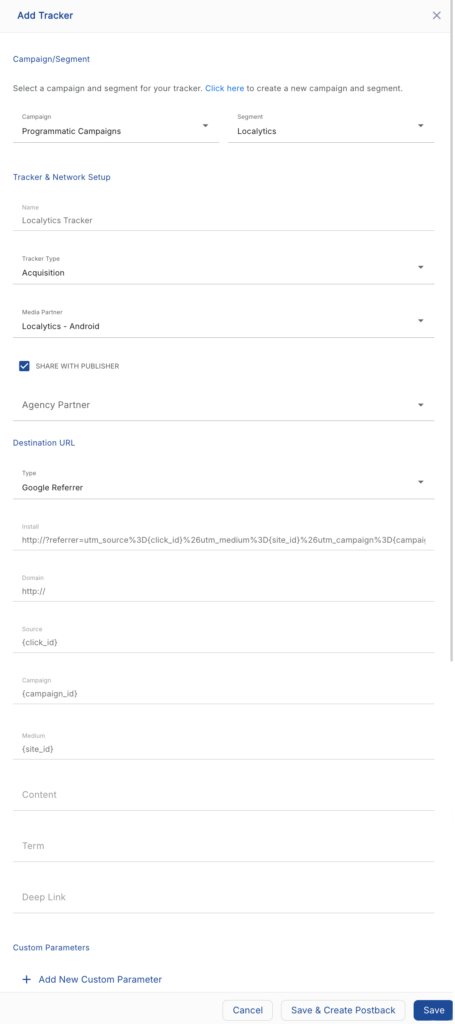
  1. Enter the Tracker Name.

NOTE: When a Tracker is created, Kochava automatically generates a name for the Tracker. We recommend that you replace the Tracker name at this point with a clear name of your choosing.

  1. Select Tracker Type > Acquisition. (default setting)
  2. Select Media Partner:
    1. Localytics — iOS
    2. Localytics — Android
  3. Select an Agency Partner. (optional)
  4. Select the Destination URL Type:
    1. Custom
    2. Google Referrer (Android Only)

NOTE: Google Referrer is set as the default destination type for Android apps. For the majority of Android install campaigns, Google Referrer is used for optimal conversion tracking. Google Referrer will only appear for Android based apps. If the Google Referrer Install URL needs to be updated, refer to our Update Google Referrer Install URL support documentation.

  1. Enter or update the Install Destination URL.
  2. Enter a Deep Link. (optional)

NOTE: For more information about deep links, refer to our Deep Linking support documentation.

  1. Add a Custom Parameter. (optional)
    1. Click Add New Parameter.
    2. Enter the Custom Parameter.
    3. Add additional Custom Parameters. (optional)

NOTE: At the Campaign Level, advertisers can utilize the Custom Parameter fields to track any custom aspect of their campaigns that they define. You can use cp_0 through cp_9 and they will be populated within their own columns in reporting. For assistance with Custom Parameters, contact your Client Success Managers.

NOTE: When a custom parameter is created, it is inserted automatically into the Click URL.

NOTE: In order to remove a custom parameter, Click the “X” associated with the specific parameter.

  1. Click Save. (If no further trackers need to be created).
  2. Click Save & Add Another Tracker. (If additional trackers need to be created).
  3. Click Save & Create Postback. (To navigate directly to the Partner Configuration page).

Create a Postback Configuration

  1. Select App Configurations > Partner Configuration.
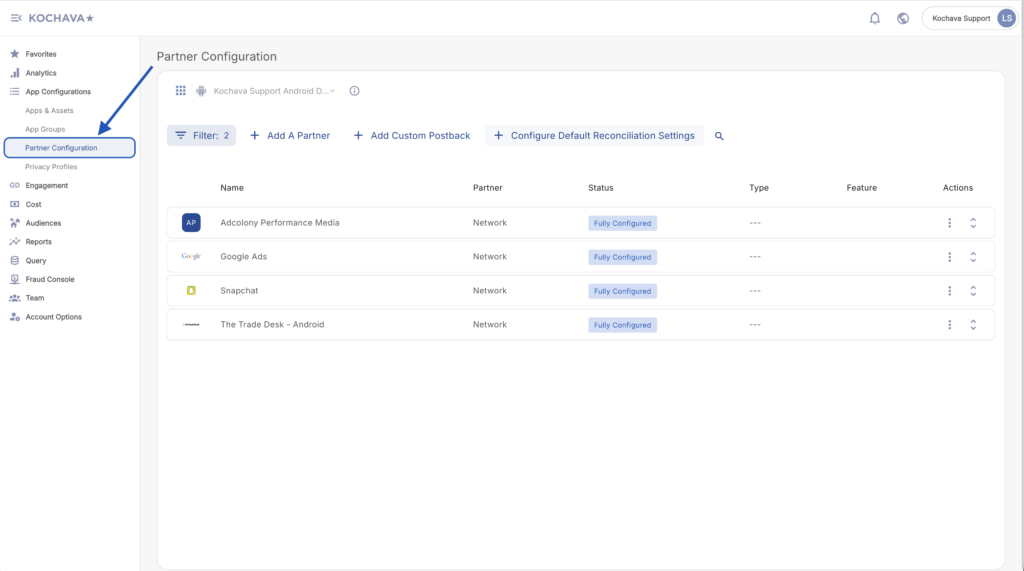
Feature Note: To add this menu item to your Favorites Menu, select the “+” sign that appears when you hover over the menu. The Features Menu provides quick access to your most frequently visited areas of the Kochava UI.

  1. Click + Add a Partner.
  2. Select Network Partner > Localytics:
    1. Localytics – iOS
    2. Localytics – Android
  3. Click Next.
  4. Verify Status: Active.
  5. Click Save.
  6. Expand Localytics Partner Configuration.
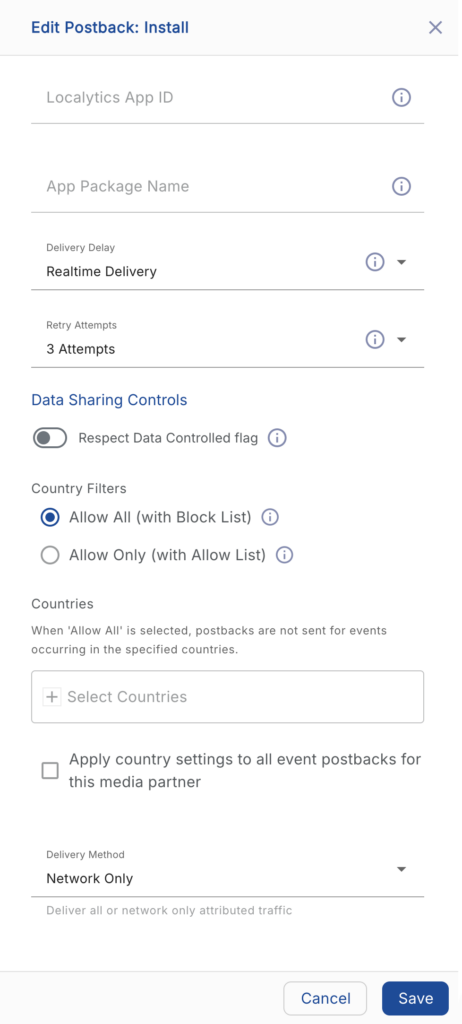
  7. Select Install > (Edit).
  8. Enter the Localytics App ID. (obtained from Localytics)
  9. Enter the App Bundle ID (iOS) or App Package Name (Android).

NOTE: For more information about locating the App Bundle ID, refer to our Locating the Apple Bundle ID support documentation.

  1. Select whether to Supply Network Data to Analytics Partner. (optional)
  2. Select the Delivery Delay. (optional)
  3. Select the number of Retry Attempts. (optional)
  4. Select the Delivery Method.
  5. Click Save.

Note: For more information on Data Sharing Controls, see this support documentation.

Updated on April 22, 2026

Was this article helpful?