
This feature is available only with paid Kochava accounts. Contact us to learn more.
The Kochava Web SDK is a javascript-based solution that provides marketers with Web Tracking capabilities. It can be integrated with a variety of web-based frameworks.
If you have already integrated the SDK and started it, please visit Using the SDK and choose a topic.
Integrating the SDK
Requirements:
- Google Tag Manager
Supported Platforms:
- Web (Browser)
Data Privacy:
Integration
Estimated Time to Complete
5 Minutes

Follow the steps below to integrate the Kochava Web SDK using Google Tag Manager:
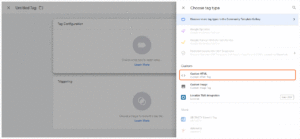
- In the Google Tag Manager UI, click Add a new tag.
- Click Tag Configuration.
- Choose Tag Type > Custom > Custom HTML.
- Prepare the SDK script — replace
SDK_VERSIONandSRI_HASHwith the current values from the Release Notes page (use the badge/Release Notes link above):
<script>function loadScript() {
  if (window.kochava) {
    console.log("Kochava snippet already included");
    return
  }

  // sdkVersion, sdkIntegrity
  // ⓘ Configure.  Look up the current SDK version and its matching SRI hash together
  //      on the Release Notes page, and update both as a pair whenever you upgrade.
  // a. sdkVersion.  Semantic.  Do not use a "v".
  // b. sdkIntegrity.  Hash must match the version's hash.
  var sdkVersion = "SDK_VERSION"; // [a]
  var sdkIntegrity = "SRI_HASH"; // [b]

  var kochavaScript = document.createElement("script");
  kochavaScript.type = "text/javascript";
  kochavaScript.src = "https://cdn.sdk.kochava.com/" + sdkVersion + "/measurement.js";
  kochavaScript.integrity = sdkIntegrity;
  kochavaScript.crossOrigin = "anonymous";
  kochavaScript.referrerPolicy = "no-referrer";
  kochavaScript.async = true;

  kochavaScript.onload = function() {
    // YOUR CODE HERE
  };
  document.head.appendChild(kochavaScript);
}

loadScript();</script>
Starting the SDK
Estimated Time to Complete
1 Minute
Once you have added the Kochava SDK to your project, the next step is to create and start the SDK class in code. Only your App GUID is required to start the SDK with the default settings, which is the case for typical integrations.
Kochava recommends starting the SDK as soon as the application starts, although this can be done later if needed. Starting the tracker as early as possible will ensure it is started before use, resulting in more accurate data/behavior.
Where your web page starts:
- (Optional) Make any desired pre-start configuration calls (registerIdentityLink, disableAutoPage, useCookies etc).
- Call startWithAppGuid using a valid Kochava App GUID.
Update the onload callback in the snippet you included earlier:
kochavaScript.onload = function() {
  // YOUR CODE HERE
  window.kochava.startWithAppGuid("YOUR_APP_GUID");
};
Optional Configuration
From here on, the SDK is integrated and ready, the following configuration calls are optional, and are only for special desired SDK behavior. The following code snippets should be placed at in the above snippet, at the comment labeled Optional pre-start calls will go here.
Disable Automatic Page Events:
Call this function with an argument of true to stop the SDK from automatically signaling a page event when the SDK starts.
<script>function loadScript() {
  if (window.kochava) {
    console.log("Kochava snippet already included");
    return
  }

  // sdkVersion, sdkIntegrity
  // ⓘ Configure.  Look up the current SDK version and its matching SRI hash together
  //      on the Release Notes page, and update both as a pair whenever you upgrade.
  // a. sdkVersion.  Semantic.  Do not use a "v".
  // b. sdkIntegrity.  Hash must match the version's hash.
  var sdkVersion = "SDK_VERSION"; // [a]
  var sdkIntegrity = "SRI_HASH"; // [b]

  var kochavaScript = document.createElement("script");
  kochavaScript.type = "text/javascript";
  kochavaScript.src = "https://cdn.sdk.kochava.com/" + sdkVersion + "/measurement.js";
  kochavaScript.integrity = sdkIntegrity;
  kochavaScript.crossOrigin = "anonymous";
  kochavaScript.referrerPolicy = "no-referrer";
  kochavaScript.async = true;

  kochavaScript.onload = function() {
     // Auto pages will be sent (default)
    window.kochava.disableAutoPage(false);


    // Auto pages will not be sent
    window.kochava.disableAutoPage(true);

     window.kochava.startWithAppGuid("YOUR_APP_GUID");
  };
  document.head.appendChild(kochavaScript);
}

loadScript();</script>
Using Cookie Storage:
Call this function with an argument of true to drop the Cookie on the website to track a device across sub-domains.
<script>function loadScript() {
  if (window.kochava) {
    console.log("Kochava snippet already included");
    return
  }

  // sdkVersion, sdkIntegrity
  // ⓘ Configure.  Look up the current SDK version and its matching SRI hash together
  //      on the Release Notes page, and update both as a pair whenever you upgrade.
  // a. sdkVersion.  Semantic.  Do not use a "v".
  // b. sdkIntegrity.  Hash must match the version's hash.
  var sdkVersion = "SDK_VERSION"; // [a]
  var sdkIntegrity = "SRI_HASH"; // [b]

  var kochavaScript = document.createElement("script");
  kochavaScript.type = "text/javascript";
  kochavaScript.src = "https://cdn.sdk.kochava.com/" + sdkVersion + "/measurement.js";
  kochavaScript.integrity = sdkIntegrity;
  kochavaScript.crossOrigin = "anonymous";
  kochavaScript.referrerPolicy = "no-referrer";
  kochavaScript.async = true;

  kochavaScript.onload = function() {
     // Will not use cookies (default)
    window.kochava.useCookies(false);


    // Will use cookies
    window.kochava.useCookies(true);


     window.kochava.startWithAppGuid("YOUR_APP_GUID");
  };
  document.head.appendChild(kochavaScript);
}

loadScript();</script>
Use the ES5 (Legacy Browser) Build:
Modern browsers should use the standard measurement.js build shown above. If you also want to support older browsers that require ES5, a separate measurement.es5.js build is available. Note that the size of the build is larger to accommodate the required backward compatibility. It has its own SRI hash, listed separately on the Release Notes page. Reference the ES5 filename and its matching hash:
<script>function loadScript() {
  if (window.kochava) {
    console.log("Kochava snippet already included");
    return
  }

  // sdkFile, sdkVersion, sdkIntegrity
  // ⓘ Configure.  Look up the current SDK version and its matching SRI hash together
  //      on the Release Notes page, and update both as a pair whenever you upgrade.
  // a. sdkFile.  Adding ".es5" build adds legacy browser support.
  // b. sdkVersion.  Semantic.  Do not use a "v".
  // c. sdkIntegrity.  Hash must match the variant you are using (ES5 when using .es5).
  var sdkFile = "measurement.es5.js"; // [a]
  var sdkVersion = "SDK_VERSION"; // [b]
  var sdkIntegrity = "SRI_HASH_ES5"; // [c]

  var kochavaScript = document.createElement("script");
  kochavaScript.type = "text/javascript";
  kochavaScript.src = "https://cdn.sdk.kochava.com/" + sdkVersion + "/" + sdkFile;
  kochavaScript.integrity = sdkIntegrity;
  kochavaScript.crossOrigin = "anonymous";
  kochavaScript.referrerPolicy = "no-referrer";
  kochavaScript.async = true;

  kochavaScript.onload = function() {
     window.kochava.startWithAppGuid("YOUR_APP_GUID");
  };
  document.head.appendChild(kochavaScript);
}

loadScript();</script>
Finish Tag Integration
- Paste the snippet into the Tag Configuration.
- Click on the Triggering panel.
- Select Choose a trigger > All Pages.
- Enter a name for the tag.
- Click Save.
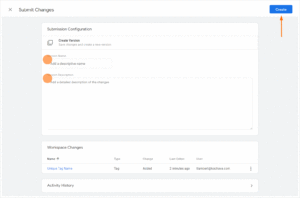
- Publish the new changes by clicking on Submit in the upper right corner of the screen.
- Enter the corresponding information in the version change fields.
- Click Publish.
Confirm the Integration
After integrating the SDK and adding the code to start the measurement client, launch and run the app for at least 10 seconds or more. During this time the client will start and send an install payload to Kochava. To confirm integration was successful, visit the app’s Install Feed Validation page Apps & Assets > Install Feed Validation. On this page you should see one of two integration messages, indicating integration success or failure.
Integration Successful
Along with this message you will also see a variety of data points associated with the device used for testing. At this point your integration is successful and you can proceed to the next step(s).
Integration Not Complete
If you encounter this message, please review the integration steps, uninstall and reinstall the app, and check again.
Where to Go From Here:
Now that you have completed integration you are ready to utilize the many features offered by the Kochava SDK. Continue on to Using the SDK and choose a topic.