
The Scenarios tab within the AIM MMM Dashboard enables you to independently configure optimization settings and run “what-if” analyses for your app’s media spend — without requiring manual intervention from Kochava’s Customer Service or Data Science teams.
Using Scenarios, you can:
- Create up to 3 non-archived scenarios per app at any time
- Configure optimization strategy, budget type, and media source settings
- Generate a 2-week preview of projected outcomes on demand, without affecting your live production recommendations
- Compare up to 3 scenarios side-by-side against your Business As Usual (BAU) baseline to evaluate trade-offs before choosing one
- Activate your chosen scenario to trigger a full 12-week optimization cycle and push live spend recommendations
- Adjust budget on an already-activated scenario at any time, without needing to recreate it
- Receive an automatic in-app and email notification the moment your preview results are ready
- From the left navigation, expand AIM MMM and click Dashboard.
- Select your app using the app selector in the top-left of the dashboard.
- Click the Scenarios tab in the tab bar (alongside Performance Overview, Recommendations, and Media Partners).
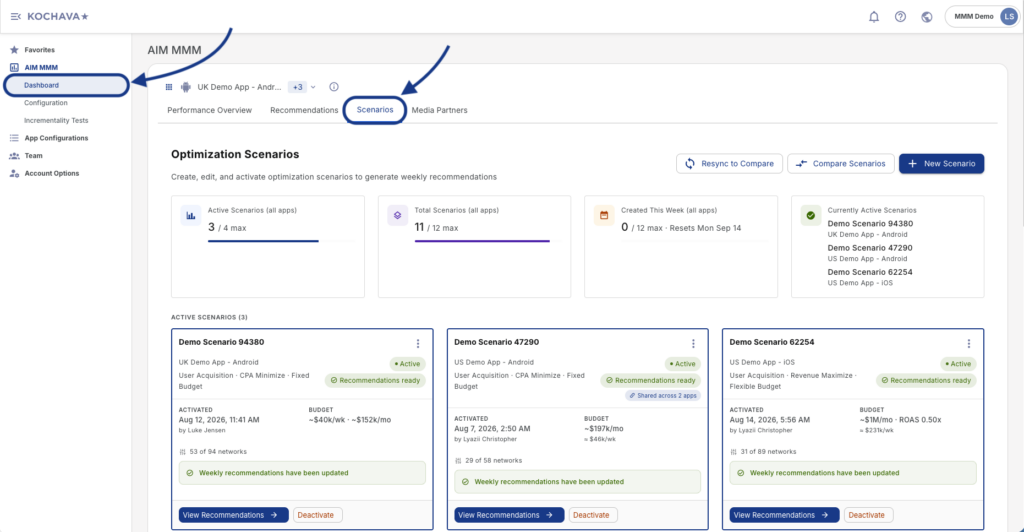
Scenarios Tab Overview
The Scenarios tab is organized into two primary areas: the Summary Metrics Bar at the top and the All Scenarios list below it.
Summary Metrics Bar
At the top of the Scenarios tab, four summary cards provide an at-a-glance view of your current scenario usage and limits.
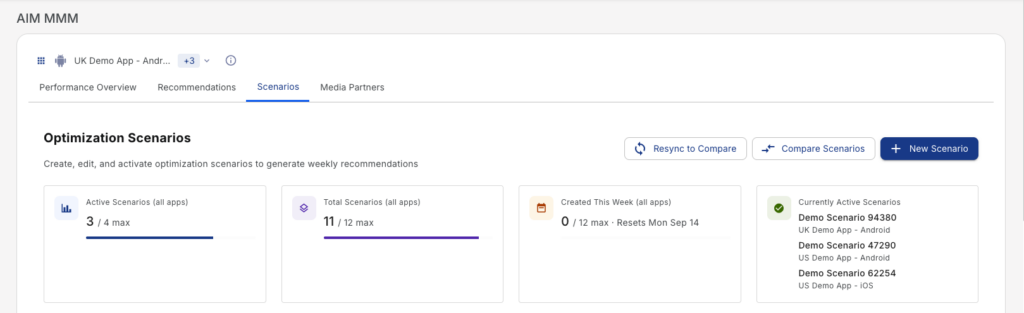
| Card | Description |
|---|---|
| Active Scenarios | Displays the number of currently Activated scenarios vs. the maximum allowed (1 max), with a blue progress bar. |
| Total Scenarios | Displays the total number of non-archived scenarios vs. the 3-scenario maximum, with a purple progress bar. |
| Created This Week | Displays how many scenarios have been created during the current week vs. the weekly creation limit (3 max). Resets each Monday. |
| Currently Active Scenarios | Displays the name of the scenario currently in Activated state, or “No active scenario” if none is activated. |
All Scenarios List
Below the summary bar, the All Scenarios section displays all of your non-archived scenarios as individual cards. Each scenario card surfaces key configuration details, its current status, and available actions.
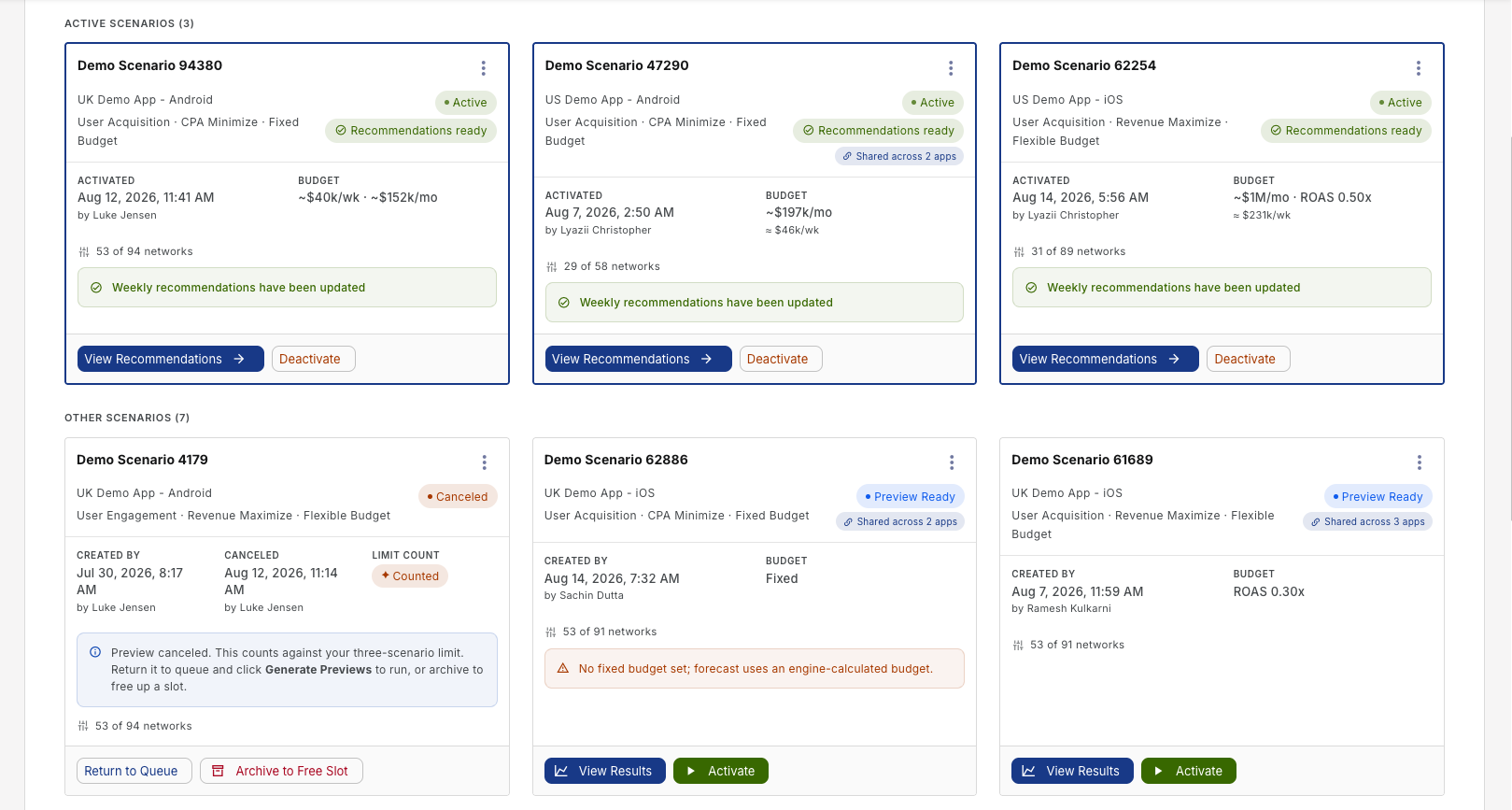
Scenario Card Anatomy
Each scenario card includes the following information:
| Element | Description |
|---|---|
| Scenario Name | The user-defined name for the scenario (e.g., “High budget”). |
| App | The app the scenario is associated with (e.g., UK FreePrints Android). |
| Strategy Summary | A one-line description of the configured optimization strategy (e.g., User Acquisition · CPA Minimize · Fixed Budget). |
| Status Badge | A colored chip indicating the scenario’s current state (e.g., Scenario Created, Preview Ready, Activated). |
| Created Date | The date the scenario was originally created. |
| Budget | The budget type configured for the scenario (e.g., Fixed, or a Flexible CPA target such as CPA $10). |
| Full Strategy | A detailed strategy description line (e.g., User Acquisition → Minimize CPA → New Orders (7d cohort)). |
Scenario Card Actions
Depending on the scenario’s current status, one or more action buttons appear in the card footer:
| Button | Available When | Description |
|---|---|---|
| Generate Previews | Status = Scenario Created | Runs a 2-week what-if forecast for the scenario, without affecting production recommendations. Also available at the top of the Scenario List page to submit all eligible scenarios for the app at once. |
| Activate | Status = Preview Ready | Commits the scenario to production and triggers the full 12-week optimization run. |
| Edit | Status = Preview Ready, Preview Failed, Activation Failed, or Cancelled | Opens the scenario configuration form pre-filled with existing settings. |
| Edit Budget | Status = Activated | Opens the Budget Management screen to adjust budget or Target CPA on an already-active scenario, without needing to recreate it. See Managing Budget for an Activated Scenario. |
| Retry | Status = Preview Failed | Re-queues the preview run using the existing configuration. |
| Retry Activation | Status = Activation Failed | Re-attempts the full activation run. |
| Cancel Preview (or Cancel) | Status = Scenario Created, Preview Queued, or Generating Preview | Cancels the scenario before or during its preview run. The scenario remains in your scenario count; archive it to free up a slot. |
| Return to Queue | Status = Cancelled | Moves the scenario back to Scenario Created status. Click Generate Previews again to actually run the preview. |
| Deactivate | Status = Activated | Stops the weekly recommendation refresh. The scenario returns to Preview Ready status. |
| Archive | Status = Scenario Created, Preview Ready, Preview Failed, Cancelled, or Activated | Permanently marks the scenario as read-only and removes it from the scenario count. Labeled “Archive to free slot” on Cancelled scenario cards. |
Scenario States
Scenarios move through a defined lifecycle of states. The table below describes each state, its corresponding UI label, and whether it counts toward the 3-scenario limit.
| State (System) | UI Label | Description | Counts Toward Limit? |
|---|---|---|---|
| scenario_created | Scenario Created | Scenario configured; no preview run yet | Yes |
| pending_preview | Preview Queued | Submitted to the Coordinator DAG; waiting for a runner pod | Yes |
| preview_running | Generating Preview | 2-week preview run in progress | Yes |
| preview_generated | Preview Ready | Preview complete; results available for review | Yes |
| preview_failed | Preview Failed | Preview job failed after all automatic retries; click Retry to re-run | Yes |
| activating | Activating | Full 12-week optimization run in progress | Yes |
| activating_failed | Activation Failed | Activation job failed after all automatic retries; click Retry Activation | Yes |
| activated | Activated | Optimization run complete; recommendations are live | Yes |
| cancelled | Cancelled | Advertiser cancelled during queue/run; click Return to Queue to resume | Yes |
| archived | Archived | Scenario is permanently read-only; excluded from limit | No |
Creating a New Scenario
To create a new scenario, click the + New Scenario button in the upper-right of the Scenarios tab.
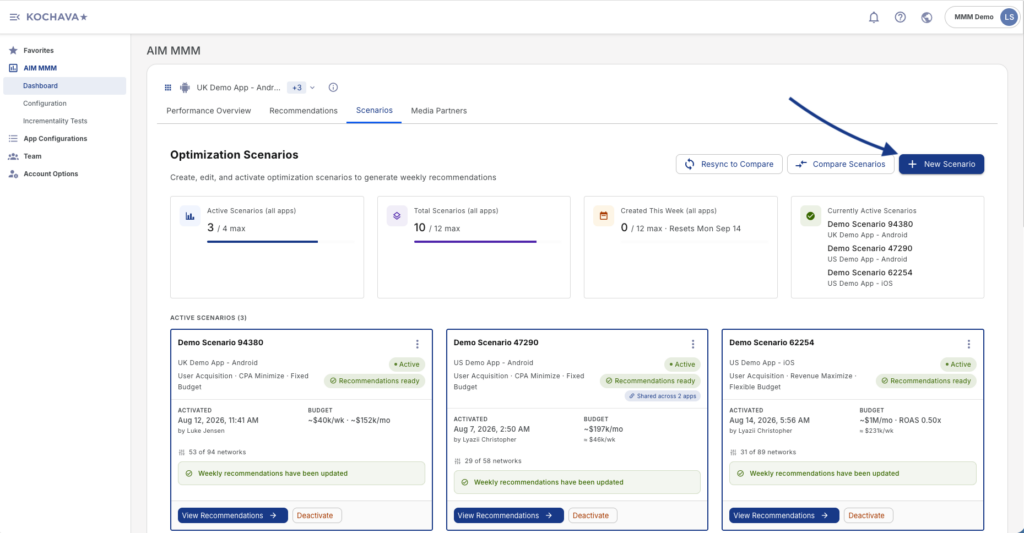
The scenario creation wizard walks you through four configuration steps.
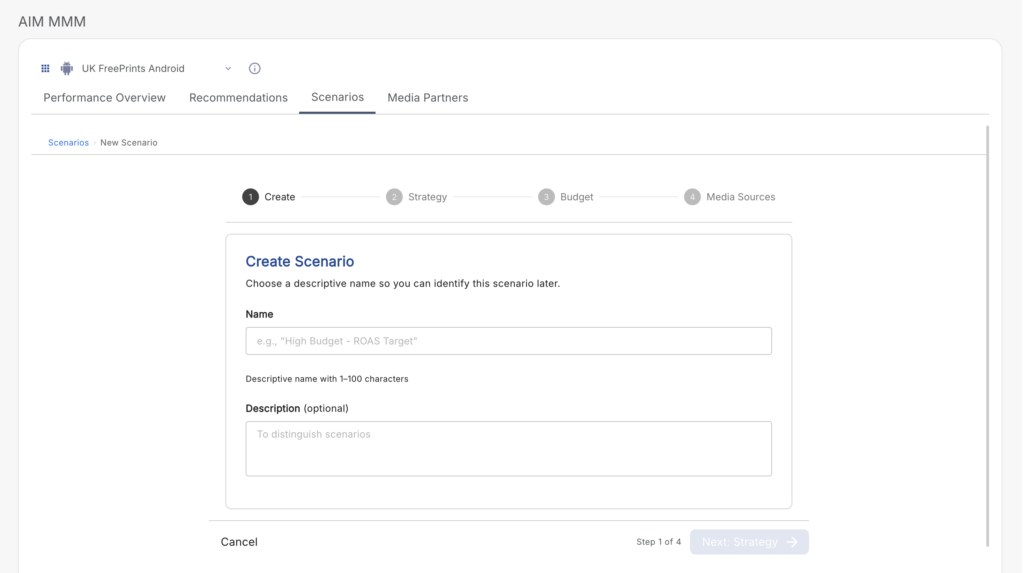
Step 1: General Settings
Enter a name and optional description for your scenario.
- Scenario Name (required): 1–100 characters.
- Description (optional): Up to 500 characters.
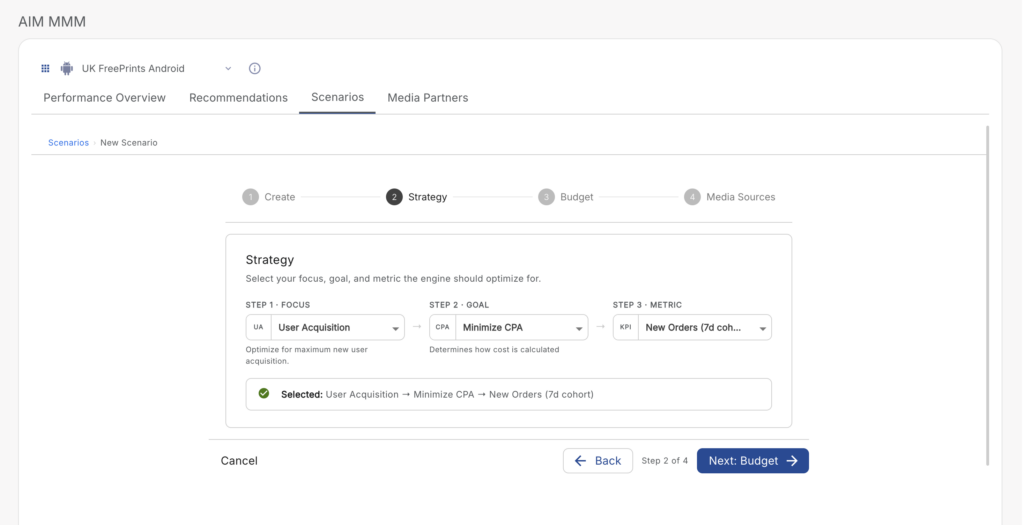
Step 2: Strategy Selection
Choose the optimization strategy for your scenario in three steps.
Step 2a — Focus:
Choose the primary optimization focus.
| Option | Description |
|---|---|
| User Acquisition | Optimize toward acquiring new users. |
| User Engagement | Optimize toward engaging and retaining existing users. |
| Hybrid | Balance acquisition and engagement goals. |
Step 2b — Type:
Choose the optimization type.
| Option | Description |
|---|---|
| Minimize CPA | Reduce the cost per acquisition. |
| Maximize Revenue | Maximize revenue generated from ad spend. |
Step 2c — Metric:
Choose the specific performance metric to optimize against. Available options depend on your Focus and Type selections.
| Focus | Type | Available Metrics |
|---|---|---|
| User Acquisition | Minimize CPA | New Orders (7d cohort), Total Orders (7d cohort) |
| User Acquisition | Maximize Revenue | Revenue (7d) |
| User Engagement | Minimize CPA | Total Orders (non-cohorted) |
| User Engagement | Maximize Revenue | Revenue (non-cohorted) |
| Hybrid | Minimize CPA | Total Orders (365d + non-cohorted) |
| Hybrid | Maximize Revenue | Revenue (365d + non-cohorted) |
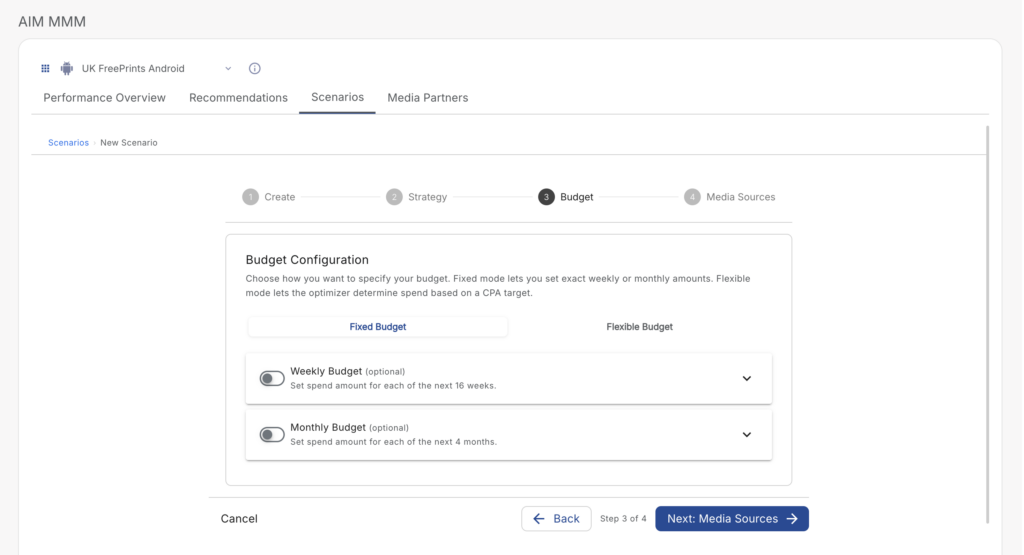
Step 3: Budget Configuration
Configure how the optimizer should manage your budget. Choose between two budget modes:
Fixed Budget
Specify a budget per week or per month. The optimizer will work within your defined spend limits.
- Provide weekly or monthly budget amounts (mutually exclusive).
- Budget fields are optional — if left blank, the optimizer determines the recommended budget.
- If some months are left blank, the optimizer falls back to the target CPA (or a historically calculated EMA-based CPA) for those periods.
Flexible Budget
Specify a target CPA or ROAS and let the optimizer determine the appropriate budget.
- Optionally set a Target CPA or Target ROAS — if no target CPA is provided, the system calculates one from your historical Exponential Moving Average (EMA).
- Optionally define min/max budget guardrails.
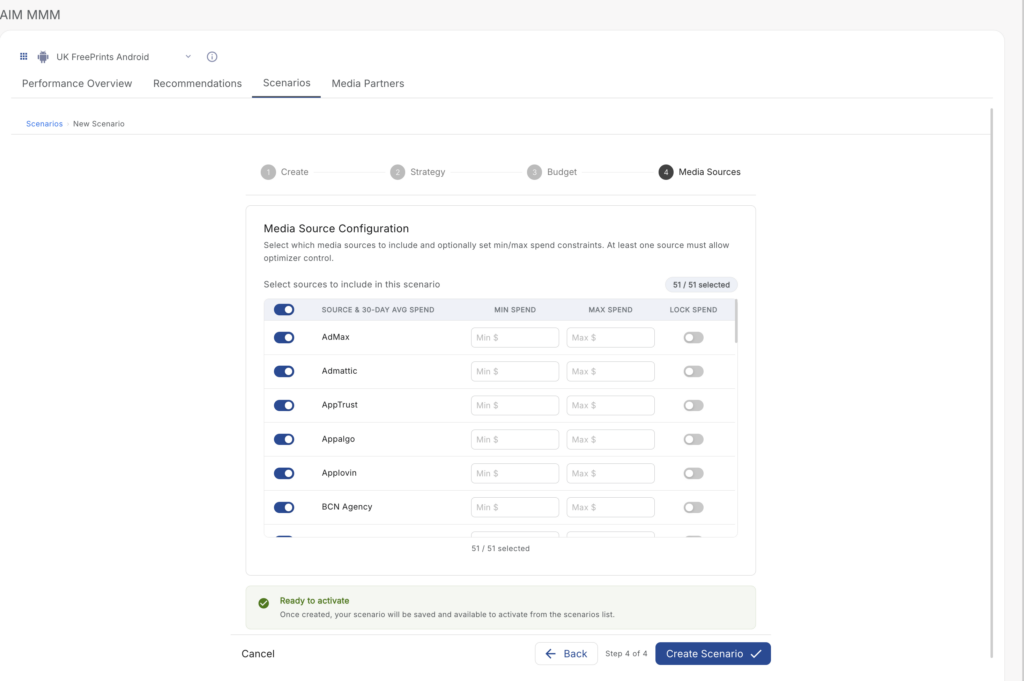
Step 4: Media Source Customization
Select and configure the media sources to include in this scenario’s optimization.
- Enable/Disable Sources: Toggle individual media sources on or off.
- Min/Max Spend: Set floor and ceiling spend constraints per source.
- Maintain Spend: Lock a source at its current spend level, preventing the optimizer from adjusting it.
A counter displays your current selection count (e.g., “Media Sources: 12/50 selected”). Up to 50 media sources may be included per scenario.
Once configured, your scenario is saved in Scenario Created status. Continue to Generating a Preview below to run your first what-if forecast.
Generating a Preview
Generating a preview is a manual step — this gives you full control over when your weekly preview quota is used. A new scenario does not automatically run a preview upon creation.
To generate a preview:
- Navigate to AIM MMM → Dashboard → Scenarios tab.
- Click Generate Previews on the scenario card that you wish to generate a preview for.
The scenario’s status chip updates automatically as the run progresses:
- Scenario Created → Preview Queued: submitted, waiting for the run to start — no action needed.
- Preview Queued → Generating Preview: the 2-week forecast is running; status polls every 10–30 seconds.
- Generating Preview → Preview Ready (once the full run completes) or Preview Failed (only after all automatic retries are exhausted).
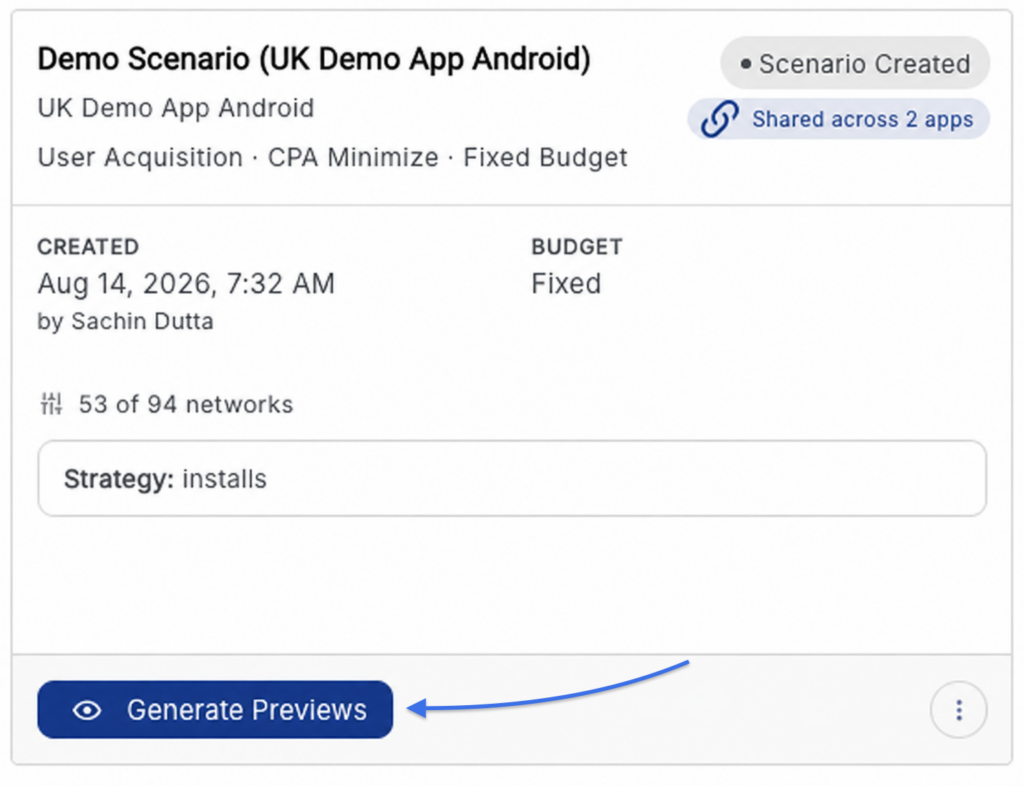
Generating a preview is non-destructive: it does not change what’s actually running in production. Only Activating a scenario (see Activating a Scenario) commits it to the live 12-week optimization cycle.
The preview:
- Generates projected 2-week results based on your configured strategy, budget, and media sources.
- Is stored separately from your live recommendations and does not affect production output.
- Is typically available within 5–15 minutes of clicking Generate Previews.
You will receive both an in-app notification (bell icon) and an email notification when your preview is ready.
Viewing Preview Results
Once a scenario reaches Preview Ready status, click View Results on that scenario’s card to view its 2-week preview results.
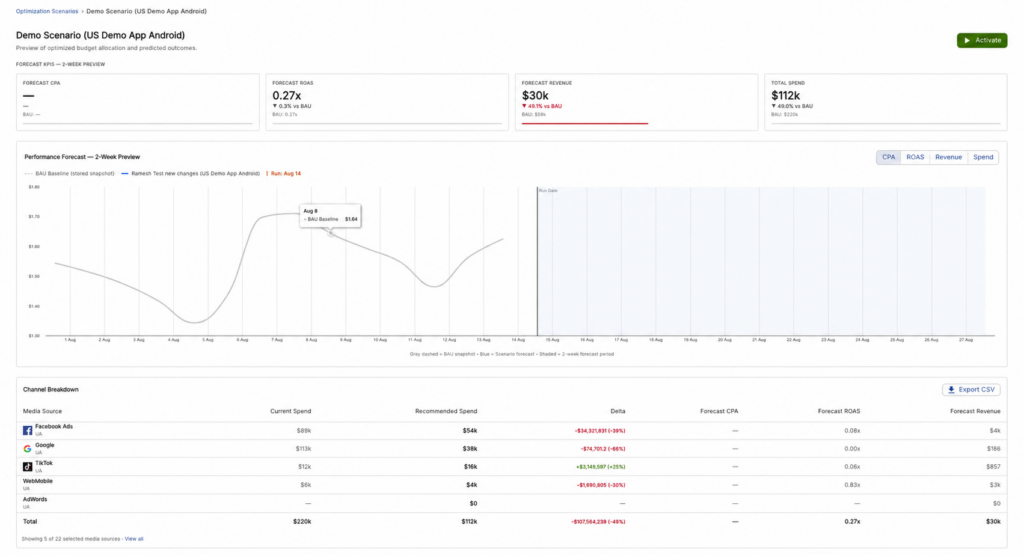
The Preview Results page opens with a Scenario Header showing the scenario name, status chips, app, strategy (focus/type/metric), budget mode, and the scenario run date (e.g., “Scenario run date: May 10, 2026”) — since results may be viewed days after a scenario was actually run, the run date is shown explicitly instead of a “Today” label.
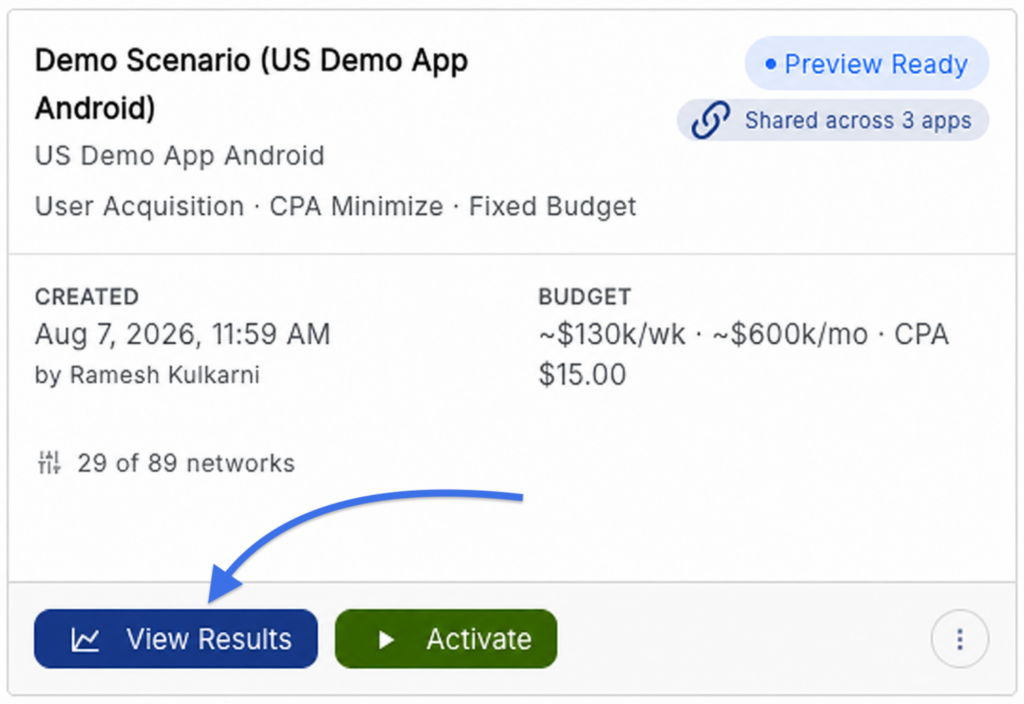
Preview results include:
KPI Summary Cards
Displays projected values for Forecast CPA, Forecast ROAS, Forecast Revenue, and Total Spend — each shown with its percentage change vs. the Business As Usual (BAU) baseline, and the actual BAU value for reference.
Performance Chart
A time-series chart with tabs for CPA / ROAS / Revenue / Spend, combining 4 weeks of historical data with the 2-week preview forecast. A clearly marked run date line separates historical data from the shaded forecast period. Confidence interval shading is displayed around forecast values.
Channel Breakdown Table
A sortable, exportable table showing per-media-source projections, including current spend, recommended spend, delta, forecast CPA, forecast ROAS, and forecast revenue.
Actions Available on This Page
From the Preview Results page, advertisers can:
- Click ⚡ Activate Scenario to commit the scenario to production (opens the confirmation modal and triggers the full 12-week optimization cycle)
- Click ⊞ Compare Scenarios (top breadcrumb) to jump into the Scenario Comparison page
- Click ⬇ Export to download results as CSV or JSON
Comparing Scenarios
Up to 3 scenarios can be compared side-by-side, alongside a BAU baseline, ensuring results come from the same data snapshot for a fair comparison.
To compare scenarios:
- From the Scenario List (or from a Preview Results page), click Compare Scenarios.
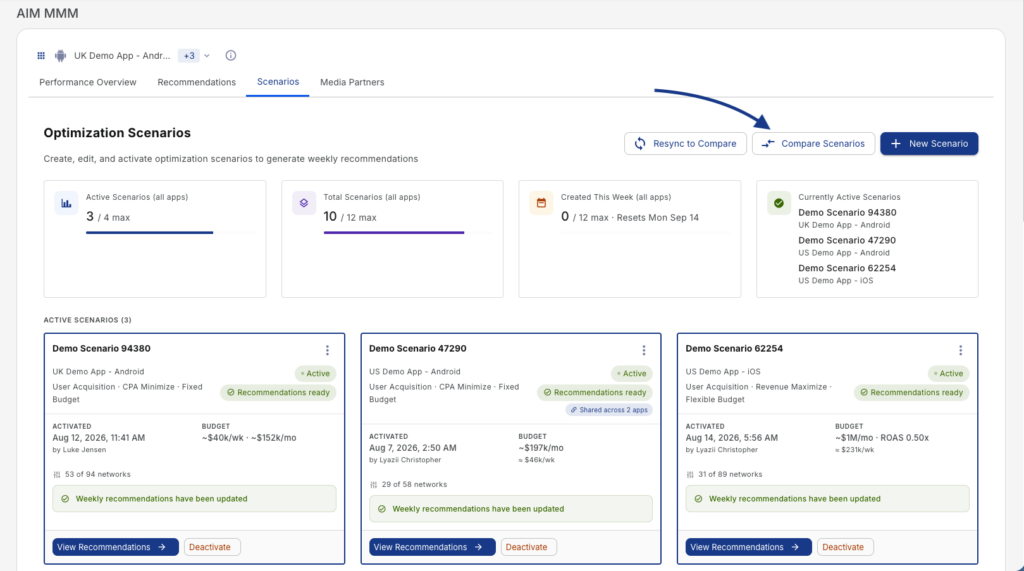
- On the Scenario Comparison page, use the scenario selector chips to choose up to 3 scenarios to include. BAU is always shown as the baseline and cannot be deselected.
- Check the sync status banner at the top of the page:
- 🟠 Out of sync (orange): “These scenarios were run at different times and may not be directly comparable.” This appears when the selected scenarios’ preview runs happened on different dates.
- 🔵 In sync (blue): “All 3 scenarios were run simultaneously on [date] via the Coordinator DAG. Results are directly comparable.”
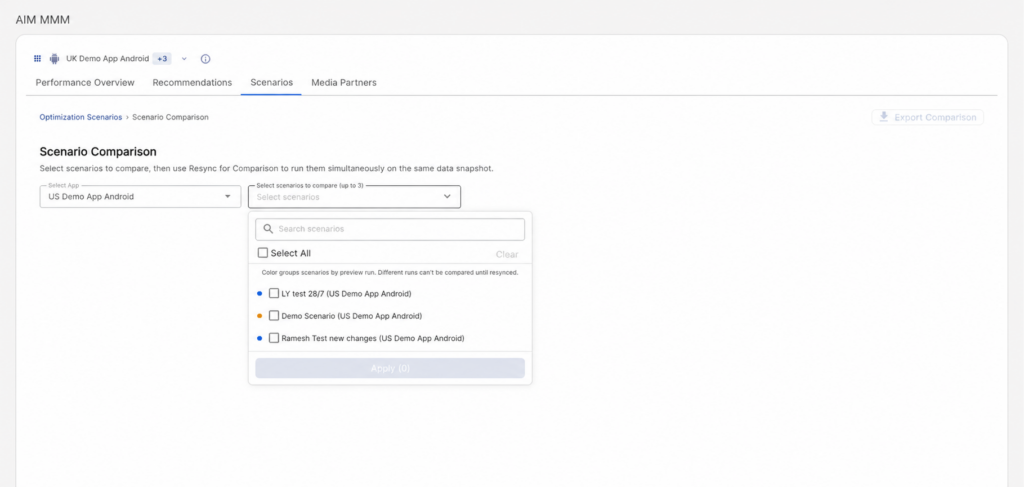
- If scenarios are out of sync, click ↻ Resync for Comparison. This opens a modal where you confirm which scenarios to resync via a checklist, then click Run Resync (N scenarios).
- Resyncing submits all checked scenarios to the Coordinator DAG simultaneously, generating results from the same data snapshot. Existing preview results for those scenarios are replaced with the new resync results.
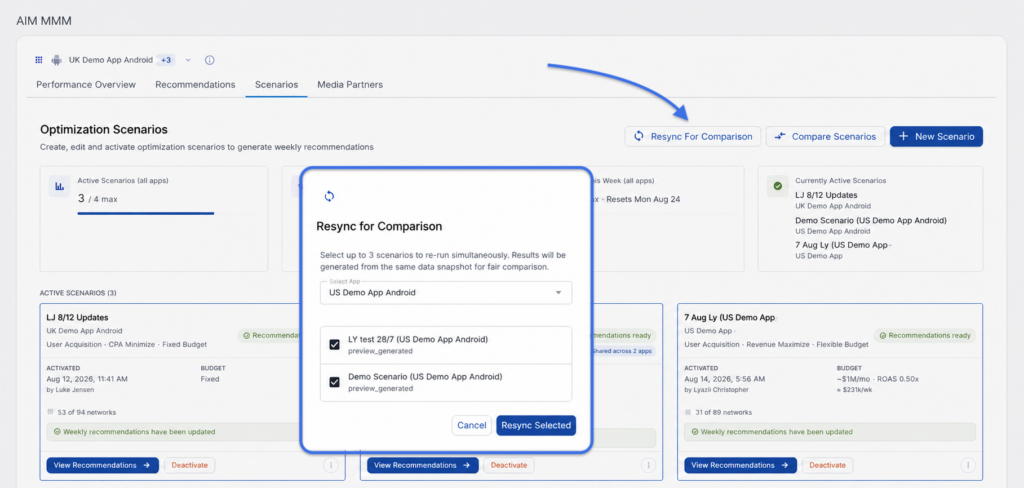
Once results are in sync, the Comparison page displays:
- A CPA / ROAS / Revenue / Spend chart with all selected scenarios plotted against BAU, each in a distinct color
- A KPI Summary Comparison table with per-scenario deltas vs. BAU
- A Channel Breakdown by Scenario table
Data can be exported in CSV or JSON format using the Export button.
The system does not pick a “winning” scenario for you — you review the comparison data and manually select which scenario to activate.
Activating a Scenario
Activating a scenario commits it to production and triggers the full 12-week optimization cycle. After activation, live spend recommendations on the Recommendations tab will reflect the activated scenario’s configuration. You can activate a scenario from the Scenario List, the Preview Results page, or the Scenario Comparison page.
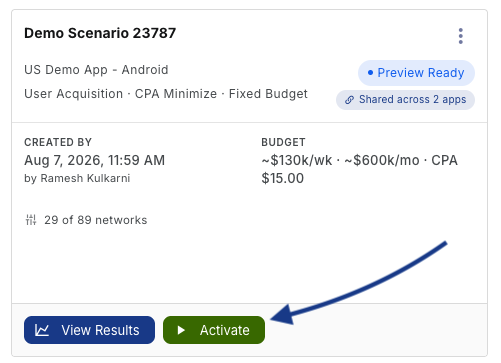
To activate a scenario:
- Locate the scenario in the All Scenarios list with a status of Preview Ready.
- Click Activate on the scenario card.
- If another scenario is currently Activated, a confirmation dialog will appear warning that existing recommendations will be replaced. Confirm to proceed.
- The scenario transitions to Activating status while the 12-week optimization run is processed.
- Once complete, the scenario status changes to Activated and recommendations are updated on the Recommendations tab.
Activation timing:
- Target completion: ~6 hours
- Warning notification sent at: 7 hours
- Hard timeout / Activation Failed state: 8 hours (a Retry Activation button will appear)
Managing Scenarios
Editing a Scenario
Scenarios in Preview Ready, Preview Failed, Activation Failed, or Cancelled status can be edited. Click Edit on the scenario card to re-open the configuration wizard pre-filled with current settings. Saving edits returns the scenario to Scenario Created status — click Generate Previews to run a new preview.
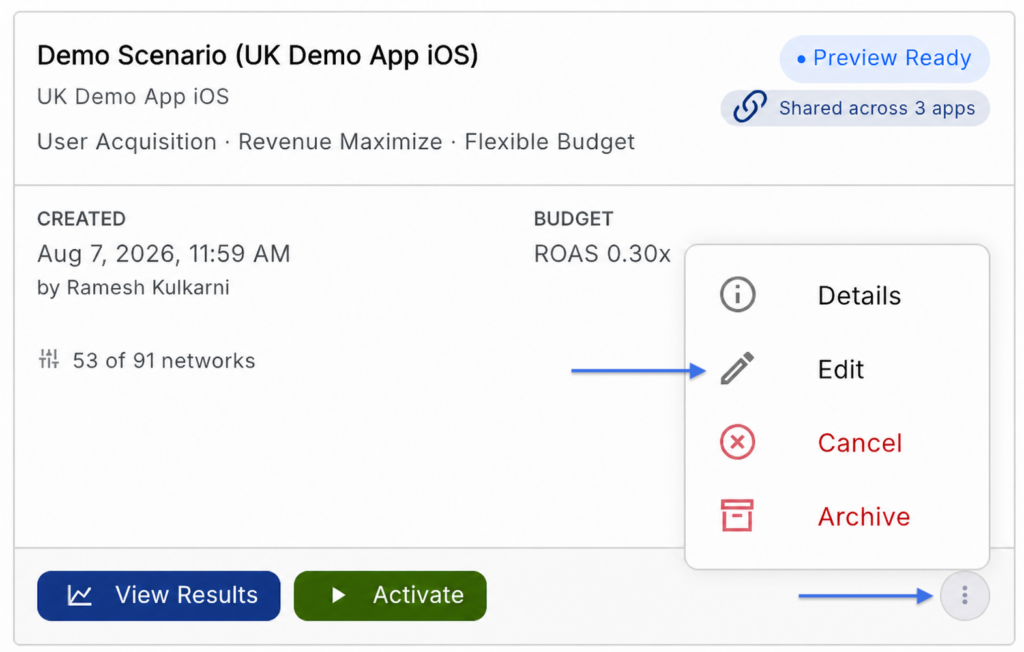
Managing Budget for an Activated Scenario
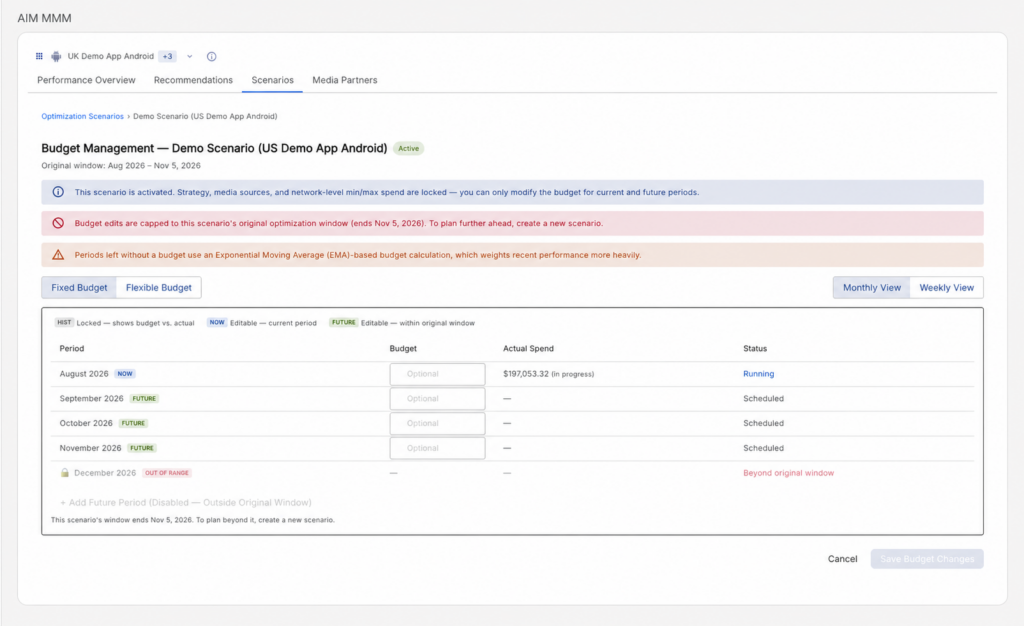
Once a scenario is activated, all of its configuration is locked except budget. The Budget Management screen lets you adjust current and future spend on an activated scenario without needing to recreate it.
To manage budget on an activated scenario:
- From the Scenario List, find the scenario in Activated status.
- Click Edit Budget on that scenario’s card.
- On the Budget Management page, review the Monthly Budget Schedule table. Rows are color-coded by period:
- HIST (gray, locked): The last 1–2 historical months. Read-only, shown for context only.
- NOW (blue): The current month. Editable.
- FUTURE (green): Upcoming months. Editable.
- Edit the Monthly Budget and Target CPA fields for the current/future rows.
- Click + Add Future Period to add additional months.
- Click Save Budget Changes to confirm.
Archiving a Scenario
Archiving a scenario removes it from your scenario count, freeing up a slot for a new scenario. Archived scenarios are read-only — they cannot be edited, activated, or re-previewed.
Any scenario in Scenario Created, Preview Ready, Preview Failed, Cancelled, or Activated status can be archived. To archive a scenario, click Archive on that scenario’s card — on Cancelled scenario cards, this button is labeled “Archive to free slot.”
A confirmation modal appears: “The scenario will be archived — read-only and excluded from your active scenario count. Retained for 90 days.” Click Archive Scenario to confirm, or Cancel to back out.
Once archived, the scenario:
- No longer counts toward the 3-scenario-per-app limit
- Becomes read-only — it cannot be edited, re-previewed, or re-activated
- Is retained for 90 days before permanent deletion
Deactivating an Activated Scenario
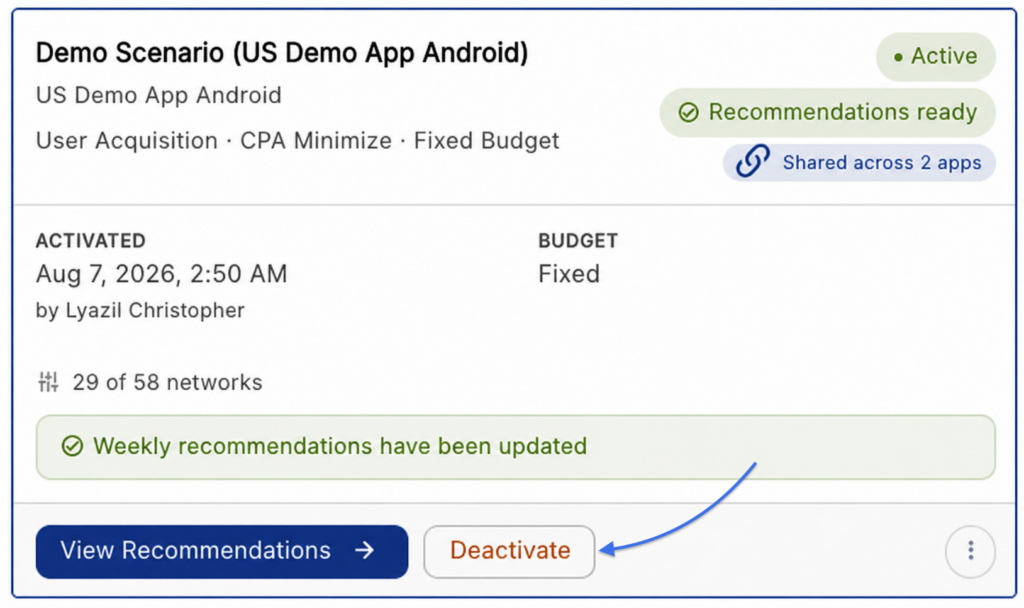
Deactivating stops an Activated scenario from generating new weekly recommendations, without deleting its configuration or preview history.
To deactivate a scenario:
- From the Scenario List, find the scenario currently in Activated status.
- Click Deactivate on that scenario’s card.
- A confirmation modal appears: “Weekly recommendations will stop updating. The scenario will return to Preview Ready state and remain accessible. Continue?”
- Click Deactivate to confirm, or Cancel to back out.
After deactivation:
- The scenario moves to Preview Ready status — not Archived. It remains fully accessible.
- It is removed from the weekly recommendation refresh schedule.
- You can re-activate it later, edit it, or archive it manually whenever you’re ready.
Retrying Failed Scenarios
If a preview or activation run fails due to a transient error, a Retry or Retry Activation button will appear on the scenario card. Clicking retry re-queues the run using the existing configuration. The scenario ID, name, and full audit history are preserved across retry attempts.
Cancelling a Preview
While a scenario is in Scenario Created, Preview Queued, or Generating Preview status, a Cancel Preview (or Cancel) button is available on the scenario card. Cancelling moves the scenario to Cancelled status.
A cancelled scenario can be resumed by clicking Return to Queue, which moves it back to Scenario Created status. You’ll then need to click Generate Previews again to actually run the preview.
Scenario Limits Reference
| Limit | Value |
|---|---|
| Max non-archived scenarios per app | 3 |
| Max Activated or Activating scenarios per app | 1 |
| Weekly preview trigger limit (Generate Previews or Resync for Comparison actions; resets each Monday) | 5 by default (configurable). One trigger = one action, regardless of how many scenarios (1–3) are included. |
| Weekly scenario creation limit (resets each Monday) | 3 |
| Max media sources per scenario | 50 |
| Scenario name length | 1–100 characters |
| Description length | 0–500 characters (optional) |
| Preview results retention | 3 months |
| Archived scenario retention | 90 days before permanent deletion |
| Minimum historical data required | 90 days |
Notifications
You will be notified when a scenario’s preview finishes running — whether triggered by Generate Previews or Resync for Comparison — through two channels:
- In-app notification — appears in the bell icon (notification center) within the Kochava platform.
- Email notification — sent to the account email address associated with the user who created the scenario.
Notification message: “Your scenario ‘[Scenario Name]’ preview is ready. [View Results →]”
Frequently Asked Questions
Q: Do previews still generate automatically when I create a scenario?
No. Previews are generated on demand — after creating (or editing) a scenario, click Generate Previews on the Scenario List page to run its 2-week what-if forecast. This gives you control over when your weekly preview quota is used.
Q: Why does my scenario count toward the limit even though I cancelled it?
Cancelled scenarios still occupy a configuration slot and can be resumed at any time via Return to Queue. To free up a slot, archive the cancelled scenario.
Q: Can I activate a scenario without viewing the preview results first?
Yes. You can activate any scenario in Preview Ready status without reviewing the preview results. After activation, the Recommendations tab will reflect the newly activated scenario’s recommendations.
Q: What happens to my existing recommendations when I activate a new scenario?
The previously Activated scenario’s recommendations are replaced by the newly Activated scenario’s recommendations. The previous scenario is returned to Preview Ready status — it is not deleted or archived automatically. You can keep it, reactivate it later, or archive it manually.
Q: What’s the difference between Cancelling and Deactivating a scenario?
Cancelling applies to a scenario that hasn’t finished its preview run yet (Scenario Created, Preview Queued, or Generating Preview) and moves it to Cancelled status. Deactivating applies to a scenario that is already Activated and stops it from generating new weekly recommendations, returning it to Preview Ready status. Both keep the scenario’s configuration intact and still count toward your 3-scenario limit — only Archiving frees up a slot.
Q: Can I change my budget without recreating my whole scenario?
Yes. Once a scenario is Activated, click Edit Budget on its card to open Budget Management, where you can adjust the Monthly Budget and Target CPA for the current and future months without recreating the scenario. All other scenario settings remain locked while it’s Activated.
Q: Why does the Comparison page show an “Out of sync” warning?
This means the scenarios you selected had their preview runs generated at different times, so their results may not be directly comparable. Click Resync for Comparison to re-run the selected scenarios simultaneously from the same data snapshot.
Q: How long does a preview take?
Preview results are typically delivered within 5–15 minutes of clicking Generate Previews (90th percentile). The scenario status updates automatically and you will receive both an in-app and email notification when results are ready.
Q: Can I compare scenarios across different apps?
No. Cross-app scenario comparison is not supported. All scenarios included in a comparison must belong to the same app.
Q: What is BAU?
BAU (Business As Usual) represents the predicted outcome if your current spend allocation is maintained without any adjustments. It serves as the baseline against which scenario projections are compared.