
Overview
The Kochava SDK is lightweight and can easily be integrated into your project in only a few minutes. To get started check out the Minimum Requirements and then follow the steps in the Integrating the SDK topic. If you have already integrated, explore the remaining topics for additional functionality.
The Kochava SDK is lightweight and can easily be integrated into your project in only a few minutes. To get started check out the Minimum Requirements and then follow the steps in the Integrating the SDK topic. If you have already integrated, explore the remaining topics for additional functionality.
The Kochava SDK is lightweight and can easily be integrated into your project in only a few minutes. To get started check out the Minimum Requirements and then follow the steps in the Integrating the SDK topic. If you have already integrated, explore the remaining topics for additional functionality.
The Kochava SDK is lightweight and can easily be integrated into your project in only a few minutes. To get started check out the Minimum Requirements and then follow the steps in the Integrating the SDK topic. If you have already integrated, explore the remaining topics for additional functionality.

Platforms:
- iOS
- macCatalyst
- macOS
- tvOS
- visionOS
- watchOS
Devices:
- iPhone
- iPad
- Mac
- Apple TV
- Apple Watch
- Apple Vision Pro
Minimum Requirements:
- Built on: Xcode 26.1.1
- Targets: iOS 15.5, macCatalyst 15.5, macOS 13.5, tvOS 16.4, visionOS 1.2, watchOS 9.4
Supported Extensions:
- Messages
- Notification Content
- Notification Service
Data Privacy:

Platforms:
- iOS
- macCatalyst
- macOS
- tvOS
- visionOS
- watchOS
Devices:
- iPhone
- iPad
- Mac
- Apple TV
- Apple Watch
- Apple Vision Pro
Minimum Requirements:
- Built on: Xcode 26.1.1
- Targets: iOS 15.5, macCatalyst 15.5, macOS 13.5, tvOS 16.4, visionOS 1.2, watchOS 9.4
Supported Extensions:
- Messages
- Notification Content
- Notification Service
Data Privacy:

Platforms:
- iOS
- macCatalyst
- macOS
- tvOS
- visionOS
- watchOS
Devices:
- iPhone
- iPad
- Mac
- Apple TV
- Apple Watch
- Apple Vision Pro
Minimum Requirements:
- Built on: Xcode 16.1
- Targets: iOS 14.0, macCatalyst 14.0, macOS 12.0, tvOS 14.0, visionOS 1.0, watchOS 7.0
Supported Extensions:
- Messages
- Notification Content
- Notification Service
Data Privacy:

Platforms:
- iOS
- macCatalyst
- macOS
- tvOS
- visionOS
- watchOS
Devices:
- iPhone
- iPad
- Mac
- Apple TV
- Apple Watch
- Apple Vision Pro
Minimum Requirements:
- Built on: Xcode 15.2
- Targets: iOS 13.0, macCatalyst 13.0, macOS 10.15, tvOS 13.0, visionOS 1.0, watchOS 7.0
Supported Extensions:
- Messages
- Notification Content
- Notification Service
Data Privacy:
Upgrading the SDK
Upgrade to a new major version of the Kochava SDK:
Estimated Time to Complete
30 Minutes
Upgrade to a new major version of the Kochava SDK by following the instructions provided. When upgrading multiple major versions you should review the documentation for each version along the way, making the necessary changes as you go until you reach the most recent version. This will ensure smaller and more manageable steps.
After completing all upgrade steps to the current version you should follow the Confirming the SDK Integration instructions before deploying the changes. You may also wish to review the release notes or additional topics to see if there are any new features you wish to integrate.
Estimated Time to Complete
30 Minutes
Upgrade to a new major version of the Kochava SDK by following the instructions provided. When upgrading multiple major versions you should review the documentation for each version along the way, making the necessary changes as you go until you reach the most recent version. This will ensure smaller and more manageable steps.
After completing all upgrade steps to the current version you should follow the Confirming the SDK Integration instructions before deploying the changes. You may also wish to review the release notes or additional topics to see if there are any new features you wish to integrate.
Estimated Time to Complete
30 Minutes
Upgrade to a new major version of the Kochava SDK by following the instructions provided. When upgrading multiple major versions you should review the documentation for each version along the way, making the necessary changes as you go until you reach the most recent version. This will ensure smaller and more manageable steps.
After completing all upgrade steps to the current version you should follow the Confirming the SDK Integration instructions before deploying the changes. You may also wish to review the release notes or additional topics to see if there are any new features you wish to integrate.
Estimated Time to Complete
30 Minutes
Upgrade to a new major version of the Kochava SDK by following the instructions provided. When upgrading multiple major versions you should review the documentation for each version along the way, making the necessary changes as you go until you reach the most recent version. This will ensure smaller and more manageable steps.
After completing all upgrade steps to the current version you should follow the Confirming the SDK Integration instructions before deploying the changes. You may also wish to review the release notes or additional topics to see if there are any new features you wish to integrate.
Overview
The upgrade from version 10 to version 11 is a focused release, adding a new eventAutoSendBool parameter to Deeplink.process. See the Refactors section below and Deeplinking with Smartlinks for details.
Refactors
Process Deeplink
A new eventAutoSendBool parameter has been added, indicating whether a _Deeplink event should be automatically sent when a deeplink is processed. This applies to deeplinks where a URI is specified, as opposed to when a null or empty string is passed to check for a deferred deeplink. This parameter is required, and by default the value you should use is true (or YES in Objective-C), letting the SDK record the event for you; in that case, remove any manual event of your own (see Measuring Deeplinks) to avoid a duplicate. Pass false/NO only if you need additional custom event parameters or wish to preserve your existing manual event logic.
| Old Signature | New Signature |
|---|---|
Deeplink.process(url: URL?, closure_didComplete: Closure_Process_DidComplete?) | Deeplink.process(url: URL?, eventAutoSendBool: Bool, closure_didComplete: Closure_Process_DidComplete?) |
[KVADeeplink processWithURL:url closure_didComplete:closure] | [KVADeeplink processWithURL:url eventAutoSendBool:eventAutoSendBool closure_didComplete:closure] |
Deeplink.process(url: URL?, timeoutTimeInterval: TimeInterval, closure_didComplete: Closure_Process_DidComplete?) | Deeplink.process(url: URL?, timeoutTimeInterval: TimeInterval, eventAutoSendBool: Bool, closure_didComplete: Closure_Process_DidComplete?) |
[KVADeeplink processWithURL:url timeoutTimeInterval:timeout closure_didComplete:closure] | [KVADeeplink processWithURL:url timeoutTimeInterval:timeout eventAutoSendBool:eventAutoSendBool closure_didComplete:closure] |
Overview
The upgrade from version 9 to version 10 is relatively minor. The supported minimum deployment targets were advanced, and the deprecated synchronous APIs for collecting the install identifier and the attribution result were removed.
Requirements
Build Environment (Minimum)
| Build | SDK v10.0.0 | SDK v9.1.0 (Previous Major) |
|---|---|---|
| Xcode Version | 26.1.1 | 16.1 |
Note: The version used to build the SDK can be expected to increment periodically over time. This may include increments to the minor or patch version(s), but not the major. You can find these documented in the GitHub release for each version.
Deployment Targets (Minimums)
| OS | SDK v10.0.0 | SDK v9.0.0 |
|---|---|---|
| iOS | 15.5 | 14.0 |
| macCatalyst | 15.5 | 14.0 |
| macOS | 13.5 | 12.0 |
| tvOS | 16.4 | 14.0 |
| visionOS | 1.2 | 1.0 |
| watchOS | 9.4 | 7.0 |
Removals
Install Identifier – Synchronous Getter
The synchronous getter for the install identifier has been removed. You should use the asynchronous getter instead.
Attribution Result – Synchronous Getter
The synchronous getter for the attribution result has been removed. You should use the asynchronous getter instead.
Overview
The upgrade from version 8 to version 9 is relatively minor. The supported minimum deployment targets were advanced, and the deprecated measurement feature for push notifications (engagement) was removed in conjunction with the shutdown of that service.
Requirements
Build Environment (Minimum)
| Build | SDK v9.0.0 | SDK v8.4.1 (Previous Major) |
|---|---|---|
| Xcode Version | 16.1 | 15.3 |
Note: The version used to build the SDK can be expected to increment periodically over time. This may include increments to the minor or patch version(s), but not the major. You can find these documented in the GitHub release for each version.
Deployment Targets (Minimums)
| OS | SDK v9.0.0 | SDK v8.4.1 (Previous Major) |
|---|---|---|
| iOS | 14.0 | 13.0 |
| macCatalyst | 14.0 | 13.0 |
| macOS | 12.0 | 10.15 |
| tvOS | 14.0 | 13.0 |
| visionOS | 1.0 | 1.0 |
| watchOS | 7.0 | 7.0 |
Removals
Push Notifications
The push notifications feature has been shut down and is no longer supported. The measurement SDK feature and associated APIs have been removed. You should review your code and remove any references to pushNotifications or PushNotificationsToken.
Overview
The change from version 7 to version 8 is a substantial one, splitting SDK KochavaTracker (v7.x and prior) into two separate SDKs– KochavaMeasurement and KochavaTracking (note: Tracking not Tracker). This reorganization provides a clear separation between the code which is involved in measurement and the code which is involved in tracking, providing the fullest support of Apple’s new Privacy Manifest feature introduced in Xcode 15 and iOS 17.
With a significant code migration process being required for the host integration, we used this opportunity to make a few additional breaking changes. Module KochavaCore was renamed to KochavaNetworking. Objective-C prefixing using “KVA” was also removed when working in Swift, and only retained when/if working in Objective-C.
For users of previous versions of the Kochava SDK there is an easy pathway to migrate to the new structure provided in version 8. Using the following steps you can be building again in a few minutes.
These instructions assume that you are starting on v7.4.0, and so you should migrate up to that specific version first (assuming you have not already). Along the way there have been improvements to the APIs, along with deprecations which have been added to guide you into the newer APIs. In most cases a deprecation warning with a “Fix” option will be presented which can quickly get you to where you want to be to be ready for the subsequent migration to v8. Most of these deprecations occurred in v7.1.0. If you’re already on v7.1.0 or higher you may not need to update to 7.4.0 first, but it may not be a bad idea as there were a few less used API updates. In either case, you’ll want to make sure any existing deprecation warnings have been resolved before moving forward.
Requirements
Deployment Targets (Minimums)
| OS | SDK v8.0.0 | SDK v7.6.0 (Previous Major) |
|---|---|---|
| iOS | 13.0 | 12.4 |
| macCatalyst | 13.0 | 13.0 |
| macOS | 10.15 | 10.14 |
| tvOS | 13.0 | 12.4 |
| visionOS | 1.0 | None |
| watchOS | 6.0 | 6.0 |
Refactors
In Xcode, use Find > Find and Replace in Project… (alternatively Find and Replace in Workspace…) to find and replace the following text, one at a time, in the following order, matching case, and taking note of the two language options available (see tab for Objective-C). Extra care will be required if you have a mixed language project, as the two sets to find and replace instructions cannot be applied to files of the other type. Once your project begins building again, and you see no deprecation warnings, you can stop going through the list- as the APIs being updated become less commonly used as you move down:
Swift
| Replace > Text > Containing | With | Comments |
|---|---|---|
| import KochavaCore | import KochavaNetworking | |
| import KochavaTracker | import KochavaMeasurement import KochavaTracking | The inclusion of module KochavaTracking here is now an option. Leave it in for equivalent support, or take it out for measurement only support. |
| KVALogLevel | Log.Level | |
| KVALog | Log | |
| KVATracker | Measurement | |
| .start(withAppGUIDString | .start(appGUIDString | |
| KVAEvent | Event | |
| KVAEventType | Event_Type | |
| KVADeeplink | Deeplink | |
| KVAIdentityLink | IdentityLink | |
| .deviceId.string | .installIdentifier.string | Replacing this will get you to the deprecated synchronous getter. From there a deprecation notice will encourage you to use the new asynchronous retrieve function, but the deprecated synchronous function remains available for now. |
| payloadKeyStringArray | datapointKeyArray | This is a parameter when registering privacy profiles. |
| kva_as(forContext | to(context | |
| KVAAppGroups | AppGroups | |
| deviceAppGroupIdentifier | generalAppGroupIdentifier | |
| KVA | In the event there is anything left in Swift code not already addressed, this prefix is being removed, i.e. replaced with nothing. This only applies to Swift. Objective-C code retains many common uses of KVA. Keep this in mind with your find and replace if you have a mixed project which also contains Objective-C. You won’t want to remove KVA from Objective-C code in the majority of cases. |
Deprecated under v7.2.0
The following should already be up to date if you’re starting from v7.2.0, but since they were so common we’ll include them here again just in case:
| Replace > Text > Containing | With | Comments |
|---|---|---|
| tracker.customIdentifiers.register | CustomIdentifier.register | |
| KVATracker.shared.customIdentifiers.register | CustomIdentifier.register |
Deprecated under v7.1.0
The following should already be up to date if you’re starting from v7.1.0, but since they were so common we’ll include them here again just in case:
| Replace > Text > Containing | With | Comments |
|---|---|---|
| sendCustom(withNameString | sendCustom(eventName | You might need to search for this being broken across multiple lines, if you did that. Maybe try also searching just for “sendCustom” and see what you get. |
| event(withType | event(type | |
| Event.customEvent(withNameString | Event(customWithEventName | The KVA prefix is presumed to be already taken off at this point. These could be broken up over multiple lines. You may want to also search for just “Event.customEvent(“ and see what you find. |
| tracker.identityLink.register | IdentityLink.register | There would be a line above somewhere getting the tracker (the measurement) instance, which you may not need to get anymore. If you are on an even older version, you may need to also remove the word “String” from the parameter names. |
| KVATracker.shared.identityLink.register | IdentityLink.register | If you are on an even older version, you may need to also remove the word “String” from the parameter names. |
| link.process(withURL: | link.process(url: | |
| .deviceIdString | .installIdentifier.string | Replacing this will get you to the deprecated synchronous getter. From there a deprecation notice will encourage you to use the new asynchronous retrieve function, but the deprecated synchronous function remains available for now. |
| sharedStorageIdString | sharedStorageIdentifier | It would be unexpected if you were using this, but there will be a few clients who are. Just keep in mind that the using (or especially the changing) of this cannot be done without careful consideration. |
Objective-C
| Replace > Text > Containing | With | Comments |
|---|---|---|
| #import <KochavaCore/KochavaCore.h> | #import <KochavaNetworking/KochavaNetworking.h> | |
| #import <KochavaTracker/KochavaTracker.h> | #import <KochavaMeasurement/KochavaMeasurement.h>#import <KochavaTracking/KochavaTracking.h> | The inclusion of module KochavaTracking here is now an option. Leave it in for equivalent support, or take it out for measurement only support. |
| @import KochavaCore; | @import KochavaNetworking; | |
| @import KochavaTracker; | @import KochavaMeasurement; @import KochavaTracking; | The inclusion of module KochavaTracking here is now an option. Leave it in for equivalent support, or take it out for measurement only support. |
| KVALogLevel | KVALog_Level | |
| KVATracker | KVAMeasurement | |
| KVAEventType | KVAEvent_Type | |
| retrieveResultWithCompletionHandler | retrieveResultWithClosure_didComplete | |
| KVAAttributionResult | KVAMeasurement_Attribution_Result | |
| .deviceId.string | .installIdentifier.string | Replacing this will get you to the deprecated synchronous getter. From there a deprecation notice will encourage you to use the new asynchronous retrieve function, but the deprecated synchronous function remains available for now. |
| payloadKeyStringArray | datapointKeyArray | This is a parameter when registering privacy profiles. |
| deviceAppGroupIdentifier | generalAppGroupIdentifier |
Deprecated under v7.2.0
The following should already be up to date if you’re starting from v7.2.0, but since they were so common we’ll include them here again just in case:
| Replace > Text > Containing | With | Comments |
|---|---|---|
| [KVATracker.shared.customIdentifiers registerWithName | [KVACustomIdentifier registerWithName | |
| [tracker.customIdentifiers registerWithName | [KVACustomIdentifier registerWithName |
Deprecated under v7.1.0
The following should already be up to date if you’re starting from v7.1.0, but since they were so common we’ll include them here again just in case:
| Replace > Text > Containing | With | Comments |
|---|---|---|
| sendCustomWithNameString | sendCustomWithEventName | You might need to search for this being broken across multiple lines, if you did that. Maybe try also searching just for “sendCustom” and see what you get. |
| [KVAEvent eventWithType: | [[KVAEvent alloc] initWithType: | |
| [KVAEvent customEventWithNameString: | [[KVAEvent alloc] initCustomWithEventName: | |
| [KVATracker.shared.identityLink registerWithNameString | KVAIdentityLink registerWithName | Expect to need to also replace “identifierString” with “identifier” wherever you find these. |
| [tracker.identityLink registerWithNameString | KVAIdentityLink registerWithName | There would be a line above somewhere getting the tracker (the measurement) instance, which you may not need to get anymore. Expect to need to also replace “identifierString” with “identifier” wherever you find these. |
| [KVATracker.shared.identityLink registerWithName | KVAIdentityLink registerWithName | If you are on an even older version, you may need to also remove the word “String” from the parameter names. |
| [tracker.identityLink registerWithName | KVAIdentityLink registerWithName | There would be a line above somewhere getting the tracker (the measurement) instance, which you may not need to get anymore. If you are on an even older version, you may need to also remove the word “String” from the parameter names. |
| [KVADeeplink processWithURL: | [KVADeeplink processWithURL: | Global find and replace won’t fix this, but if you have any of these you may need to replace parameter “completionHandler” with “closure_didComplete”. |
| .deviceIdString | .installIdentifier.string | Replacing this will get you to the deprecated synchronous getter. From there a deprecation notice will encourage you to use the new asynchronous retrieve function, but the deprecated synchronous function remains available for now. |
| sharedStorageIdString | sharedStorageIdentifier | It would be unexpected if you were using this, but there will be a few clients who are. Just keep in mind that the using (or especially the changing) of this cannot be done without careful consideration. |
Deprecations
Replace (remove and add) Swift Packages for the following modules:
| Deprecated Names / Paths | New Names / Paths |
|---|---|
| KochavaCore https://github.com/Kochava/Apple-SwiftPackage-KochavaCore | KochavaNetworking https://github.com/Kochava/Apple-SwiftPackage-KochavaNetworking-XCFramework |
| KochavaTracker https://github.com/Kochava/Apple-SwiftPackage-KochavaTracker | KochavaMeasurement https://github.com/Kochava/Apple-SwiftPackage-KochavaMeasurement-XCFramework |
| KochavaTracking* https://github.com/Kochava/Apple-SwiftPackage-KochavaTracking-XCFramework |
* Note: Optional module KochavaTracking is a new module. In order to have the same functionality as you had before with module KochavaTracker (also please note again the difference between “Tracker” (old) and “Tracking” (new)) you should include the new optional KochavaTracking module in addition to modules KochavaNetworking and KochavaMeasurement. If you want to perform measurement only, and not enhance your data using cross-site tracking features, then you may now omit this module. Not including this module most importantly means that the SDK will not collect the IDFA- and the code to do it will not be present.
Additional Notes
Migrating from Cocoapods or XCFramework Direct Downloads
With version 8 the Apple Kochava SDK is being distributed through Swift Packages exclusively. If you had been using Cocoapods, the process to migrate is to remove any Kochava Cocoapods (KochavaCore, KochavaTracker, KochavaAdNetwork, etc) from your podfile and add the above Swift Packages to your project’s Settings > Package Dependencies. You will also want to make sure the associated libraries are linked into your target(s). If you had been directly downloading the XCFrameworks, you may continue to do so from the Swift Packages repositories which wrap an .xcframework.
Which Version to Specify
You’re welcome to use the latest version of the Kochava SDK at the time you’re reading this. Using any version after v8.0.0 should be expected to work with these instructions.
Resolving Deprecation Warnings
In a few cases there will be some APIs which build but are deprecated. This means you can continue to use them at this time if you want, but it is recommended that you inspect the recommended replacement options and implement them.
As one example, the .installIdentifier.string (formerly .deviceId.string) has a new asynchronous API that we’re moving people toward (and away from the synchronous API). At the present time there aren’t any downsides to the synchronous API and you’re welcome to continue using it for now.
Resolving Build Issues
The above instructions were intended to address most integrations, in particular if you are upgrading from v7. There may be some edge cases where more advanced functions or undocumented features may not be addressed by this documentation. Many of those questions can be answered by referring to our Using the SDK documentation, under the related topic, which includes current sample code.
If you’re working in Objective-C you may also miss catching some items if they’re formatted with Objective-C’s non-modern syntax. One example would be “[deviceId string] instead of “deviceId.string”, but other examples would apply. Our find and replace expressions were based on what we had previously recommended doing in our sample code.
Finally, when coming from older legacy versions you may find types like “String” added onto the end of parameters which were optimized out when Swift typealiases were added. So if something isn’t building and you see a term like “String” on the end of a parameter, try removing it and there’s a good chance that will address the issue.
Please also feel free to reach out to your client success manager if you have any questions.
Integrating the SDK
Integrate the Kochava SDK into your app:
Estimated Time to Complete
5 Minutes
Estimated Time to Complete
5 Minutes
Estimated Time to Complete
5 Minutes
Estimated Time to Complete
5 Minutes
In order to integrate the Kochava SDK you must first add the SDK to your project, add optional modules, and then start the SDK in code. To ensure proper measurement and attribution, thoroughly review and add all applicable optional modules.
1. Add the SDK
The Kochava SDK is distributed as Swift Packages. A basic measurement integration includes modules KochavaNetworking and KochavaMeasurement.
Add the following to your project:
| Required Module | Swift Package |
|---|---|
| KochavaNetworking Advanced networking support. A foundational module for the Kochava SDK. | https://github.com/Kochava/Apple-SwiftPackage-KochavaNetworking-XCFramework |
| KochavaMeasurement Measurement of Attribution and Events. | https://github.com/Kochava/Apple-SwiftPackage-KochavaMeasurement-XCFramework |
How to add a Swift Package
If this is your first time adding a Swift Package, follow these steps for each of the modules above you wish to add:
- Copy the URL of the swift package to your pasteboard.
- Go to File > Swift Packages > Add Package Dependency.
- Paste in the URL of the swift package into the prompt.
- Configure the version to the desired major version. Currently you should use [Badge Here].
NOTE: It is important to sometimes perform a clean build when building for a new version of our SDK (Command – Shift – K). Apple’s package management system does not always automatically recognize that the packages have been updated.
2. Add Optional Modules
The Kochava SDK supports a number of optional modules where you can include the ones applicable to your application.
Tracking
The KochavaTracking SDK improves install measurement and attribution through the use of cross-site tracking features. It is an optional module which extends the KochavaMeasurement SDK.
This module must be included in your integration if you wish to collect the IDFA following ATT authorization. Otherwise, the tracking module can be omitted from your integration and no IDFA collection will take place by the SDK. Previous versions of the SDK automatically included collection of the IDFA, but this functionality is now optional to align with Apple’s privacy manifest requirements.
Optionally add the following to your project:
| Optional Module | Swift Package |
|---|---|
| KochavaTracking Adds tracking features for enhanced advertising measurement. Includes the collection and association of the IDFA | https://github.com/Kochava/Apple-SwiftPackage-KochavaTracking-XCFramework |
Google On-Device Conversion Measurement (ODM)
The KochavaGoogleODM SDK supports Google Ads’ on-device conversion measurement using event data when combined with the GoogleAdsOnDeviceConversion SDK. It is an optional module which extends the KochavaMeasurement SDK.
This module must be included in your integration if you wish to collect the Google Ads conversion info. Otherwise, the KochavaGoogleODM module can be omitted from your integration and no Google Ads conversion info collection will take place by the SDK.
Optionally add the following to your project:
| Optional Module | Swift Package |
|---|---|
| GoogleAdsOnDeviceConversion Google Ads’ On-Device conversion measurement. Supported version(s): 2.0.0+ Firebase Documentation | https://github.com/googleads/google-ads-on-device-conversion-ios-sdk |
| KochavaGoogleODM Adds support for Google Ads’ on-device conversion measurement using event data when combined with the Google ODM SDK | https://github.com/Kochava/Apple-SwiftPackage-KochavaGoogleODM-XCFramework |
Import the modules and provide the conversion manager to the KochavaGoogleODM SDK before starting the Measurement SDK.
{Swift}
import GoogleAdsOnDeviceConversion
import KochavaGoogleODM
// ...

KochavaGoogleODM.ConversionManager.shared = GoogleAdsOnDeviceConversion.ConversionManager.sharedInstance

// ... Start the KochavaMeasurement SDK
3. Start the SDK
Once you have added the Kochava SDK and applicable optional modules to your project, the next step is to configure and start the SDK. We recommend starting the SDK as soon as the application starts. This would typically be in your AppDelegate when func didFinishLaunchingWithOptions is called, although it can be done elsewhere if needed. Starting the SDK as early as possible will ensure it’s started before use, provide more accurate session reporting, and quicker deeplink results.
Only your App GUID is required to start the SDK with the default settings, which is the case for typical integrations. You may optionally use an alternate testing App GUID so that your testing activities do not have an impact on your live app analytics. However, when doing this you should always ensure that you do not accidentally release a production build with a development configuration. Below are examples showing both configuration options.
Example (Basic Configuration)
{Swift}
import KochavaNetworking
import KochavaMeasurement
import KochavaTracking  // optional

func application(_ application: UIApplication, didFinishLaunchingWithOptions launchOptions: [UIApplication.LaunchOptionsKey: Any]?) -> Bool
{
    Log.shared.level = .info

    let measurement = Measurement.shared
    measurement.start(appGUIDString: "_YOUR_APP_GUID_")

    return true
}
{Objective-C}
@import KochavaNetworking;
@import KochavaMeasurement;
@import KochavaTracking;  // optional

- (BOOL)application:(UIApplication *)application didFinishLaunchingWithOptions:(NSDictionary *)launchOptions
{
    KVALog.shared.level = KVALog_Level.info;

    KVAMeasurement *measurement = KVAMeasurement.shared;
    [measurement startWithAppGUIDString:@"_YOUR_APP_GUID_"];

    return YES;
}
Example (Separate Dev and Prod Configurations)
{Swift}
// log
let log = Log.shared
#if DEBUG
log.level = .trace
#else
log.level = .info
#endif

// appGUIDString
let appGUIDString: String
#if DEBUG
appGUIDString = "_YOUR_TEST_APP_GUID_"
#else
appGUIDString = "_YOUR_PRODUCTION_APP_GUID_"
#endif

// measurement
let measurement = Measurement.shared
measurement.start(appGUIDString: appGUIDString)
{Objective-C}
// KVALog
KVALog *log = KVALog.shared;
#if DEBUG
log.level = KVALog_Level.trace;
#else
log.level = KVALog_Level.info;
#endif

// appGUIDString
NSString *appGUIDString;
#if DEBUG
appGUIDString = @"_YOUR_TEST_APP_GUID_";
#else
appGUIDString = @"_YOUR_PRODUCTION_APP_GUID_";
#endif

// measurement
KVAMeasurement *measurement = KVAMeasurement.shared;
[measurement startWithAppGUIDString:appGUIDString];
In order to integrate the Kochava SDK you must first add the SDK to your project, add optional modules, and then start the SDK in code. To ensure proper measurement and attribution, thoroughly review and add all applicable optional modules.
1. Add the SDK
The Kochava SDK is distributed as Swift Packages. A basic measurement integration includes modules KochavaNetworking and KochavaMeasurement.
Add the following to your project:
| Required Module | Swift Package |
|---|---|
| KochavaNetworking Advanced networking support. A foundational module for the Kochava SDK. | https://github.com/Kochava/Apple-SwiftPackage-KochavaNetworking-XCFramework |
| KochavaMeasurement Measurement of Attribution and Events. | https://github.com/Kochava/Apple-SwiftPackage-KochavaMeasurement-XCFramework |
How to add a Swift Package
If this is your first time adding a Swift Package, follow these steps for each of the modules above you wish to add:
- Copy the URL of the swift package to your pasteboard.
- Go to File > Swift Packages > Add Package Dependency.
- Paste in the URL of the swift package into the prompt.
- Configure the version to the desired major version. Currently you should use [Badge Here].
NOTE: It is important to sometimes perform a clean build when building for a new version of our SDK (Command – Shift – K). Apple’s package management system does not always automatically recognize that the packages have been updated.
2. Add Optional Modules
The Kochava SDK supports a number of optional modules where you can include the ones applicable to your application.
Tracking
The KochavaTracking SDK improves install measurement and attribution through the use of cross-site tracking features. It is an optional module which extends the KochavaMeasurement SDK.
This module must be included in your integration if you wish to collect the IDFA following ATT authorization. Otherwise, the tracking module can be omitted from your integration and no IDFA collection will take place by the SDK. Previous versions of the SDK automatically included collection of the IDFA, but this functionality is now optional to align with Apple’s privacy manifest requirements.
Optionally add the following to your project:
| Optional Module | Swift Package |
|---|---|
| KochavaTracking Adds tracking features for enhanced advertising measurement. Includes the collection and association of the IDFA | https://github.com/Kochava/Apple-SwiftPackage-KochavaTracking-XCFramework |
Google On-Device Conversion Measurement (ODM)
The KochavaGoogleODM SDK supports Google Ads’ on-device conversion measurement using event data when combined with the GoogleAdsOnDeviceConversion SDK. It is an optional module which extends the KochavaMeasurement SDK.
This module must be included in your integration if you wish to collect the Google Ads conversion info. Otherwise, the KochavaGoogleODM module can be omitted from your integration and no Google Ads conversion info collection will take place by the SDK.
Optionally add the following to your project:
| Optional Module | Swift Package |
|---|---|
| GoogleAdsOnDeviceConversion Google Ads’ On-Device conversion measurement. Supported version(s): 2.0.0+ Firebase Documentation | https://github.com/googleads/google-ads-on-device-conversion-ios-sdk |
| KochavaGoogleODM Adds support for Google Ads’ on-device conversion measurement using event data when combined with the Google ODM SDK | https://github.com/Kochava/Apple-SwiftPackage-KochavaGoogleODM-XCFramework |
Import the modules and provide the conversion manager to the KochavaGoogleODM SDK before starting the Measurement SDK.
{Swift}
import GoogleAdsOnDeviceConversion
import KochavaGoogleODM
// ...

KochavaGoogleODM.ConversionManager.shared = GoogleAdsOnDeviceConversion.ConversionManager.sharedInstance

// ... Start the KochavaMeasurement SDK
3. Start the SDK
Once you have added the Kochava SDK and applicable optional modules to your project, the next step is to configure and start the SDK. We recommend starting the SDK as soon as the application starts. This would typically be in your AppDelegate when func didFinishLaunchingWithOptions is called, although it can be done elsewhere if needed. Starting the SDK as early as possible will ensure it’s started before use, provide more accurate session reporting, and quicker deeplink results.
Only your App GUID is required to start the SDK with the default settings, which is the case for typical integrations. You may optionally use an alternate testing App GUID so that your testing activities do not have an impact on your live app analytics. However, when doing this you should always ensure that you do not accidentally release a production build with a development configuration. Below are examples showing both configuration options.
Example (Basic Configuration)
{Swift}
import KochavaNetworking
import KochavaMeasurement
import KochavaTracking  // optional

func application(_ application: UIApplication, didFinishLaunchingWithOptions launchOptions: [UIApplication.LaunchOptionsKey: Any]?) -> Bool
{
    Log.shared.level = .info

    let measurement = Measurement.shared
    measurement.start(appGUIDString: "_YOUR_APP_GUID_")

    return true
}
{Objective-C}
@import KochavaNetworking;
@import KochavaMeasurement;
@import KochavaTracking;  // optional

- (BOOL)application:(UIApplication *)application didFinishLaunchingWithOptions:(NSDictionary *)launchOptions
{
    KVALog.shared.level = KVALog_Level.info;

    KVAMeasurement *measurement = KVAMeasurement.shared;
    [measurement startWithAppGUIDString:@"_YOUR_APP_GUID_"];

    return YES;
}
Example (Separate Dev and Prod Configurations)
{Swift}
// log
let log = Log.shared
#if DEBUG
log.level = .trace
#else
log.level = .info
#endif

// appGUIDString
let appGUIDString: String
#if DEBUG
appGUIDString = "_YOUR_TEST_APP_GUID_"
#else
appGUIDString = "_YOUR_PRODUCTION_APP_GUID_"
#endif

// measurement
let measurement = Measurement.shared
measurement.start(appGUIDString: appGUIDString)
{Objective-C}
// KVALog
KVALog *log = KVALog.shared;
#if DEBUG
log.level = KVALog_Level.trace;
#else
log.level = KVALog_Level.info;
#endif

// appGUIDString
NSString *appGUIDString;
#if DEBUG
appGUIDString = @"_YOUR_TEST_APP_GUID_";
#else
appGUIDString = @"_YOUR_PRODUCTION_APP_GUID_";
#endif

// measurement
KVAMeasurement *measurement = KVAMeasurement.shared;
[measurement startWithAppGUIDString:appGUIDString];
In order to integrate the Kochava SDK you must first add the SDK to your project, add optional modules, and then start the SDK in code. To ensure proper measurement and attribution, thoroughly review and add all applicable optional modules.
1. Add the SDK
The Kochava SDK is distributed as Swift Packages. A basic measurement integration includes modules KochavaNetworking and KochavaMeasurement.
Add the following to your project:
| Required Module | Swift Package |
|---|---|
| KochavaNetworking Advanced networking support. A foundational module for the Kochava SDK. | https://github.com/Kochava/Apple-SwiftPackage-KochavaNetworking-XCFramework |
| KochavaMeasurement Measurement of Attribution and Events. | https://github.com/Kochava/Apple-SwiftPackage-KochavaMeasurement-XCFramework |
How to add a Swift Package
If this is your first time adding a Swift Package, follow these steps for each of the modules above you wish to add:
- Copy the URL of the swift package to your pasteboard.
- Go to File > Swift Packages > Add Package Dependency.
- Paste in the URL of the swift package into the prompt.
- Configure the version to the desired major version. Currently you should use [Badge Here].
NOTE: It is important to sometimes perform a clean build when building for a new version of our SDK (Command – Shift – K). Apple’s package management system does not always automatically recognize that the packages have been updated
2. Add Optional Modules
The Kochava SDK supports a number of optional modules where you can include the ones applicable to your application.
Tracking
The KochavaTracking SDK improves install measurement and attribution through the use of cross-site tracking features. It is an optional module which extends the KochavaMeasurement SDK.
This module must be included in your integration if you wish to collect the IDFA following ATT authorization. Otherwise, the tracking module can be omitted from your integration and no IDFA collection will take place by the SDK. Previous versions of the SDK automatically included collection of the IDFA, but this functionality is now optional to align with Apple’s privacy manifest requirements.
Optionally add the following to your project:
| Optional Module | Swift Package |
|---|---|
| KochavaTracking Adds tracking features for enhanced advertising measurement. Includes the collection and association of the IDFA | https://github.com/Kochava/Apple-SwiftPackage-KochavaTracking-XCFramework |
Google On-Device Conversion Measurement (ODM)
The KochavaGoogleODM SDK supports Google Ads’ on-device conversion measurement using event data when combined with the Google ODM SDK. It is an optional module which extends the KochavaMeasurement SDK.
This module must be included in your integration if you wish to collect the Google Ads conversion info. Otherwise, the GoogleODM module can be omitted from your integration and no Google Ads conversion info collection will take place by the SDK.
Optionally add the following to your project:
| Optional Module | Swift Package |
|---|---|
| GoogleAdsOnDeviceConversion Google Ads’ On-Device conversion measurement. Supported version(s): 2.0.0+ Firebase Documentation | https://github.com/googleads/google-ads-on-device-conversion-ios-sdk |
| KochavaGoogleODM Adds support for Google Ads’ on-device conversion measurement using event data when combined with the Google ODM SDK | https://github.com/Kochava/Apple-SwiftPackage-KochavaGoogleODM-XCFramework |
Import the modules and provide the conversion manager to the KochavaGoogleODM SDK before starting the Measurement SDK.
{Swift}
import GoogleAdsOnDeviceConversion
import KochavaGoogleODM
// ...

KochavaGoogleODM.ConversionManager.shared = GoogleAdsOnDeviceConversion.ConversionManager.sharedInstance

// ... Start the KochavaMeasurement SDK
3. Start the SDK
Once you have added the Kochava SDK and applicable optional modules to your project, the next step is to configure and start the SDK. We recommend starting the SDK as soon as the application starts. This would typically be in your AppDelegate when func didFinishLaunchingWithOptions is called, although it can be done elsewhere if needed. Starting the SDK as early as possible will ensure it’s started before use, provide more accurate session reporting, and quicker deeplink results.
Only your App GUID is required to start the SDK with the default settings, which is the case for typical integrations. You may optionally use an alternate testing App GUID so that your testing activities do not have an impact on your live app analytics. However, when doing this you should always ensure that you do not accidentally release a production build with a development configuration. Below are examples showing both configuration options.
Example (Basic Configuration)
{Swift}
import KochavaNetworking
import KochavaMeasurement
import KochavaTracking  // optional

func application(_ application: UIApplication, didFinishLaunchingWithOptions launchOptions: [UIApplication.LaunchOptionsKey: Any]?) -> Bool
{
    Log.shared.level = .info

    let measurement = Measurement.shared
    measurement.start(appGUIDString: "_YOUR_APP_GUID_")

    return true
}
{Objective-C}
@import KochavaNetworking;
@import KochavaMeasurement;
@import KochavaTracking;  // optional

- (BOOL)application:(UIApplication *)application didFinishLaunchingWithOptions:(NSDictionary *)launchOptions
{
    KVALog.shared.level = KVALog_Level.info;

    KVAMeasurement *measurement = KVAMeasurement.shared;
    [measurement startWithAppGUIDString:@"_YOUR_APP_GUID_"];

    return YES;
}
Example (Separate Dev and Prod Configurations)
{Swift}
// log
let log = Log.shared
#if DEBUG
log.level = .trace
#else
log.level = .info
#endif

// appGUIDString
let appGUIDString: String
#if DEBUG
appGUIDString = "_YOUR_TEST_APP_GUID_"
#else
appGUIDString = "_YOUR_PRODUCTION_APP_GUID_"
#endif

// measurement
let measurement = Measurement.shared
measurement.start(appGUIDString: appGUIDString)
{Objective-C}
// KVALog
KVALog *log = KVALog.shared;
#if DEBUG
log.level = KVALog_Level.trace;
#else
log.level = KVALog_Level.info;
#endif

// appGUIDString
NSString *appGUIDString;
#if DEBUG
appGUIDString = @"_YOUR_TEST_APP_GUID_";
#else
appGUIDString = @"_YOUR_PRODUCTION_APP_GUID_";
#endif

// measurement
KVAMeasurement *measurement = KVAMeasurement.shared;
[measurement startWithAppGUIDString:appGUIDString];
In order to integrate the Kochava SDK you must first add the SDK to your project, add optional modules, and then start the SDK in code. To ensure proper measurement and attribution thoroughly review and add all applicable optional module(s).
1. Add the SDK
The Kochava SDK is distributed as Swift Packages. A measurement integration includes modules KochavaNetworking and KochavaMeasurement. A tracking integration includes modules KochavaNetworking, KochavaMeasurement, and KochavaTracking.
Add the following to your project:
| Required Module | Swift Package |
|---|---|
| KochavaNetworking Advanced networking support. A foundational module for the Kochava SDK. | https://github.com/Kochava/Apple-SwiftPackage-KochavaNetworking-XCFramework |
| KochavaMeasurement Measurement of Attribution and Events. | https://github.com/Kochava/Apple-SwiftPackage-KochavaMeasurement-XCFramework |
How to add a Swift Package
If this is your first time adding a Swift Package, follow these steps for each of the modules above you wish to add:
- Copy the URL of the swift package to your pasteboard.
- Go to File > Swift Packages > Add Package Dependency.
- Paste in the URL of the swift package into the prompt.
- Configure the version to the desired major version. Currently you should use [Badge Here].
NOTE: It is important to sometimes perform a clean build when building for a new version of our SDK (Command – Shift – K). Apple’s package management system does not always automatically recognize that the packages have been updated
2. Add Optional Modules
The Kochava SDK supports an optional tracking module which provides improved measurement functionality through the use of tracking functions.
The tracking module is optional but must be included if you wish to collect the IDFA following ATT authorization. Otherwise, the tracking module can be omitted from your integration and no IDFA collection will take place by the SDK. Previous versions of the SDK automatically included collection of the IDFA, but this functionality is now optional to align with Apple’s privacy manifest requirements.
Optionally add the following to your project:
| Optional Module | Swift Package |
|---|---|
| KochavaTracking Adds tracking features for enhanced advertising measurement. Includes the collection and association of the IDFA | https://github.com/Kochava/Apple-SwiftPackage-KochavaTracking-XCFramework |
3. Start the SDK
Once you have added the Kochava SDK and applicable optional modules to your project, the next step is to configure and start the SDK. We recommend starting the SDK as soon as the application starts. This would typically be in your AppDelegate when func didFinishLaunchingWithOptions is called, although it can be done elsewhere if needed. Starting the SDK as early as possible will ensure it’s started before use, provide more accurate session reporting, and quicker deeplink results.
Only your App GUID is required to start the SDK with the default settings, which is the case for typical integrations. You may optionally use an alternate testing App GUID so that your testing activities do not have an impact on your live app analytics. However, when doing this you should always ensure that you do not accidentally release a production build with a development configuration. Below are examples showing both configuration options.
Example (Basic Configuration)
{Swift}
import KochavaNetworking
import KochavaMeasurement
import KochavaTracking  // optional

func application(_ application: UIApplication, didFinishLaunchingWithOptions launchOptions: [UIApplication.LaunchOptionsKey: Any]?) -> Bool
{
    Log.shared.level = .info

    let measurement = Measurement.shared
    measurement.start(appGUIDString: "_YOUR_APP_GUID_")

    return true
}
{Objective-C}
@import KochavaNetworking;
@import KochavaMeasurement;
@import KochavaTracking;  // optional

- (BOOL)application:(UIApplication *)application didFinishLaunchingWithOptions:(NSDictionary *)launchOptions
{
    KVALog.shared.level = KVALog_Level.info;

    KVAMeasurement *measurement = KVAMeasurement.shared;
    [measurement startWithAppGUIDString:@"_YOUR_APP_GUID_"];

    return YES;
}
Example (Separate Dev and Prod Configurations)
{Swift}
// log
let log = Log.shared
#if DEBUG
log.level = .trace
#else
log.level = .info
#endif

// appGUIDString
let appGUIDString: String
#if DEBUG
appGUIDString = "_YOUR_TEST_APP_GUID_"
#else
appGUIDString = "_YOUR_PRODUCTION_APP_GUID_"
#endif

// measurement
let measurement = Measurement.shared
measurement.start(appGUIDString: appGUIDString)
{Objective-C}
// KVALog
KVALog *log = KVALog.shared;
#if DEBUG
log.level = KVALog_Level.trace;
#else
log.level = KVALog_Level.info;
#endif

// appGUIDString
NSString *appGUIDString;
#if DEBUG
appGUIDString = @"_YOUR_TEST_APP_GUID_";
#else
appGUIDString = @"_YOUR_PRODUCTION_APP_GUID_";
#endif

// measurement
KVAMeasurement *measurement = KVAMeasurement.shared;
[measurement startWithAppGUIDString:appGUIDString];
Confirming the SDK Integration
Ensure the SDK has been properly integrated:
Estimated Time to Complete
5 Minutes
After integrating the SDK or creating a new App GUID, we suggest performing these tests to ensure the SDK has been integrated successfully and is functioning as expected within your app.
View the Testing an Integration with Kochava documentation for additional details on how to view the integration results on the Kochava dashboard.
Validate the Install
The SDK will send an install for the app once, after a fresh install. Before performing this test ensure you have cleared the app data, typically by re-installing the app. This test ensures the SDK was configured properly and successfully sent the install to Kochava.
- Double check the SDK configuration in code, ensuring the correct App GUID.
- Run the app for approximately 30 seconds, which will allow more than enough time for the SDK to start and send an install to Kochava under typical conditions.
- Wait a minute or two and visit the Install Feed Validation page for your app within the Kochava dashboard, under Apps & Assets > Install Feed Validation. Within that page, look for the Integration Success! message which indicates integration was successful and that Kochava did receive an install from the SDK. At this point you have confirmed a successful SDK integration and can move ahead to Validate Post Install Events below.
- If instead you see an Integration Not Complete! message, wait a few more minutes and refresh the page. After refreshing, if the Integration Not Complete! message persists, double check the following, then repeat this test:
- Correct App GUID is used within SDK code configuration.
- Ensure the SDK configuration and startup code is being reached.
- Ensure the network connection from the test device is not limited behind a firewall or otherwise.
Validate Event Measurement
If you are measuring user events, you can use this test to ensure the SDK was configured properly and is successfully sending these events to Kochava.
- Double check the SDK configuration in code, ensuring the correct App GUID.
- Double check your event measurement code and ensure it is reachable.
- Launch the app and perform necessary actions within the app to trigger the event(s) you wish to test. After performing these actions, wait 60 seconds to allow more than enough time for the SDK to send these events.
- Wait a minute or two and visit the Event Manager page for your app within the Kochava dashboard, under Apps & Assets > Event Manager. Within that page, ensure the tested event names are displayed here, in which case you have confirmed the SDK is successfully measuring these events.
- If your event names are not displayed here after waiting a few minutes, double check the following, then repeat this test:
- Correct App GUID is used within SDK code configuration.
- Ensure the SDK configuration and startup code is being reached prior to any event code.
- Ensure the SDK event code is being reached.
- Ensure the network connection from the test device is not limited behind a firewall or otherwise.
Analyzing SDK Behavior
While confirming your integration, it may be useful to understand the SDK’s basic flow of operations. When the SDK is started the following sequence of events occur:
- A handshake with Kochava may be made to determine dynamic settings for this app.
- If this is the first launch, the install data is sent to Kochava (this only happens once).
- At this point the SDK is idle and awaits requests from the app.
- If a request is made to the SDK by the app it will be processed along with any necessary network calls, after which the SDK will return to an idle state.
- When the app is terminated or suspended, a session-end payload may be sent to Kochava.
- When the app is resumed or relaunched, a session-begin payload may be sent to Kochava.
To view these in your log as they occur, see the Enabling Logging topic for details on how to enable and read the Kochava SDK logs.
Enabling Logging
Enable logging output from the SDK:
Estimated Time to Complete
5 Minutes
Logging provides a text-based log of the SDK’s behavior at runtime, for purposes of debugging. For example, while testing it may be useful to see the contents of certain payloads being sent to Kochava servers, in which case the log level should be set to debug (or higher).
Six different log levels are available, each of which include all log levels beneath them. Info log level is set by default, although trace log level should be used when debugging so that all possible log messages are generated.
Log Level: None/Never
No logging messages are generated.
Log Level: Error
Errors which are to some extent fatal.
Log Level: Warn
Warnings which are not fatal.
Log Level: Info
General information, such as basic initialization and API calls.
Log Level: Debug
Low level messages intended for verifying (or debugging) an integration. Includes transaction payloads.
Log Level: Trace/Verbose
Very low level messages intended for tracing the origin of an issue.
To enable logging, set the desired log level early during initialization. As the SDK executes, log messages will be printed to your console log. Kochava SDK log messages are denoted with a log tag of “KVA”, however log messages may span multiple lines so filtering just to lines containing KVA may truncate messages. When capturing a log for a support request, it is critical that the entire un-truncated log is provided. For checking basic integration, log messages with the additional tag of “Kochava Diagnostic” provide the most commonly used information.
Estimated Time to Complete
5 Minutes
Logging provides a text-based log of the SDK’s behavior at runtime, for purposes of debugging. For example, while testing it may be useful to see the contents of certain payloads being sent to Kochava servers, in which case the log level should be set to debug (or higher).
Six different log levels are available, each of which include all log levels beneath them. Info log level is set by default, although trace log level should be used when debugging so that all possible log messages are generated.
Log Level: None/Never
No logging messages are generated.
Log Level: Error
Errors which are to some extent fatal.
Log Level: Warn
Warnings which are not fatal.
Log Level: Info
General information, such as basic initialization and API calls.
Log Level: Debug
Low level messages intended for verifying (or debugging) an integration. Includes transaction payloads.
Log Level: Trace/Verbose
Very low level messages intended for tracing the origin of an issue.
To enable logging, set the desired log level early during initialization. As the SDK executes, log messages will be printed to your console log. Kochava SDK log messages are denoted with a log tag of “KVA”, however log messages may span multiple lines so filtering just to lines containing KVA may truncate messages. When capturing a log for a support request, it is critical that the entire un-truncated log is provided. For checking basic integration, log messages with the additional tag of “Kochava Diagnostic” provide the most commonly used information.
Estimated Time to Complete
5 Minutes
Logging provides a text-based log of the SDK’s behavior at runtime, for purposes of debugging. For example, while testing it may be useful to see the contents of certain payloads being sent to Kochava servers, in which case the log level should be set to debug (or higher).
Six different log levels are available, each of which include all log levels beneath them. Info log level is set by default, although trace log level should be used when debugging so that all possible log messages are generated.
Log Level: None/Never
No logging messages are generated.
Log Level: Error
Errors which are to some extent fatal.
Log Level: Warn
Warnings which are not fatal.
Log Level: Info
General information, such as basic initialization and API calls.
Log Level: Debug
Low level messages intended for verifying (or debugging) an integration. Includes transaction payloads.
Log Level: Trace/Verbose
Very low level messages intended for tracing the origin of an issue.
To enable logging, set the desired log level early during initialization. As the SDK executes, log messages will be printed to your console log. Kochava SDK log messages are denoted with a log tag of “KVA”, however log messages may span multiple lines so filtering just to lines containing KVA may truncate messages. When capturing a log for a support request, it is critical that the entire un-truncated log is provided. For checking basic integration, log messages with the additional tag of “Kochava Diagnostic” provide the most commonly used information.
Estimated Time to Complete
5 Minutes
Logging provides a text-based log of the SDK’s behavior at runtime, for purposes of debugging. For example, while testing it may be useful to see the contents of certain payloads being sent to Kochava servers, in which case the log level should be set to debug (or higher).
Six different log levels are available, each of which include all log levels beneath them. Info log level is set by default, although trace log level should be used when debugging so that all possible log messages are generated.
Log Level: None/Never
No logging messages are generated.
Log Level: Error
Errors which are to some extent fatal.
Log Level: Warn
Warnings which are not fatal.
Log Level: Info
General information, such as basic initialization and API calls.
Log Level: Debug
Low level messages intended for verifying (or debugging) an integration. Includes transaction payloads.
Log Level: Trace/Verbose
Very low level messages intended for tracing the origin of an issue.
To enable logging, set the desired log level early during initialization. As the SDK executes, log messages will be printed to your console log. Kochava SDK log messages are denoted with a log tag of “KVA”, however log messages may span multiple lines so filtering just to lines containing KVA may truncate messages. When capturing a log for a support request, it is critical that the entire un-truncated log is provided. For checking basic integration, log messages with the additional tag of “Kochava Diagnostic” provide the most commonly used information.
Example (Enable Trace Logging in a Dev Build)
// log
let log = Log.shared
#if DEBUG
log.level = .trace
#else
log.level = .warn
#endif

// Start the SDK
// ...// log
KVALog *log = KVALog.shared;
#if DEBUG
log.level = KVALog_Level.trace;
#else
log.level = KVALog_Level.warn;
#endif
// Start the SDK
// ...Example (Enable Trace Logging in a Dev Build)
// log
let log = Log.shared
#if DEBUG
log.level = .trace
#else
log.level = .warn
#endif

// Start the SDK
// ...// log
KVALog *log = KVALog.shared;
#if DEBUG
log.level = KVALog_Level.trace;
#else
log.level = KVALog_Level.warn;
#endif
// Start the SDK
// ...Example (Enable Trace Logging in a Dev Build)
// log
let log = Log.shared
#if DEBUG
log.level = .trace
#else
log.level = .warn
#endif

// Start the SDK
// ...// log
KVALog *log = KVALog.shared;
#if DEBUG
log.level = KVALog_Level.trace;
#else
log.level = KVALog_Level.warn;
#endif
// Start the SDK
// ...Example (Enable Trace Logging in a Dev Build)
// log
let log = Log.shared
#if DEBUG
log.level = .trace
#else
log.level = .warn
#endif

// Start the SDK
// ...// log
KVALog *log = KVALog.shared;
#if DEBUG
log.level = KVALog_Level.trace;
#else
log.level = KVALog_Level.warn;
#endif
// Start the SDK
// ...Requesting Tracking Authorization
Method for handling Apple’s App Tracking Transparency tracking authorization for IDFA collection:
Estimated Time to Complete
30 Minutes
IDFA collection is gated behind Apple’s AppTrackingTransparency (ATT) permission-based authorization. This means that the IDFA is not available for collection until after the user grants permission, similar to any other iOS permission-based collection. The SDK makes this process simple for you in a flexible manner to support the method of collection which best suits your app.
- Allow the SDK to manage the prompt for you at startup.
- Allow the SDK to manage the prompt for you but at a time you choose.
- You manage the prompt and notify the SDK once you have an answer.
When requesting tracking authorization the user is only prompted once. This simplifies the logic around prompting as you can repeatedly request tracking authorization on every launch without causing additional prompts. This also means for the purposes of testing you will need to uninstall and reinstall the app each time you wish for the tracking prompt to appear.
Prerequisites:
- If collecting the IDFA the Apple Tracking Module is required. See the Integration instructions for additional details on adding optional SDK modules.
- As a requirement for tracking by Apple, you must include in your info.plist the key NSUserTrackingUsageDescription and a string value explaining why you are requesting authorization to track. This text will be included in the prompt displayed by the operating system when tracking authorization is requested.
Estimated Time to Complete
30 Minutes
IDFA collection is gated behind Apple’s AppTrackingTransparency (ATT) permission-based authorization. This means that the IDFA is not available for collection until after the user grants permission, similar to any other iOS permission-based collection. The SDK makes this process simple for you in a flexible manner to support the method of collection which best suits your app.
- Allow the SDK to manage the prompt for you at startup.
- Allow the SDK to manage the prompt for you but at a time you choose.
- You manage the prompt and notify the SDK once you have an answer.
When requesting tracking authorization the user is only prompted once. This simplifies the logic around prompting as you can repeatedly request tracking authorization on every launch without causing additional prompts. This also means for the purposes of testing you will need to uninstall and reinstall the app each time you wish for the tracking prompt to appear.
Prerequisites:
- If collecting the IDFA the Apple Tracking Module is required. See the Integration instructions for additional details on adding optional SDK modules.
- As a requirement for tracking by Apple, you must include in your info.plist the key NSUserTrackingUsageDescription and a string value explaining why you are requesting authorization to track. This text will be included in the prompt displayed by the operating system when tracking authorization is requested.
Estimated Time to Complete
30 Minutes
IDFA collection is gated behind Apple’s AppTrackingTransparency (ATT) permission-based authorization. This means that the IDFA is not available for collection until after the user grants permission, similar to any other iOS permission-based collection. The SDK makes this process simple for you in a flexible manner to support the method of collection which best suits your app.
- Allow the SDK to manage the prompt for you at startup.
- Allow the SDK to manage the prompt for you but at a time you choose.
- You manage the prompt and notify the SDK once you have an answer.
When requesting tracking authorization the user is only prompted once. This simplifies the logic around prompting as you can repeatedly request tracking authorization on every launch without causing additional prompts. This also means for the purposes of testing you will need to uninstall and reinstall the app each time you wish for the tracking prompt to appear.
Prerequisites:
- If collecting the IDFA the Apple Tracking Module is required. See the Integration instructions for additional details on adding optional SDK modules.
- As a requirement for tracking by Apple, you must include in your info.plist the key NSUserTrackingUsageDescription and a string value explaining why you are requesting authorization to track. This text will be included in the prompt displayed by the operating system when tracking authorization is requested.
Estimated Time to Complete
30 Minutes
IDFA collection is gated behind Apple’s AppTrackingTransparency (ATT) permission-based authorization. This means that the IDFA is not available for collection until after the user grants permission, similar to any other iOS permission-based collection. The SDK makes this process simple for you in a flexible manner to support the method of collection which best suits your app.
- Allow the SDK to manage the prompt for you at startup.
- Allow the SDK to manage the prompt for you but at a time you choose.
- You manage the prompt and notify the SDK once you have an answer.
When requesting tracking authorization the user is only prompted once. This simplifies the logic around prompting as you can repeatedly request tracking authorization on every launch without causing additional prompts. This also means for the purposes of testing you will need to uninstall and reinstall the app each time you wish for the tracking prompt to appear.
Prerequisites:
- If collecting the IDFA the Apple Tracking Module is required. See the Integration instructions for additional details on adding optional SDK modules.
- As a requirement for tracking by Apple, you must include in your info.plist the key NSUserTrackingUsageDescription and a string value explaining why you are requesting authorization to track. This text will be included in the prompt displayed by the operating system when tracking authorization is requested.
SDK Managed Prompting
Configure the SDK to automatically prompt for ATT authorization.
During SDK configuration, tell the SDK you wish to enable ATT enforcement. By default, the user will be prompted for tracking authorization one time, upon launch, and the SDK will allow up to 30 seconds for the user to answer the tracking authorization prompt. See the Optional Settings section for details on adjusting the wait time.
SDK Managed Prompting
Configure the SDK to automatically prompt for ATT authorization.
During SDK configuration, tell the SDK you wish to enable ATT enforcement. By default, the user will be prompted for tracking authorization one time, upon launch, and the SDK will allow up to 30 seconds for the user to answer the tracking authorization prompt. See the Optional Settings section for details on adjusting the wait time.
SDK Managed Prompting
Configure the SDK to automatically prompt for ATT authorization.
During SDK configuration, tell the SDK you wish to enable ATT enforcement. By default, the user will be prompted for tracking authorization one time, upon launch, and the SDK will allow up to 30 seconds for the user to answer the tracking authorization prompt. See the Optional Settings section for details on adjusting the wait time.
SDK Managed Prompting
Configure the SDK to automatically prompt for ATT authorization.
During SDK configuration, tell the SDK you wish to enable ATT enforcement. By default, the user will be prompted for tracking authorization one time, upon launch, and the SDK will allow up to 30 seconds for the user to answer the tracking authorization prompt. See the Optional Settings section for details on adjusting the wait time.
Example (Configuring ATT with Default Settings)
let measurement = Measurement.shared
measurement.appTrackingTransparency.enabledBool = true
// Start the SDK
// ...
Example (Configuring ATT with Default Settings)
let measurement = Measurement.shared
measurement.appTrackingTransparency.enabledBool = true
// Start the SDK
// ...
Example (Configuring ATT with Default Settings)
let measurement = Measurement.shared
measurement.appTrackingTransparency.enabledBool = true
// Start the SDK
// ...
Example (Configuring ATT with Default Settings)
let measurement = Measurement.shared
measurement.appTrackingTransparency.enabledBool = true
// Start the SDK
// ...
At this point you are done. The user will be prompted for tracking authorization one time, during the first launch of the app, and the IDFA will be gathered if authorization is granted.
At this point you are done. The user will be prompted for tracking authorization one time, during the first launch of the app, and the IDFA will be gathered if authorization is granted.
At this point you are done. The user will be prompted for tracking authorization one time, during the first launch of the app, and the IDFA will be gathered if authorization is granted.
At this point you are done. The user will be prompted for tracking authorization one time, during the first launch of the app, and the IDFA will be gathered if authorization is granted.
SDK Managed Prompting with Custom Timing
Configure the SDK to prompt for ATT authorization when indicated by the app.
During SDK configuration, tell the SDK you wish to enable ATT enforcement. Set the auto request value to false to prevent the SDK from requesting authorization automatically, and the SDK will allow up to 30 seconds for the combination of being told to request authorization and for the user to answer the tracking authorization prompt. See the Optional Settings section for details on adjusting the wait time.
SDK Managed Prompting with Custom Timing
Configure the SDK to prompt for ATT authorization when indicated by the app.
During SDK configuration, tell the SDK you wish to enable ATT enforcement. Set the auto request value to false to prevent the SDK from requesting authorization automatically, and the SDK will allow up to 30 seconds for the combination of being told to request authorization and for the user to answer the tracking authorization prompt. See the Optional Settings section for details on adjusting the wait time.
SDK Managed Prompting with Custom Timing
Configure the SDK to prompt for ATT authorization when indicated by the app.
During SDK configuration, tell the SDK you wish to enable ATT enforcement. Set the auto request value to false to prevent the SDK from requesting authorization automatically, and the SDK will allow up to 30 seconds for the combination of being told to request authorization and for the user to answer the tracking authorization prompt. See the Optional Settings section for details on adjusting the wait time.
SDK Managed Prompting with Custom Timing
Configure the SDK to prompt for ATT authorization when indicated by the app.
During SDK configuration, tell the SDK you wish to enable ATT enforcement. Set the auto request value to false to prevent the SDK from requesting authorization automatically, and the SDK will allow up to 30 seconds for the combination of being told to request authorization and for the user to answer the tracking authorization prompt. See the Optional Settings section for details on adjusting the wait time.
Example (Configuring ATT for Custom Prompt Timing)
let measurement = Measurement.shared
measurement.appTrackingTransparency.enabledBool = true
measurement.appTrackingTransparency.autoRequestTrackingAuthorizationBool = false
// Start the SDK
// ...
Example (Configuring ATT for Custom Prompt Timing)
let measurement = Measurement.shared
measurement.appTrackingTransparency.enabledBool = true
measurement.appTrackingTransparency.autoRequestTrackingAuthorizationBool = false
// Start the SDK
// ...
Example (Configuring ATT for Custom Prompt Timing)
let measurement = Measurement.shared
measurement.appTrackingTransparency.enabledBool = true
measurement.appTrackingTransparency.autoRequestTrackingAuthorizationBool = false
// Start the SDK
// ...
Example (Configuring ATT for Custom Prompt Timing)
let measurement = Measurement.shared
measurement.appTrackingTransparency.enabledBool = true
measurement.appTrackingTransparency.autoRequestTrackingAuthorizationBool = false
// Start the SDK
// ...
Once you reach the point in your app’s startup flow where you wish to request ATT authorization, enable auto request with the SDK and it will show the prompt. It is your responsibility to ensure your tracking authorization request code is reached. If it is not, the timeout will be reached and the SDK will proceed without collecting the IDFA.
Once you reach the point in your app’s startup flow where you wish to request ATT authorization, enable auto request with the SDK and it will show the prompt. It is your responsibility to ensure your tracking authorization request code is reached. If it is not, the timeout will be reached and the SDK will proceed without collecting the IDFA.
Once you reach the point in your app’s startup flow where you wish to request ATT authorization, enable auto request with the SDK and it will show the prompt. It is your responsibility to ensure your tracking authorization request code is reached. If it is not, the timeout will be reached and the SDK will proceed without collecting the IDFA.
Once you reach the point in your app’s startup flow where you wish to request ATT authorization, enable auto request with the SDK and it will show the prompt. It is your responsibility to ensure your tracking authorization request code is reached. If it is not, the timeout will be reached and the SDK will proceed without collecting the IDFA.
Example (Request Authorization with Custom Timing)
Measurement.shared.appTrackingTransparency.autoRequestTrackingAuthorizationBool = trueExample (Request Authorization with Custom Timing)
Measurement.shared.appTrackingTransparency.autoRequestTrackingAuthorizationBool = trueExample (Request Authorization with Custom Timing)
Measurement.shared.appTrackingTransparency.autoRequestTrackingAuthorizationBool = trueExample (Request Authorization with Custom Timing)
Measurement.shared.appTrackingTransparency.autoRequestTrackingAuthorizationBool = trueAt this point you are done. The user will be prompted for tracking authorization one time, when you indicate, and the IDFA will be gathered if authorization is granted.
At this point you are done. The user will be prompted for tracking authorization one time, when you indicate, and the IDFA will be gathered if authorization is granted.
At this point you are done. The user will be prompted for tracking authorization one time, when you indicate, and the IDFA will be gathered if authorization is granted.
At this point you are done. The user will be prompted for tracking authorization one time, when you indicate, and the IDFA will be gathered if authorization is granted.
Self-Managed Prompting
Configure the SDK to wait for ATT authorization that was prompted for by the app.
During SDK configuration, tell the SDK you wish to enable ATT enforcement. Set the auto request value to false to prevent the SDK from requesting authorization automatically, and the SDK will allow up to 30 seconds for being told authorization status is ready. See the Optional Settings section for details on adjusting the wait time.
Self-Managed Prompting
Configure the SDK to wait for ATT authorization that was prompted for by the app.
During SDK configuration, tell the SDK you wish to enable ATT enforcement. Set the auto request value to false to prevent the SDK from requesting authorization automatically, and the SDK will allow up to 30 seconds for being told authorization status is ready. See the Optional Settings section for details on adjusting the wait time.
Self-Managed Prompting
Configure the SDK to wait for ATT authorization that was prompted for by the app.
During SDK configuration, tell the SDK you wish to enable ATT enforcement. Set the auto request value to false to prevent the SDK from requesting authorization automatically, and the SDK will allow up to 30 seconds for being told authorization status is ready. See the Optional Settings section for details on adjusting the wait time.
Self-Managed Prompting
Configure the SDK to wait for ATT authorization that was prompted for by the app.
During SDK configuration, tell the SDK you wish to enable ATT enforcement. Set the auto request value to false to prevent the SDK from requesting authorization automatically, and the SDK will allow up to 30 seconds for being told authorization status is ready. See the Optional Settings section for details on adjusting the wait time.
Example (Configuring ATT for Self-Managed Prompting)
let measurement = Measurement.shared
measurement.appTrackingTransparency.enabledBool = true
measurement.appTrackingTransparency.customPromptBool = true
// Start the SDK
// ...
Example (Configuring ATT for Self-Managed Prompting)
let measurement = Measurement.shared
measurement.appTrackingTransparency.enabledBool = true
measurement.appTrackingTransparency.customPromptBool = true
// Start the SDK
// ...
Example (Configuring ATT for Self-Managed Prompting)
let measurement = Measurement.shared
measurement.appTrackingTransparency.enabledBool = true
measurement.appTrackingTransparency.autoRequestTrackingAuthorizationBool = false
// Start the SDK
// ...
Example (Configuring ATT for Self-Managed Prompting)
let measurement = Measurement.shared
measurement.appTrackingTransparency.enabledBool = true
measurement.appTrackingTransparency.autoRequestTrackingAuthorizationBool = false
// Start the SDK
// ...
Once you have completed the authorization request in your app, notify the SDK to request the authorization status by enabling auto request with the SDK. Since authorization has already been performed the SDK will simply retrieve the current status. It is your responsibility to ensure your tracking authorization request code is reached. If it is not, the timeout will be reached and the SDK will proceed without collecting the IDFA.
Once you have completed the authorization request in your app, notify the SDK to request the authorization status by enabling auto request with the SDK. Since authorization has already been performed the SDK will simply retrieve the current status. It is your responsibility to ensure your tracking authorization request code is reached. If it is not, the timeout will be reached and the SDK will proceed without collecting the IDFA.
Once you have completed the authorization request in your app, notify the SDK to request the authorization status by enabling auto request with the SDK. Since authorization has already been performed the SDK will simply retrieve the current status. It is your responsibility to ensure your tracking authorization request code is reached. If it is not, the timeout will be reached and the SDK will proceed without collecting the IDFA.
Once you have completed the authorization request in your app, notify the SDK to request the authorization status by enabling auto request with the SDK. Since authorization has already been performed the SDK will simply retrieve the current status. It is your responsibility to ensure your tracking authorization request code is reached. If it is not, the timeout will be reached and the SDK will proceed without collecting the IDFA.
Example (Notify Authorization Complete)
Measurement.shared.appTrackingTransparency.customPromptDidComplete()Example (Notify Authorization Complete)
Measurement.shared.appTrackingTransparency.customPromptDidComplete()Example (Notify Authorization Complete)
Measurement.shared.appTrackingTransparency.autoRequestTrackingAuthorizationBool = trueExample (Notify Authorization Complete)
Measurement.shared.appTrackingTransparency.autoRequestTrackingAuthorizationBool = trueAt this point you are done. The SDK will retrieve the authorization status when you indicate, and the IDFA will be gathered if authorization is granted.
At this point you are done. The SDK will retrieve the authorization status when you indicate, and the IDFA will be gathered if authorization is granted.
At this point you are done. The SDK will retrieve the authorization status when you indicate, and the IDFA will be gathered if authorization is granted.
At this point you are done. The SDK will retrieve the authorization status when you indicate, and the IDFA will be gathered if authorization is granted.
Optional Settings
Additional settings that can be configured with any of the modes chosen above.
Optional Settings
Additional settings that can be configured with any of the modes chosen above.
Optional Settings
Additional settings that can be configured with any of the modes chosen above.
Optional Settings
Additional settings that can be configured with any of the modes chosen above.
Authorization Wait Time
If you want to adjust how much time the SDK waits for authorization to be answered you can adjust the wait time as indicated below. This is typically useful when using the Custom Timing or Self-Managed options as those may need a little more time.
Authorization Wait Time
If you want to adjust how much time the SDK waits for authorization to be answered you can adjust the wait time as indicated below. This is typically useful when using the Custom Timing or Self-Managed options as those may need a little more time.
Authorization Wait Time
If you want to adjust how much time the SDK waits for authorization to be answered you can adjust the wait time as indicated below. This is typically useful when using the Custom Timing or Self-Managed options as those may need a little more time.
Authorization Wait Time
If you want to adjust how much time the SDK waits for authorization to be answered you can adjust the wait time as indicated below. This is typically useful when using the Custom Timing or Self-Managed options as those may need a little more time.
Example (Adjust the Authorization Wait Time)
let measurement = Measurement.shared
measurement.appTrackingTransparency.authorizationStatusWaitTimeInterval = 90.0
// Start the SDK
// ...
Example (Adjust the Authorization Wait Time)
let measurement = Measurement.shared
measurement.appTrackingTransparency.authorizationStatusWaitTimeInterval = 90.0
// Start the SDK
// ...
Example (Adjust the Authorization Wait Time)
let measurement = Measurement.shared
measurement.appTrackingTransparency.authorizationStatusWaitTimeInterval = 90.0
// Start the SDK
// ...
Example (Adjust the Authorization Wait Time)
let measurement = Measurement.shared
measurement.appTrackingTransparency.authorizationStatusWaitTimeInterval = 90.0
// Start the SDK
// ...
App Store Submission Guidance and Best Practices
If you have added the NSUserTrackingUsageDescription entry to your info.plist and/or are referencing the ATT framework, Apple expects to visibly see the ATT prompt during the review process of your submission. At the time of this writing, the App Store submission guidelines do not state this requirement, but Apple has cited this as cause for rejection.
If the ATT prompt is not automatically triggered upon launch, we suggest that you include instructions for the reviewer detailing the steps they must take to trigger the ATT prompt.
App Store Submission Guidance and Best Practices
If you have added the NSUserTrackingUsageDescription entry to your info.plist and/or are referencing the ATT framework, Apple expects to visibly see the ATT prompt during the review process of your submission. At the time of this writing, the App Store submission guidelines do not state this requirement, but Apple has cited this as cause for rejection.
If the ATT prompt is not automatically triggered upon launch, we suggest that you include instructions for the reviewer detailing the steps they must take to trigger the ATT prompt.
App Store Submission Guidance and Best Practices
If you have added the NSUserTrackingUsageDescription entry to your info.plist and/or are referencing the ATT framework, Apple expects to visibly see the ATT prompt during the review process of your submission. At the time of this writing, the App Store submission guidelines do not state this requirement, but Apple has cited this as cause for rejection.
If the ATT prompt is not automatically triggered upon launch, we suggest that you include instructions for the reviewer detailing the steps they must take to trigger the ATT prompt.
App Store Submission Guidance and Best Practices
If you have added the NSUserTrackingUsageDescription entry to your info.plist and/or are referencing the ATT framework, Apple expects to visibly see the ATT prompt during the review process of your submission. At the time of this writing, the App Store submission guidelines do not state this requirement, but Apple has cited this as cause for rejection.
If the ATT prompt is not automatically triggered upon launch, we suggest that you include instructions for the reviewer detailing the steps they must take to trigger the ATT prompt.
Supporting Apple Ad Attribution
Kochava’s AdAttributionKit and SKAdNetwork support is seamlessly integrated with standard event measurement:
Kochava’s AdAttributionKit and SKAdNetwork support is seamlessly integrated with standard event measurement.
Estimated Time to Complete
10 Minutes
No special code is needed to support AdAttributionKit and/or SKAdNetwork, beyond measuring your existing events which are eligible for conversion as defined in your SKAdNetwork model on the Kochava dashboard.
- Provide initial updates to Apple’s AdAttributionKit and/or SKAdNetwork API(s) at the first opportunity following launch.
- When an eligible conversion event is triggered, the SDK will calculate the appropriate conversion value based on the event’s properties and automatically make call(s) to update the conversion value in Apple’s API(s).
Prerequisites
- Follow the SKAdNetwork Integration guide.
Generating Postbacks
While the SDK automatically makes the necessary Apple API calls for you, a postback from AdAttributionKit and/or SKAdNetwork will only be generated if requirements are met for both the source app and advertised app. The advertised app must have been reviewed and available for download in the App Store, while the source app (where the ad is displayed) can be one that you are currently developing and run from Xcode or through TestFlight. Be sure to use the correct source-app-id (or SKStoreProductParameterAdNetworkSourceAppStoreIdentifier) per your case.
For testing purposes, you can cut down on the 24 hour postback wait by enabling AdAttributionKit Developer Mode on your device. For SKAdNetwork you can do this using the “SKAdNetwork Profile” from the Apple developer console here: https://developer.apple.com/download/more/ (search for “skad”).
Measuring Events
Measure user behavior and actions beyond the install:
Estimated Time to Complete
15 Minutes
Measure noteworthy actions or user behavior within your app such as in-app purchases, page views, or level completions. Events can be instrumented either by using the standard format provided by the SDK or using your own custom event name.
Events are built by first selecting an event type and then setting any applicable parameters you wish to include with the event. For example, you might choose a Registration Complete event type and set values for the User ID and User Name parameters. There are a variety of standard event types and dozens of standard parameters available. When creating an event, you only need to set values for the parameters you wish to measure with a maximum of 16 per event.
For a detailed list of standard event types and parameters, see: Post Install Event Examples.
Estimated Time to Complete
15 Minutes
Measure noteworthy actions or user behavior within your app such as in-app purchases, page views, or level completions. Events can be instrumented either by using the standard format provided by the SDK or using your own custom event name.
Events are built by first selecting an event type and then setting any applicable parameters you wish to include with the event. For example, you might choose a Registration Complete event type and set values for the User ID and User Name parameters. There are a variety of standard event types and dozens of standard parameters available. When creating an event, you only need to set values for the parameters you wish to measure with a maximum of 16 per event.
For a detailed list of standard event types and parameters, see: Post Install Event Examples.
Estimated Time to Complete
15 Minutes
Measure noteworthy actions or user behavior within your app such as in-app purchases, page views, or level completions. Events can be instrumented either by using the standard format provided by the SDK or using your own custom event name.
Events are built by first selecting an event type and then setting any applicable parameters you wish to include with the event. For example, you might choose a Registration Complete event type and set values for the User ID and User Name parameters. There are a variety of standard event types and dozens of standard parameters available. When creating an event, you only need to set values for the parameters you wish to measure with a maximum of 16 per event.
For a detailed list of standard event types and parameters, see: Post Install Event Examples.
Estimated Time to Complete
15 Minutes
Measure noteworthy actions or user behavior within your app such as in-app purchases, page views, or level completions. Events can be instrumented either by using the standard format provided by the SDK or using your own custom event name.
Events are built by first selecting an event type and then setting any applicable parameters you wish to include with the event. For example, you might choose a Registration Complete event type and set values for the User ID and User Name parameters. There are a variety of standard event types and dozens of standard parameters available. When creating an event, you only need to set values for the parameters you wish to measure with a maximum of 16 per event.
For a detailed list of standard event types and parameters, see: Post Install Event Examples.
Example (Basic)
let event = Event(type: .registrationComplete)
event.userIdString = "abcdefg"
event.userNameString = "user_123"
event.send()KVAEvent *event = [[KVAEvent alloc] initWithType:KVAEvent_Type.registrationComplete];
event.userIdString = @"Gold Token";
event.priceDoubleNumber = @(0.99);
[event send];Example (Basic)
let event = Event(type: .registrationComplete)
event.userIdString = "abcdefg"
event.userNameString = "user_123"
event.send()KVAEvent *event = [[KVAEvent alloc] initWithType:KVAEvent_Type.registrationComplete];
event.userIdString = @"Gold Token";
event.priceDoubleNumber = @(0.99);
[event send];Example (Basic)
let event = Event(type: .registrationComplete)
event.userIdString = "abcdefg"
event.userNameString = "user_123"
event.send()KVAEvent *event = [[KVAEvent alloc] initWithType:KVAEvent_Type.registrationComplete];
event.userIdString = @"Gold Token";
event.priceDoubleNumber = @(0.99);
[event send];Example (Basic)
let event = Event(type: .registrationComplete)
event.userIdString = "abcdefg"
event.userNameString = "user_123"
event.send()KVAEvent *event = [[KVAEvent alloc] initWithType:KVAEvent_Type.registrationComplete];
event.userIdString = @"Gold Token";
event.priceDoubleNumber = @(0.99);
[event send];Example (Custom Parameter Types)
let event = Event(type: .levelComplete)
event.nameString = "The Deep Dark Forest"
event.infoDictionary =
[
  "attempts": 3,
  "score": 12000
]
event.send()KVAEvent *event = [[KVAEvent alloc] initWithType:KVAEvent_Type.levelComplete];
event.nameString = @"The Deep Dark Forest";
event.infoDictionary = @{
@"attempts": @(3),
@"score": @(12000)
};
[event send];Example (Custom Parameter Types)
let event = Event(type: .levelComplete)
event.nameString = "The Deep Dark Forest"
event.infoDictionary =
[
  "attempts": 3,
  "score": 12000
]
event.send()KVAEvent *event = [[KVAEvent alloc] initWithType:KVAEvent_Type.levelComplete];
event.nameString = @"The Deep Dark Forest";
event.infoDictionary = @{
@"attempts": @(3),
@"score": @(12000)
};
[event send];Example (Custom Parameter Types)
let event = Event(type: .levelComplete)
event.nameString = "The Deep Dark Forest"
event.infoDictionary =
[
  "attempts": 3,
  "score": 12000
]
event.send()KVAEvent *event = [[KVAEvent alloc] initWithType:KVAEvent_Type.levelComplete];
event.nameString = @"The Deep Dark Forest";
event.infoDictionary = @{
@"attempts": @(3),
@"score": @(12000)
};
[event send];Example (Custom Parameter Types)
let event = Event(type: .levelComplete)
event.nameString = "The Deep Dark Forest"
event.infoDictionary =
[
  "attempts": 3,
  "score": 12000
]
event.send()KVAEvent *event = [[KVAEvent alloc] initWithType:KVAEvent_Type.levelComplete];
event.nameString = @"The Deep Dark Forest";
event.infoDictionary = @{
@"attempts": @(3),
@"score": @(12000)
};
[event send];Custom Event Types
It is recommended to use one of the standard event types whenever possible, however for scenarios where standard event types do not meet your needs custom event types can be used. Custom event types can be implemented by using a String in place of the Standard Event Type when instrumenting the event.
Custom Event Types
It is recommended to use one of the standard event types whenever possible, however for scenarios where standard event types do not meet your needs custom event types can be used. Custom event types can be implemented by using a String in place of the Standard Event Type when instrumenting the event.
Custom Event Types
It is recommended to use one of the standard event types whenever possible, however for scenarios where standard event types do not meet your needs custom event types can be used. Custom event types can be implemented by using a String in place of the Standard Event Type when instrumenting the event.
Custom Event Types
It is recommended to use one of the standard event types whenever possible, however for scenarios where standard event types do not meet your needs custom event types can be used. Custom event types can be implemented by using a String in place of the Standard Event Type when instrumenting the event.
Example (Custom Event Type)
let event = Event(customWithEventName: "Enemy Defeated")
event.nameString = "The Angry Ogre"
event.infoDictionary =
[
   "reward": "Gold Token"
]
event.send()KVAEvent *event = [[KVAEvent alloc] initCustomWithEventName:@"Enemy Defeated"];
event.nameString = @"The Angry Ogre";
event.infoDictionary = @{
@"reward": @"Gold Token"
};
[event send];Example (Custom Event Type)
let event = Event(customWithEventName: "Enemy Defeated")
event.nameString = "The Angry Ogre"
event.infoDictionary =
[
   "reward": "Gold Token"
]
event.send()KVAEvent *event = [[KVAEvent alloc] initCustomWithEventName:@"Enemy Defeated"];
event.nameString = @"The Angry Ogre";
event.infoDictionary = @{
@"reward": @"Gold Token"
};
[event send];Example (Custom Event Type)
let event = Event(customWithEventName: "Enemy Defeated")
event.nameString = "The Angry Ogre"
event.infoDictionary =
[
   "reward": "Gold Token"
]
event.send()KVAEvent *event = [[KVAEvent alloc] initCustomWithEventName:@"Enemy Defeated"];
event.nameString = @"The Angry Ogre";
event.infoDictionary = @{
@"reward": @"Gold Token"
};
[event send];Example (Custom Event Type)
let event = Event(customWithEventName: "Enemy Defeated")
event.nameString = "The Angry Ogre"
event.infoDictionary =
[
   "reward": "Gold Token"
]
event.send()KVAEvent *event = [[KVAEvent alloc] initCustomWithEventName:@"Enemy Defeated"];
event.nameString = @"The Angry Ogre";
event.infoDictionary = @{
@"reward": @"Gold Token"
};
[event send];Setting Default Event Parameters
Set parameters that are included with every event:
Estimated Time to Complete
10 Minutes
Kochava events can include a variety of parameters that are typically set when instrumenting the event. It is sometimes desirable to have parameters included on every event in order to better link multiple events. A common use case for this is to set a User ID for the currently logged in user. The default event parameters support provides this capability by allowing default parameters to be registered that will be included on every future event and be persisted across app launches.
Default User ID
A default User ID can be set or updated by calling the register method with the desired value. It can also be cleared by calling the register method with a null/nil value.
Estimated Time to Complete
10 Minutes
Kochava events can include a variety of parameters that are typically set when instrumenting the event. It is sometimes desirable to have parameters included on every event in order to better link multiple events. A common use case for this is to set a User ID for the currently logged in user. The default event parameters support provides this capability by allowing default parameters to be registered that will be included on every future event and be persisted across app launches.
Default User ID
A default User ID can be set or updated by calling the register method with the desired value. It can also be cleared by calling the register method with a null/nil value.
Estimated Time to Complete
10 Minutes
Kochava events can include a variety of parameters that are typically set when instrumenting the event. It is sometimes desirable to have parameters included on every event in order to better link multiple events. A common use case for this is to set a User ID for the currently logged in user. The default event parameters support provides this capability by allowing default parameters to be registered that will be included on every future event and be persisted across app launches.
Default User ID
A default User ID can be set or updated by calling the register method with the desired value. It can also be cleared by calling the register method with a null/nil value.
Estimated Time to Complete
10 Minutes
Kochava events can include a variety of parameters that are typically set when instrumenting the event. It is sometimes desirable to have parameters included on every event in order to better link multiple events. A common use case for this is to set a User ID for the currently logged in user. The default event parameters support provides this capability by allowing default parameters to be registered that will be included on every future event and be persisted across app launches.
Default User ID
A default User ID can be set or updated by calling the register method with the desired value. It can also be cleared by calling the register method with a null/nil value.
Example (Register a Default User ID)
Event.DefaultParameter.register(userIdString: "6327adba-a9eb-4bcf-a4ec-b2c8ef1d3fe3")Example (Register a Default User ID)
Event.DefaultParameter.register(userIdString: "6327adba-a9eb-4bcf-a4ec-b2c8ef1d3fe3")Example (Register a Default User ID)
Event.DefaultParameter.register(userIdString: "6327adba-a9eb-4bcf-a4ec-b2c8ef1d3fe3")Example (Register a Default User ID)
Event.DefaultParameter.register(userIdString: "6327adba-a9eb-4bcf-a4ec-b2c8ef1d3fe3")Example (Remove a Default User ID)
Event.DefaultParameter.register(userIdString: nil)Example (Remove a Default User ID)
Event.DefaultParameter.register(userIdString: nil)Example (Remove a Default User ID)
Event.DefaultParameter.register(userIdString: nil)Example (Remove a Default User ID)
Event.DefaultParameter.register(userIdString: nil)Default Parameter
A default parameter can be set or updated by calling the register method with the key name to set and the desired value. It can also be cleared by calling the register method with the same key and a null/nil value. The basic value types String, Number, and Bool are supported.
Default Parameter
A default parameter can be set or updated by calling the register method with the key name to set and the desired value. It can also be cleared by calling the register method with the same key and a null/nil value. The basic value types String, Number, and Bool are supported.
Default Parameter
A default parameter can be set or updated by calling the register method with the key name to set and the desired value. It can also be cleared by calling the register method with the same key and a null/nil value. The basic value types String, Number, and Bool are supported.
Default Parameter
A default parameter can be set or updated by calling the register method with the key name to set and the desired value. It can also be cleared by calling the register method with the same key and a null/nil value. The basic value types String, Number, and Bool are supported.
Example (Register a Default Parameter)
Event.DefaultParameter.register(
    name: "name1",
    value: "value"
)

Event.DefaultParameter.register(
    name: "name2",
    value: 1234.0
)

Event.DefaultParameter.register(
    name: "name3",
    value: true
)
Example (Register a Default Parameter)
Event.DefaultParameter.register(
    name: "name1",
    value: "value"
)

Event.DefaultParameter.register(
    name: "name2",
    value: 1234.0
)

Event.DefaultParameter.register(
    name: "name3",
    value: true
)
Example (Register a Default Parameter)
Event.DefaultParameter.register(
    name: "name1",
    value: "value"
)

Event.DefaultParameter.register(
    name: "name2",
    value: 1234.0
)

Event.DefaultParameter.register(
    name: "name3",
    value: true
)
Example (Register a Default Parameter)
Event.DefaultParameter.register(
    name: "name1",
    value: "value"
)

Event.DefaultParameter.register(
    name: "name2",
    value: 1234.0
)

Event.DefaultParameter.register(
    name: "name3",
    value: true
)
Example (Remove a Default Parameter)
Event.DefaultParameter.register(
    name: "name1",
    value: nil
)

Event.DefaultParameter.register(
    name: "name2",
    value: nil
)

Event.DefaultParameter.register(
    name: "name3",
    value: nil
)
Example (Remove a Default Parameter)
Event.DefaultParameter.register(
    name: "name1",
    value: nil
)

Event.DefaultParameter.register(
    name: "name2",
    value: nil
)

Event.DefaultParameter.register(
    name: "name3",
    value: nil
)
Example (Remove a Default Parameter)
Event.DefaultParameter.register(
    name: "name1",
    value: nil
)

Event.DefaultParameter.register(
    name: "name2",
    value: nil
)

Event.DefaultParameter.register(
    name: "name3",
    value: nil
)
Example (Remove a Default Parameter)
Event.DefaultParameter.register(
    name: "name1",
    value: nil
)

Event.DefaultParameter.register(
    name: "name2",
    value: nil
)

Event.DefaultParameter.register(
    name: "name3",
    value: nil
)Measuring Purchases
Measure in-app purchases and revenue:
Estimated Time to Complete
10 Minutes
In-app purchases can be easily measured and attributed by sending a purchase event with the total amount of revenue. To accomplish this instrument an event of type Purchase and include the following values.
- Price (revenue)
- Currency
- Product Name
- Receipt (if available)
Estimated Time to Complete
10 Minutes
In-app purchases can be easily measured and attributed by sending a purchase event with the total amount of revenue. To accomplish this instrument an event of type Purchase and include the following values.
- Price (revenue)
- Currency
- Product Name
- Receipt (if available)
Estimated Time to Complete
10 Minutes
In-app purchases can be easily measured and attributed by sending a purchase event with the total amount of revenue. To accomplish this instrument an event of type Purchase and include the following values.
- Price (revenue)
- Currency
- Product Name
- Receipt (if available)
Estimated Time to Complete
10 Minutes
In-app purchases can be easily measured and attributed by sending a purchase event with the total amount of revenue. To accomplish this instrument an event of type Purchase and include the following values.
- Price (revenue)
- Currency
- Product Name
- Receipt (if available)
Example (Purchase Event)
let event = Event(type: .purchase)
event.priceDecimalNumber = 4.99
event.currencyString = "usd"
event.nameString = "Coins"
event.appStoreReceiptBase64EncodedString = appStoreReceiptBase64EncodedString
event.send()KVAEvent *event = [[KVAEvent alloc] initWithType:KVAEvent_Type.purchase];
event.priceDoubleNumber = @(4.99);
event.currencyString = @"usd";
event.nameString = @"Coins";
event.appStoreReceiptBase64EncodedString = appStoreReceiptBase64EncodedString;
[event send];Example (Purchase Event)
let event = Event(type: .purchase)
event.priceDecimalNumber = 4.99
event.currencyString = "usd"
event.nameString = "Coins"
event.appStoreReceiptBase64EncodedString = appStoreReceiptBase64EncodedString
event.send()KVAEvent *event = [[KVAEvent alloc] initWithType:KVAEvent_Type.purchase];
event.priceDoubleNumber = @(4.99);
event.currencyString = @"usd";
event.nameString = @"Coins";
event.appStoreReceiptBase64EncodedString = appStoreReceiptBase64EncodedString;
[event send];Example (Purchase Event)
let event = Event(type: .purchase)
event.priceDecimalNumber = 4.99
event.currencyString = "usd"
event.nameString = "Coins"
event.appStoreReceiptBase64EncodedString = appStoreReceiptBase64EncodedString
event.send()KVAEvent *event = [[KVAEvent alloc] initWithType:KVAEvent_Type.purchase];
event.priceDoubleNumber = @(4.99);
event.currencyString = @"usd";
event.nameString = @"Coins";
event.appStoreReceiptBase64EncodedString = appStoreReceiptBase64EncodedString;
[event send];Example (Purchase Event)
let event = Event(type: .purchase)
event.priceDecimalNumber = 4.99
event.currencyString = "usd"
event.nameString = "Coins"
event.appStoreReceiptBase64EncodedString = appStoreReceiptBase64EncodedString
event.send()KVAEvent *event = [[KVAEvent alloc] initWithType:KVAEvent_Type.purchase];
event.priceDoubleNumber = @(4.99);
event.currencyString = @"usd";
event.nameString = @"Coins";
event.appStoreReceiptBase64EncodedString = appStoreReceiptBase64EncodedString;
[event send];Receipt Validation
Receipt Validation
Receipt Validation
Receipt Validation
Apple App Store
Apple App Store receipts can be optionally included with your purchase event to be validated server-side.
Apple App Store
Apple App Store receipts can be optionally included with your purchase event to be validated server-side.
Apple App Store
Apple App Store receipts can be optionally included with your purchase event to be validated server-side.
Apple App Store
Apple App Store receipts can be optionally included with your purchase event to be validated server-side.
Measuring Subscriptions and Trials
Measure user subscriptions and free trials:
Estimated Time to Complete
10 Minutes
User subscriptions and free trials can be easily measured and attributed by sending a subscription or trial event along with an accompanying identity link. To accomplish this instrument a Subscription or Trial event and include the following values.
- Price (revenue)
- Currency
- Product Name
- Receipt (if available)
- User or Subscriber ID (hash suggested)
Estimated Time to Complete
10 Minutes
User subscriptions and free trials can be easily measured and attributed by sending a subscription or trial event along with an accompanying identity link. To accomplish this instrument a Subscription or Trial event and include the following values.
- Price (revenue)
- Currency
- Product Name
- Receipt (if available)
- User or Subscriber ID (hash suggested)
Estimated Time to Complete
10 Minutes
User subscriptions and free trials can be easily measured and attributed by sending a subscription or trial event along with an accompanying identity link. To accomplish this instrument a Subscription or Trial event and include the following values.
- Price (revenue)
- Currency
- Product Name
- Receipt (if available)
- User or Subscriber ID (hash suggested)
Estimated Time to Complete
10 Minutes
User subscriptions and free trials can be easily measured and attributed by sending a subscription or trial event along with an accompanying identity link. To accomplish this instrument a Subscription or Trial event and include the following values.
- Price (revenue)
- Currency
- Product Name
- Receipt (if available)
- User or Subscriber ID (hash suggested)
Example (Subscription Event)
// first register an identity link for this user
IdentityLink.register(
    name: "user_id",
    identifier: "ABCDEF123456789"
)

// next, instrument the subscription event
let event = Event(type: .subscribe)
event.priceDecimalNumber = 9.99
event.currencyString = "usd"
event.nameString = "Monthly Subscription"
event.appStoreReceiptBase64EncodedString = appStoreReceiptBase64EncodedString
event.send()// first register an identity link for this user
[KVAIdentityLink registerWithName:@"user_id" identifier:@"ABCDEF123456789"];
// next, instrument the subscription event
KVAEvent *event = [[KVAEvent alloc] initWithType:KVAEventType.subscribe];
event.priceDecimalNumber = (NSDecimalNumber *)[NSDecimalNumber numberWithDouble:9.99];
event.currencyString = @"usd";
event.nameString = @"Monthly Subscription";
event.appStoreReceiptBase64EncodedString = appStoreReceiptBase64EncodedString;
[event send];Example (Subscription Event)
// first register an identity link for this user
IdentityLink.register(
    name: "user_id",
    identifier: "ABCDEF123456789"
)

// next, instrument the subscription event
let event = Event(type: .subscribe)
event.priceDecimalNumber = 9.99
event.currencyString = "usd"
event.nameString = "Monthly Subscription"
event.appStoreReceiptBase64EncodedString = appStoreReceiptBase64EncodedString
event.send()// first register an identity link for this user
[KVAIdentityLink registerWithName:@"user_id" identifier:@"ABCDEF123456789"];
// next, instrument the subscription event
KVAEvent *event = [[KVAEvent alloc] initWithType:KVAEventType.subscribe];
event.priceDecimalNumber = (NSDecimalNumber *)[NSDecimalNumber numberWithDouble:9.99];
event.currencyString = @"usd";
event.nameString = @"Monthly Subscription";
event.appStoreReceiptBase64EncodedString = appStoreReceiptBase64EncodedString;
[event send];Example (Subscription Event)
// first register an identity link for this user
IdentityLink.register(
    name: "user_id",
    identifier: "ABCDEF123456789"
)

// next, instrument the subscription event
let event = Event(type: .subscribe)
event.priceDecimalNumber = 9.99
event.currencyString = "usd"
event.nameString = "Monthly Subscription"
event.appStoreReceiptBase64EncodedString = appStoreReceiptBase64EncodedString
event.send()// first register an identity link for this user
[KVAIdentityLink registerWithName:@"user_id" identifier:@"ABCDEF123456789"];
// next, instrument the subscription event
KVAEvent *event = [[KVAEvent alloc] initWithType:KVAEventType.subscribe];
event.priceDecimalNumber = (NSDecimalNumber *)[NSDecimalNumber numberWithDouble:9.99];
event.currencyString = @"usd";
event.nameString = @"Monthly Subscription";
event.appStoreReceiptBase64EncodedString = appStoreReceiptBase64EncodedString;
[event send];Example (Subscription Event)
// first register an identity link for this user
IdentityLink.register(
    name: "user_id",
    identifier: "ABCDEF123456789"
)

// next, instrument the subscription event
let event = Event(type: .subscribe)
event.priceDecimalNumber = 9.99
event.currencyString = "usd"
event.nameString = "Monthly Subscription"
event.appStoreReceiptBase64EncodedString = appStoreReceiptBase64EncodedString
event.send()// first register an identity link for this user
[KVAIdentityLink registerWithName:@"user_id" identifier:@"ABCDEF123456789"];
// next, instrument the subscription event
KVAEvent *event = [[KVAEvent alloc] initWithType:KVAEventType.subscribe];
event.priceDecimalNumber = (NSDecimalNumber *)[NSDecimalNumber numberWithDouble:9.99];
event.currencyString = @"usd";
event.nameString = @"Monthly Subscription";
event.appStoreReceiptBase64EncodedString = appStoreReceiptBase64EncodedString;
[event send];A free trial is handled in a similar way, although the price should be set to 0 and the event type should indicate Trial rather than Subscription. The product name should remain the same, as the event type indicates whether this was free trial or subscription.
A free trial is handled in a similar way, although the price should be set to 0 and the event type should indicate Trial rather than Subscription. The product name should remain the same, as the event type indicates whether this was free trial or subscription.
A free trial is handled in a similar way, although the price should be set to 0 and the event type should indicate Trial rather than Subscription. The product name should remain the same, as the event type indicates whether this was free trial or subscription.
A free trial is handled in a similar way, although the price should be set to 0 and the event type should indicate Trial rather than Subscription. The product name should remain the same, as the event type indicates whether this was free trial or subscription.
Example (Free Trial Event)
// first register an identity link for this user
IdentityLink.register(
    name: "user_id",
    identifier: "ABCDEF123456789"
)

// next, instrument the subscription event
let event = Event(type: .startTrial)
event.priceDecimalNumber = 0.00
event.currencyString = "usd"
event.nameString = "Monthly Subscription"
event.userIdString = "ABCDEF123456789"
event.appStoreReceiptBase64EncodedString = appStoreReceiptBase64EncodedString
event.send()// first register an identity link for this user
[KVAIdentityLink registerWithName:@"user_id" identifier:@"ABCDEF123456789"];
// next, instrument the subscription event
KVAEvent *event = [[KVAEvent alloc] initWithType:KVAEventType.startTrial];
event.priceDecimalNumber = (NSDecimalNumber *)[NSDecimalNumber numberWithDouble:0.00];
event.currencyString = @"usd";
event.nameString = @"Monthly Subscription";
event.userIdString = @"ABCDEF123456789";
event.appStoreReceiptBase64EncodedString = appStoreReceiptBase64EncodedString;
[event send];Example (Free Trial Event)
// first register an identity link for this user
IdentityLink.register(
    name: "user_id",
    identifier: "ABCDEF123456789"
)

// next, instrument the subscription event
let event = Event(type: .startTrial)
event.priceDecimalNumber = 0.00
event.currencyString = "usd"
event.nameString = "Monthly Subscription"
event.userIdString = "ABCDEF123456789"
event.appStoreReceiptBase64EncodedString = appStoreReceiptBase64EncodedString
event.send()// first register an identity link for this user
[KVAIdentityLink registerWithName:@"user_id" identifier:@"ABCDEF123456789"];
// next, instrument the subscription event
KVAEvent *event = [[KVAEvent alloc] initWithType:KVAEventType.startTrial];
event.priceDecimalNumber = (NSDecimalNumber *)[NSDecimalNumber numberWithDouble:0.00];
event.currencyString = @"usd";
event.nameString = @"Monthly Subscription";
event.userIdString = @"ABCDEF123456789";
event.appStoreReceiptBase64EncodedString = appStoreReceiptBase64EncodedString;
[event send];Example (Free Trial Event)
// first register an identity link for this user
IdentityLink.register(
    name: "user_id",
    identifier: "ABCDEF123456789"
)

// next, instrument the subscription event
let event = Event(type: .startTrial)
event.priceDecimalNumber = 0.00
event.currencyString = "usd"
event.nameString = "Monthly Subscription"
event.userIdString = "ABCDEF123456789"
event.appStoreReceiptBase64EncodedString = appStoreReceiptBase64EncodedString
event.send()// first register an identity link for this user
[KVAIdentityLink registerWithName:@"user_id" identifier:@"ABCDEF123456789"];
// next, instrument the subscription event
KVAEvent *event = [[KVAEvent alloc] initWithType:KVAEventType.startTrial];
event.priceDecimalNumber = (NSDecimalNumber *)[NSDecimalNumber numberWithDouble:0.00];
event.currencyString = @"usd";
event.nameString = @"Monthly Subscription";
event.userIdString = @"ABCDEF123456789";
event.appStoreReceiptBase64EncodedString = appStoreReceiptBase64EncodedString;
[event send];Example (Free Trial Event)
// first register an identity link for this user
IdentityLink.register(
    name: "user_id",
    identifier: "ABCDEF123456789"
)

// next, instrument the subscription event
let event = Event(type: .startTrial)
event.priceDecimalNumber = 0.00
event.currencyString = "usd"
event.nameString = "Monthly Subscription"
event.userIdString = "ABCDEF123456789"
event.appStoreReceiptBase64EncodedString = appStoreReceiptBase64EncodedString
event.send()// first register an identity link for this user
[KVAIdentityLink registerWithName:@"user_id" identifier:@"ABCDEF123456789"];
// next, instrument the subscription event
KVAEvent *event = [[KVAEvent alloc] initWithType:KVAEventType.startTrial];
event.priceDecimalNumber = (NSDecimalNumber *)[NSDecimalNumber numberWithDouble:0.00];
event.currencyString = @"usd";
event.nameString = @"Monthly Subscription";
event.userIdString = @"ABCDEF123456789";
event.appStoreReceiptBase64EncodedString = appStoreReceiptBase64EncodedString;
[event send];Measuring Deeplinks
Measure deeplink related actions and user activity:
Estimated Time to Complete
5 Minutes
Measuring deeplinks is accomplished similar to any other type of event. In order to measure a deeplink event, create an event of type Deeplink and set the URI parameter along with any other relevant parameters to the values provided when the deeplink occurred.
Estimated Time to Complete
5 Minutes
Measuring deeplinks is accomplished similar to any other type of event. In order to measure a deeplink event, create an event of type Deeplink and set the URI parameter along with any other relevant parameters to the values provided when the deeplink occurred.
Estimated Time to Complete
5 Minutes
Measuring deeplinks is accomplished similar to any other type of event. In order to measure a deeplink event, create an event of type Deeplink and set the URI parameter along with any other relevant parameters to the values provided when the deeplink occurred.
Estimated Time to Complete
5 Minutes
Measuring deeplinks is accomplished similar to any other type of event. In order to measure a deeplink event, create an event of type Deeplink and set the URI parameter along with any other relevant parameters to the values provided when the deeplink occurred.
Example (Deeplink Event)
let event = Event(type: .deeplink)
event.uriString = "https://deeplinkuri.example/path"
event.send()KVAEvent *event = [[KVAEvent alloc] initWithType:KVAEvent_Type.deeplink];
event.uriString = @"https://deeplinkuri.example/path";
[event send];Example (Deeplink Event)
let event = Event(type: .deeplink)
event.uriString = "https://deeplinkuri.example/path"
event.send()KVAEvent *event = [[KVAEvent alloc] initWithType:KVAEvent_Type.deeplink];
event.uriString = @"https://deeplinkuri.example/path";
[event send];Example (Deeplink Event)
let event = Event(type: .deeplink)
event.uriString = "https://deeplinkuri.example/path"
event.send()KVAEvent *event = [[KVAEvent alloc] initWithType:KVAEvent_Type.deeplink];
event.uriString = @"https://deeplinkuri.example/path";
[event send];Example (Deeplink Event)
let event = Event(type: .deeplink)
event.uriString = "https://deeplinkuri.example/path"
event.send()KVAEvent *event = [[KVAEvent alloc] initWithType:KVAEvent_Type.deeplink];
event.uriString = @"https://deeplinkuri.example/path";
[event send];Deeplinking with Smartlinks
Universal click deeplinking and re-engagement attribution:
Estimated Time to Complete
10 Minutes
Kochava Smartlinks facilitates the routing of users who are deeplinked into the app, whether through a standard deeplink or deferred deeplink. Re-engagement attribution is also supported for those users.
By following these instructions you do not need to care where a deeplink comes from, if it is a Kochava one or not or if it is deferred or standard. The SDK will automatically take care of that and return the appropriate result.
Use of this feature consists of these steps:
- Optionally register your ESP host domain.
- Acquire a deeplink and pass it to the SDK.
- Wait for the callback and route the user.
Terminology
Standard Deeplink: A deeplink into an app which is already installed. The app opens (or is already open) and the deeplink is immediately available.
Deferred Deeplink: A deeplink into an app which is not yet installed. In this case, a deeplink-enabled Kochava SmartLink is clicked, but the user must first install and then launch the app. The deeplink would have been lost during the installation, but Kochava is able to provide you with the original deeplink.
Prerequisites
- Complete the steps within Adding Universal Link or App Link Support documentation.
- Optionally implement support for Email Service Provider URL Unwrapping.
1. Optionally Register ESP Host Domain
If using an Email Service Provider (ESP) or another configuration where the Kochava Smartlink may be wrapped (redirected to) by another deeplink you will need to configure that within the SDK in addition to configuring your domain with the ESP.
Example (Register the Wrapper Host Domain)
// Register each host domain, one per call, that should be unwrapped.
// Do NOT register your smart.link host domain.
Deeplink.Wrapper.register(domain: "brand.domain.com")// Register each host domain, one per call, that should be unwrapped.
// Do NOT register your smart.link host domain.
[KVADeeplink_Wrapper registerWithDomain:@"brand.domain.com"];2. Acquire the Deeplink and Pass it to the SDK
Acquire any incoming deeplink on launch or at runtime. If no deeplink exists on launch, pass in an empty string to indicate a deferred deeplink may be present. Remember, you do not need to check whether the deeplink is from Kochava or not; the SDK will do this for you.
An eventAutoSend parameter indicates whether a _Deeplink event should be automatically sent when a deeplink is processed. This applies to deeplinks where a URI is specified, as opposed to when a null or empty string is passed to check for a deferred deeplink. This parameter is required, and by default the value you should use is true, letting the SDK record the event for you; in that case, remove any manual event of your own (see Measuring Deeplinks) to avoid a duplicate. Pass false only if you need additional custom event parameters or wish to preserve your existing manual event logic.
A timeout, in seconds, may also be specified with the deeplink, which indicates the maximum amount of time to allow the SDK to attempt to process the deeplink. Typical standard deeplink processing should complete in less than 1 second, but if network connectivity is poor the timeout could be reached. Deferred deeplinking typically completes in 5-10 seconds, but could take longer depending on network connection and attribution processing time. We suggest setting a timeout of 15 seconds to cover both standard and deferred deeplinks.
Example (Acquire the Deeplink)
//
// On Launch - Deferred Support
//

func application(_ application: UIApplication, didFinishLaunchingWithOptions launchOptions: [UIApplication.LaunchOptionsKey: Any]?) -> Bool
{
    // ...

    let userActivityDictionary = launchOptions?[UIApplication.LaunchOptionsKey.userActivityDictionary] as? [AnyHashable: Any]
    if userActivityDictionary == nil
    {
        Deeplink.process(url: nil, timeoutTimeInterval: 20.0, eventAutoSendBool: true)
        {
            deeplink in

            if let destinationString = deeplink.destinationString, destinationString.count > 0
            {
                // handle deferred deeplink
            }
        }
    }

    return true
}

//
// Continuing User Activity
//

func application(_ application: UIApplication, continue userActivity: NSUserActivity, restorationHandler: @escaping ([Any]?) -> Void) -> Bool
{
    if let url = userActivity.webpageURL
    {
        Deeplink.process(url: url, timeoutTimeInterval: 20.0, eventAutoSendBool: true)
        {
            deeplink in

            // handle deeplink
        }
    }

    return true
}//
// On Launch - Deferred Support
//
- (BOOL)application:(UIApplication *)application didFinishLaunchingWithOptions:(NSDictionary *)launchOptions
{
// ...
NSDictionary *userActivityDictionary = launchOptions[UIApplicationLaunchOptionsUserActivityDictionaryKey];
if (userActivityDictionary == nil)
{
[KVADeeplink processWithURL:nil timeoutTimeInterval:20.0 eventAutoSendBool:YES closure_didComplete:^(KVADeeplink * _Nonnull deeplink)
{
NSString *destinationString = deeplink.destinationString;
if (destinationString.length > 0)
{
// handle deferred deeplink
}
}];
}
return YES;
}
//
// Continuing User Activity
//
- (BOOL)application:(UIApplication *)application continueUserActivity:(NSUserActivity *)userActivity restorationHandler:(void (^)(NSArray<id<UIUserActivityRestoring>> *restorableObjects))restorationHandler
{
NSURL *url = userActivity.webpageURL;
if (url != nil)
{
[KVADeeplink processWithURL:url timeoutTimeInterval:20.0 eventAutoSendBool:YES closure_didComplete:^(KVADeeplink * _Nonnull deeplink)
{
// handle deeplink
}];
}
return YES;
}3. Wait for the Callback and Route the User
Once the SDK finishes processing the deeplink, a callback will fire which will include the final routing destination for this user. This destination may or may not differ from the original deeplink passed in, but it’s been validated and is now ready to be used. Please note that if the timeout is reached the callback will fire with the unchanged deeplink originally passed in. If no deeplink was present, an empty string will be returned as the destination.
Example (Wait for the Callback)
Deeplink.process(url: url, timeoutTimeInterval: 20.0, eventAutoSendBool: true)
{
    deeplink in

    if let destinationString = deeplink.destinationString,
           destinationString.count > 0
    {
        // deeplink exists, parse the destination as you see fit
        let urlComponents = URLComponents(string: destinationString)

        // route the user to the destination accordingly
        print("urlComponents=\(String(describing: urlComponents))")
    }
    else
    {
        // no deeplink to act upon, route to a default destination or take no action
    }
}[KVADeeplink processWithURL:url timeoutTimeInterval:20.0 eventAutoSendBool:YES closure_didComplete:^(KVADeeplink * _Nonnull deeplink)
{
NSString *destinationString = deeplink.destinationString;
if (destinationString.length > 0)
{
// deeplink exists, parse the destination as you see fit
NSURLComponents *urlComponents = [NSURLComponents componentsWithString:destinationString];
// route the user to the destination accordingly
NSLog(@"urlComponents=%@", urlComponents);
}
else
{
// no deeplink to act upon, route to a default destination or take no action
}
}];Estimated Time to Complete
10 Minutes
Kochava Smartlinks facilitates the routing of users who are deeplinked into the app, whether through a standard deeplink or deferred deeplink. Re-engagement attribution is also supported for those users.
By following these instructions you do not need to care where a deeplink comes from, if it is a Kochava one or not or if it is deferred or standard. The SDK will automatically take care of that and return the appropriate result.
Use of this feature consists of these steps:
- Optionally register your ESP host domain.
- Acquire a deeplink and pass it to the SDK.
- Wait for the callback and route the user.
Terminology
Standard Deeplink: A deeplink into an app which is already installed. The app opens (or is already open) and the deeplink is immediately available.
Deferred Deeplink: A deeplink into an app which is not yet installed. In this case, a deeplink-enabled Kochava SmartLink is clicked, but the user must first install and then launch the app. The deeplink would have been lost during the installation, but Kochava is able to provide you with the original deeplink.
Prerequisites
- Complete the steps within Adding Universal Link or App Link Support documentation.
- Optionally implement support for Email Service Provider URL Unwrapping.
1. Optionally Register ESP Host Domain
If using an Email Service Provider (ESP) or another configuration where the Kochava Smartlink may be wrapped (redirected to) by another deeplink you will need to configure that within the SDK in addition to configuring your domain with the ESP.
Estimated Time to Complete
10 Minutes
Kochava Smartlinks facilitates the routing of users who are deeplinked into the app, whether through a standard deeplink or deferred deeplink. Re-engagement attribution is also supported for those users.
By following these instructions you do not need to care where a deeplink comes from, if it is a Kochava one or not or if it is deferred or standard. The SDK will automatically take care of that and return the appropriate result.
Use of this feature consists of these steps:
- Optionally register your ESP host domain.
- Acquire a deeplink and pass it to the SDK.
- Wait for the callback and route the user.
Terminology
Standard Deeplink: A deeplink into an app which is already installed. The app opens (or is already open) and the deeplink is immediately available.
Deferred Deeplink: A deeplink into an app which is not yet installed. In this case, a deeplink-enabled Kochava SmartLink is clicked, but the user must first install and then launch the app. The deeplink would have been lost during the installation, but Kochava is able to provide you with the original deeplink.
Prerequisites
- Complete the steps within Adding Universal Link or App Link Support documentation.
- Optionally implement support for Email Service Provider URL Unwrapping.
1. Optionally Register ESP Host Domain
If using an Email Service Provider (ESP) or another configuration where the Kochava Smartlink may be wrapped (redirected to) by another deeplink you will need to configure that within the SDK in addition to configuring your domain with the ESP.
Estimated Time to Complete
10 Minutes
Kochava Smartlinks facilitates the routing of users who are deeplinked into the app, whether through a standard deeplink or deferred deeplink. Re-engagement attribution is also supported for those users.
By following these instructions you do not need to care where a deeplink comes from, if it is a Kochava one or not or if it is deferred or standard. The SDK will automatically take care of that and return the appropriate result.
Use of this feature consists of these steps:
- Optionally register your ESP host domain.
- Acquire a deeplink and pass it to the SDK.
- Wait for the callback and route the user.
Terminology
Standard Deeplink: A deeplink into an app which is already installed. The app opens (or is already open) and the deeplink is immediately available.
Deferred Deeplink: A deeplink into an app which is not yet installed. In this case, a deeplink-enabled Kochava SmartLink is clicked, but the user must first install and then launch the app. The deeplink would have been lost during the installation, but Kochava is able to provide you with the original deeplink.
Prerequisites
- Complete the steps within Adding Universal Link or App Link Support documentation.
- Optionally implement support for Email Service Provider URL Unwrapping.
1. Optionally Register ESP Host Domain
If using an Email Service Provider (ESP) or another configuration where the Kochava Smartlink may be wrapped (redirected to) by another deeplink you will need to configure that within the SDK in addition to configuring your domain with the ESP.
Example (Register the Wrapper Host Domain)
// Register each host domain, one per call, that should be unwrapped.
// Do NOT register your smart.link host domain.
Deeplink.Wrapper.register(domain: "brand.domain.com")// Register each host domain, one per call, that should be unwrapped.
// Do NOT register your smart.link host domain.
[KVADeeplink_Wrapper registerWithDomain:@"brand.domain.com"];Example (Register the Wrapper Host Domain)
// Register each host domain, one per call, that should be unwrapped.
// Do NOT register your smart.link host domain.
Deeplink.Wrapper.register(domain: "brand.domain.com")// Register each host domain, one per call, that should be unwrapped.
// Do NOT register your smart.link host domain.
[KVADeeplink_Wrapper registerWithDomain:@"brand.domain.com"];Example (Register the Wrapper Host Domain)
// Register each host domain, one per call, that should be unwrapped.
// Do NOT register your smart.link host domain.
Deeplink.Wrapper.register(domain: "brand.domain.com")// Register each host domain, one per call, that should be unwrapped.
// Do NOT register your smart.link host domain.
[KVADeeplink_Wrapper registerWithDomain:@"brand.domain.com"];2. Acquire the Deeplink and Pass it to the SDK
Acquire any incoming deeplink on launch or at runtime. If no deeplink exists on launch, pass in an empty string to indicate a deferred deeplink may be present. Remember, you do not need to check whether the deeplink is from Kochava or not; the SDK will do this for you.
A timeout, in seconds, may also be specified with the deeplink, which indicates the maximum amount of time to allow the SDK to attempt to process the deeplink. Typical standard deeplink processing should complete in less than 1 second, but if network connectivity is poor the timeout could be reached. Deferred deeplinking typically completes in 5-10 seconds, but could take longer depending on network connection and attribution processing time. We suggest setting a timeout of 15 seconds to cover both standard and deferred deeplinks.
2. Acquire the Deeplink and Pass it to the SDK
Acquire any incoming deeplink on launch or at runtime. If no deeplink exists on launch, pass in an empty string to indicate a deferred deeplink may be present. Remember, you do not need to check whether the deeplink is from Kochava or not; the SDK will do this for you.
A timeout, in seconds, may also be specified with the deeplink, which indicates the maximum amount of time to allow the SDK to attempt to process the deeplink. Typical standard deeplink processing should complete in less than 1 second, but if network connectivity is poor the timeout could be reached. Deferred deeplinking typically completes in 5-10 seconds, but could take longer depending on network connection and attribution processing time. We suggest setting a timeout of 15 seconds to cover both standard and deferred deeplinks.
2. Acquire the Deeplink and Pass it to the SDK
Acquire any incoming deeplink on launch or at runtime. If no deeplink exists on launch, pass in an empty string to indicate a deferred deeplink may be present. Remember, you do not need to check whether the deeplink is from Kochava or not; the SDK will do this for you.
A timeout, in seconds, may also be specified with the deeplink, which indicates the maximum amount of time to allow the SDK to attempt to process the deeplink. Typical standard deeplink processing should complete in less than 1 second, but if network connectivity is poor the timeout could be reached. Deferred deeplinking typically completes in 5-10 seconds, but could take longer depending on network connection and attribution processing time. We suggest setting a timeout of 15 seconds to cover both standard and deferred deeplinks.
Example (Acquire the Deeplink)
//
// On Launch - Deferred Support
//

func application(_ application: UIApplication, didFinishLaunchingWithOptions launchOptions: [UIApplication.LaunchOptionsKey: Any]?) -> Bool
{
    // ...

    let userActivityDictionary = launchOptions?[UIApplication.LaunchOptionsKey.userActivityDictionary] as? [AnyHashable: Any]
    if userActivityDictionary == nil
    {
        Deeplink.process(url: nil, timeoutTimeInterval: 20.0)
        {
            deeplink in

            if let destinationString = deeplink.destinationString, destinationString.count > 0
            {
                // handle deferred deeplink
            }
        }
    }

    return true
}

//
// Continuing User Activity
//

func application(_ application: UIApplication, continue userActivity: NSUserActivity, restorationHandler: @escaping ([Any]?) -> Void) -> Bool
{
    if let url = userActivity.webpageURL
    {
        Deeplink.process(url: url, timeoutTimeInterval: 20.0)
        {
            deeplink in

            // handle deeplink
        }
    }

    return true
}//
// On Launch - Deferred Support
//
- (BOOL)application:(UIApplication *)application didFinishLaunchingWithOptions:(NSDictionary *)launchOptions
{
// ...
NSDictionary *userActivityDictionary = launchOptions[UIApplicationLaunchOptionsUserActivityDictionaryKey];
if (userActivityDictionary == nil)
{
[KVADeeplink processWithURL:nil timeoutTimeInterval:20.0 closure_didComplete:^(KVADeeplink * _Nonnull deeplink)
{
NSString *destinationString = deeplink.destinationString;
if (destinationString.length > 0)
{
// handle deferred deeplink
}
}];
}
return YES;
}
//
// Continuing User Activity
//
- (BOOL)application:(UIApplication *)application continueUserActivity:(NSUserActivity *)userActivity restorationHandler:(void (^)(NSArray<id<UIUserActivityRestoring>> *restorableObjects))restorationHandler
{
NSURL *url = userActivity.webpageURL;
if (url != nil)
{
[KVADeeplink processWithURL:url timeoutTimeInterval:20.0 closure_didComplete:^(KVADeeplink * _Nonnull deeplink)
{
// handle deeplink
}];
}
return YES;
}Example (Acquire the Deeplink)
//
// On Launch - Deferred Support
//

func application(_ application: UIApplication, didFinishLaunchingWithOptions launchOptions: [UIApplication.LaunchOptionsKey: Any]?) -> Bool
{
    // ...

    let userActivityDictionary = launchOptions?[UIApplication.LaunchOptionsKey.userActivityDictionary] as? [AnyHashable: Any]
    if userActivityDictionary == nil
    {
        Deeplink.process(url: nil, timeoutTimeInterval: 20.0)
        {
            deeplink in

            if let destinationString = deeplink.destinationString, destinationString.count > 0
            {
                // handle deferred deeplink
            }
        }
    }

    return true
}

//
// Continuing User Activity
//

func application(_ application: UIApplication, continue userActivity: NSUserActivity, restorationHandler: @escaping ([Any]?) -> Void) -> Bool
{
    if let url = userActivity.webpageURL
    {
        Deeplink.process(url: url, timeoutTimeInterval: 20.0)
        {
            deeplink in

            // handle deeplink
        }
    }

    return true
}//
// On Launch - Deferred Support
//
- (BOOL)application:(UIApplication *)application didFinishLaunchingWithOptions:(NSDictionary *)launchOptions
{
// ...
NSDictionary *userActivityDictionary = launchOptions[UIApplicationLaunchOptionsUserActivityDictionaryKey];
if (userActivityDictionary == nil)
{
[KVADeeplink processWithURL:nil timeoutTimeInterval:20.0 closure_didComplete:^(KVADeeplink * _Nonnull deeplink)
{
NSString *destinationString = deeplink.destinationString;
if (destinationString.length > 0)
{
// handle deferred deeplink
}
}];
}
return YES;
}
//
// Continuing User Activity
//
- (BOOL)application:(UIApplication *)application continueUserActivity:(NSUserActivity *)userActivity restorationHandler:(void (^)(NSArray<id<UIUserActivityRestoring>> *restorableObjects))restorationHandler
{
NSURL *url = userActivity.webpageURL;
if (url != nil)
{
[KVADeeplink processWithURL:url timeoutTimeInterval:20.0 closure_didComplete:^(KVADeeplink * _Nonnull deeplink)
{
// handle deeplink
}];
}
return YES;
}Example (Acquire the Deeplink)
//
// On Launch - Deferred Support
//

func application(_ application: UIApplication, didFinishLaunchingWithOptions launchOptions: [UIApplication.LaunchOptionsKey: Any]?) -> Bool
{
    // ...

    let userActivityDictionary = launchOptions?[UIApplication.LaunchOptionsKey.userActivityDictionary] as? [AnyHashable: Any]
    if userActivityDictionary == nil
    {
        Deeplink.process(url: nil, timeoutTimeInterval: 20.0)
        {
            deeplink in

            if let destinationString = deeplink.destinationString, destinationString.count > 0
            {
                // handle deferred deeplink
            }
        }
    }

    return true
}

//
// Continuing User Activity
//

func application(_ application: UIApplication, continue userActivity: NSUserActivity, restorationHandler: @escaping ([Any]?) -> Void) -> Bool
{
    if let url = userActivity.webpageURL
    {
        Deeplink.process(url: url, timeoutTimeInterval: 20.0)
        {
            deeplink in

            // handle deeplink
        }
    }

    return true
}//
// On Launch - Deferred Support
//
- (BOOL)application:(UIApplication *)application didFinishLaunchingWithOptions:(NSDictionary *)launchOptions
{
// ...
NSDictionary *userActivityDictionary = launchOptions[UIApplicationLaunchOptionsUserActivityDictionaryKey];
if (userActivityDictionary == nil)
{
[KVADeeplink processWithURL:nil timeoutTimeInterval:20.0 closure_didComplete:^(KVADeeplink * _Nonnull deeplink)
{
NSString *destinationString = deeplink.destinationString;
if (destinationString.length > 0)
{
// handle deferred deeplink
}
}];
}
return YES;
}
//
// Continuing User Activity
//
- (BOOL)application:(UIApplication *)application continueUserActivity:(NSUserActivity *)userActivity restorationHandler:(void (^)(NSArray<id<UIUserActivityRestoring>> *restorableObjects))restorationHandler
{
NSURL *url = userActivity.webpageURL;
if (url != nil)
{
[KVADeeplink processWithURL:url timeoutTimeInterval:20.0 closure_didComplete:^(KVADeeplink * _Nonnull deeplink)
{
// handle deeplink
}];
}
return YES;
}3. Wait for the Callback and Route the User
Once the SDK finishes processing the deeplink, a callback will fire which will include the final routing destination for this user. This destination may or may not differ from the original deeplink passed in, but it’s been validated and is now ready to be used. Please note that if the timeout is reached the callback will fire with the unchanged deeplink originally passed in. If no deeplink was present, an empty string will be returned as the destination.
3. Wait for the Callback and Route the User
Once the SDK finishes processing the deeplink, a callback will fire which will include the final routing destination for this user. This destination may or may not differ from the original deeplink passed in, but it’s been validated and is now ready to be used. Please note that if the timeout is reached the callback will fire with the unchanged deeplink originally passed in. If no deeplink was present, an empty string will be returned as the destination.
3. Wait for the Callback and Route the User
Once the SDK finishes processing the deeplink, a callback will fire which will include the final routing destination for this user. This destination may or may not differ from the original deeplink passed in, but it’s been validated and is now ready to be used. Please note that if the timeout is reached the callback will fire with the unchanged deeplink originally passed in. If no deeplink was present, an empty string will be returned as the destination.
Example (Wait for the Callback)
Deeplink.process(url: url, timeoutTimeInterval: 20.0)
{
    deeplink in

    if let destinationString = deeplink.destinationString,
           destinationString.count > 0
    {
        // deeplink exists, parse the destination as you see fit
        let urlComponents = URLComponents(string: destinationString)

        // route the user to the destination accordingly
        print("urlComponents=\(String(describing: urlComponents))")
    }
    else
    {
        // no deeplink to act upon, route to a default destination or take no action
    }
}[KVADeeplink processWithURL:url timeoutTimeInterval:20.0 closure_didComplete:^(KVADeeplink * _Nonnull deeplink)
{
NSString *destinationString = deeplink.destinationString;
if (destinationString.length > 0)
{
// deeplink exists, parse the destination as you see fit
NSURLComponents *urlComponents = [NSURLComponents componentsWithString:destinationString];
// route the user to the destination accordingly
NSLog(@"urlComponents=%@", urlComponents);
}
else
{
// no deeplink to act upon, route to a default destination or take no action
}
}];Example (Wait for the Callback)
Deeplink.process(url: url, timeoutTimeInterval: 20.0)
{
    deeplink in

    if let destinationString = deeplink.destinationString,
           destinationString.count > 0
    {
        // deeplink exists, parse the destination as you see fit
        let urlComponents = URLComponents(string: destinationString)

        // route the user to the destination accordingly
        print("urlComponents=\(String(describing: urlComponents))")
    }
    else
    {
        // no deeplink to act upon, route to a default destination or take no action
    }
}[KVADeeplink processWithURL:url timeoutTimeInterval:20.0 closure_didComplete:^(KVADeeplink * _Nonnull deeplink)
{
NSString *destinationString = deeplink.destinationString;
if (destinationString.length > 0)
{
// deeplink exists, parse the destination as you see fit
NSURLComponents *urlComponents = [NSURLComponents componentsWithString:destinationString];
// route the user to the destination accordingly
NSLog(@"urlComponents=%@", urlComponents);
}
else
{
// no deeplink to act upon, route to a default destination or take no action
}
}];Example (Wait for the Callback)
Deeplink.process(url: url, timeoutTimeInterval: 20.0)
{
    deeplink in

    if let destinationString = deeplink.destinationString,
           destinationString.count > 0
    {
        // deeplink exists, parse the destination as you see fit
        let urlComponents = URLComponents(string: destinationString)

        // route the user to the destination accordingly
        print("urlComponents=\(String(describing: urlComponents))")
    }
    else
    {
        // no deeplink to act upon, route to a default destination or take no action
    }
}[KVADeeplink processWithURL:url timeoutTimeInterval:20.0 closure_didComplete:^(KVADeeplink * _Nonnull deeplink)
{
NSString *destinationString = deeplink.destinationString;
if (destinationString.length > 0)
{
// deeplink exists, parse the destination as you see fit
NSURLComponents *urlComponents = [NSURLComponents componentsWithString:destinationString];
// route the user to the destination accordingly
NSLog(@"urlComponents=%@", urlComponents);
}
else
{
// no deeplink to act upon, route to a default destination or take no action
}
}];Identity Linking
Link existing user identities with installs:
Estimated Time to Complete
10 Minutes
Setting an Identity Link provides the opportunity to link different identities together in the form of key and value pairs. For example, you may have assigned each user of your app an internal ID which you want to connect to a user’s service identifier. Using this feature, you can send both your internal ID and their service identifier to connect them in the Kochava database.
In order to link identities, you will need to register this identity link information in the form of unique key and value pair(s) as early as possible. This can be done during the initial configuration of the SDK if the identity link information is already known, or it can be done after starting the SDK. When linking to an event, such as for purchases and subscriptions, ensure that the Identity Link is registered prior to instrumenting the event.
Estimated Time to Complete
10 Minutes
Setting an Identity Link provides the opportunity to link different identities together in the form of key and value pairs. For example, you may have assigned each user of your app an internal ID which you want to connect to a user’s service identifier. Using this feature, you can send both your internal ID and their service identifier to connect them in the Kochava database.
In order to link identities, you will need to register this identity link information in the form of unique key and value pair(s) as early as possible. This can be done during the initial configuration of the SDK if the identity link information is already known, or it can be done after starting the SDK. When linking to an event, such as for purchases and subscriptions, ensure that the Identity Link is registered prior to instrumenting the event.
Estimated Time to Complete
10 Minutes
Setting an Identity Link provides the opportunity to link different identities together in the form of key and value pairs. For example, you may have assigned each user of your app an internal ID which you want to connect to a user’s service identifier. Using this feature, you can send both your internal ID and their service identifier to connect them in the Kochava database.
In order to link identities, you will need to register this identity link information in the form of unique key and value pair(s) as early as possible. This can be done during the initial configuration of the SDK if the identity link information is already known, or it can be done after starting the SDK. When linking to an event, such as for purchases and subscriptions, ensure that the Identity Link is registered prior to instrumenting the event.
Estimated Time to Complete
10 Minutes
Setting an Identity Link provides the opportunity to link different identities together in the form of key and value pairs. For example, you may have assigned each user of your app an internal ID which you want to connect to a user’s service identifier. Using this feature, you can send both your internal ID and their service identifier to connect them in the Kochava database.
In order to link identities, you will need to register this identity link information in the form of unique key and value pair(s) as early as possible. This can be done during the initial configuration of the SDK if the identity link information is already known, or it can be done after starting the SDK. When linking to an event, such as for purchases and subscriptions, ensure that the Identity Link is registered prior to instrumenting the event.
Example (Register an Identity Link)
IdentityLink.register(
    name: "user_id",
    identifier: "123456789"
)
IdentityLink.register(
    name: "service_id",
    identifier: "abcdefg"
)[KVAIdentityLink registerWithName:@"user_id" identifier:@"123456789"];
[KVAIdentityLink registerWithName:@"service_id" identifier:@"abcdefg"];Example (Register an Identity Link)
IdentityLink.register(
    name: "user_id",
    identifier: "123456789"
)
IdentityLink.register(
    name: "service_id",
    identifier: "abcdefg"
)[KVAIdentityLink registerWithName:@"user_id" identifier:@"123456789"];
[KVAIdentityLink registerWithName:@"service_id" identifier:@"abcdefg"];Example (Register an Identity Link)
IdentityLink.register(
    name: "user_id",
    identifier: "123456789"
)
IdentityLink.register(
    name: "service_id",
    identifier: "abcdefg"
)[KVAIdentityLink registerWithName:@"user_id" identifier:@"123456789"];
[KVAIdentityLink registerWithName:@"service_id" identifier:@"abcdefg"];Example (Register an Identity Link)
IdentityLink.register(
    name: "user_id",
    identifier: "123456789"
)
IdentityLink.register(
    name: "service_id",
    identifier: "abcdefg"
)[KVAIdentityLink registerWithName:@"user_id" identifier:@"123456789"];
[KVAIdentityLink registerWithName:@"service_id" identifier:@"abcdefg"];Retrieving the Kochava Install ID
Obtain the unique install identifier assigned by Kochava:
Estimated Time to Complete
1 Minute
The unique identifier assigned to an install can be obtained any time after the SDK has been started by calling this method. The Kochava Install ID is used to identify a specific app install and is scoped to that particular install. Different apps or installs on the same device will have different Install IDs.
Estimated Time to Complete
1 Minute
The unique identifier assigned to an install can be obtained any time after the SDK has been started by calling this method. The Kochava Install ID is used to identify a specific app install and is scoped to that particular install. Different apps or installs on the same device will have different Install IDs.
Estimated Time to Complete
1 Minute
The unique identifier assigned to an install can be obtained any time after the SDK has been started by calling this method. The Kochava Install ID is used to identify a specific app install and is scoped to that particular install. Different apps or installs on the same device will have different Install IDs.
Estimated Time to Complete
1 Minute
The unique identifier assigned to an install can be obtained any time after the SDK has been started by calling this method. The Kochava Install ID is used to identify a specific app install and is scoped to that particular install. Different apps or installs on the same device will have different Install IDs.
Example (Retrieving the Kochava Install ID)
let measurement = Measurement.shared
measurement.installIdentifier.retrieve()
{
    installIdentifier in

    print("installIdentifier=\(installIdentifier)")
}KVAMeasurement *measurement = KVAMeasurement.shared;
[measurement.installIdentifier retrieveWithClosure_didComplete:^(NSString * _Nullable installIdentifier)
{
NSLog(@"... do something with the installIdentifier=%@", installIdentifier);
}];Example (Retrieving the Kochava Install ID)
let measurement = Measurement.shared
measurement.installIdentifier.retrieve()
{
    installIdentifier in

    print("installIdentifier=\(installIdentifier)")
}KVAMeasurement *measurement = KVAMeasurement.shared;
[measurement.installIdentifier retrieveWithClosure_didComplete:^(NSString * _Nullable installIdentifier)
{
NSLog(@"... do something with the installIdentifier=%@", installIdentifier);
}];Example (Retrieving the Kochava Install ID)
let measurement = Measurement.shared
measurement.installIdentifier.retrieve()
{
    installIdentifier in

    print("installIdentifier=\(installIdentifier)")
}KVAMeasurement *measurement = KVAMeasurement.shared;
[measurement.installIdentifier retrieveWithClosure_didComplete:^(NSString * _Nullable installIdentifier)
{
NSLog(@"... do something with the installIdentifier=%@", installIdentifier);
}];Example (Retrieving the Kochava Install ID)
let measurement = Measurement.shared
measurement.installIdentifier.retrieve()
{
    installIdentifier in

    print("installIdentifier=\(installIdentifier)")
}KVAMeasurement *measurement = KVAMeasurement.shared;
[measurement.installIdentifier retrieveWithClosure_didComplete:^(NSString * _Nullable installIdentifier)
{
NSLog(@"... do something with the installIdentifier=%@", installIdentifier);
}];Retrieving Attribution
Access the attribution results within the app:
Estimated Time to Complete
15 Minutes
Install attribution results can be retrieved from Kochava servers if you wish to use these results within your app. Be aware that attribution results are always determined by Kochava servers; this feature simply provides the app with a copy of whatever the results were.
For example, you may wish to present a user with a different experience if you have determined they installed the app from a certain advertising network or source.
Attribution results are fetched by the SDK when requested and returned to the app asynchronously via a callback. This process usually takes about 3-4 seconds but can take longer depending on network latency and other factors. Typically once attribution results have been retrieved for the first time, it is persisted and not retrieved again. From that point on they can continue to be queried but will always provide the persisted attribution results from the original retrieval. In some scenarios, such as when using Seasonal Apps, attribution can change and be retrieved again. For such cases discuss it with your Client Success Manager for more details.
Estimated Time to Complete
15 Minutes
Install attribution results can be retrieved from Kochava servers if you wish to use these results within your app. Be aware that attribution results are always determined by Kochava servers; this feature simply provides the app with a copy of whatever the results were.
For example, you may wish to present a user with a different experience if you have determined they installed the app from a certain advertising network or source.
Attribution results are fetched by the SDK when requested and returned to the app asynchronously via a callback. This process usually takes about 3-4 seconds but can take longer depending on network latency and other factors. Typically once attribution results have been retrieved for the first time, it is persisted and not retrieved again. From that point on they can continue to be queried but will always provide the persisted attribution results from the original retrieval. In some scenarios, such as when using Seasonal Apps, attribution can change and be retrieved again. For such cases discuss it with your Client Success Manager for more details.
Estimated Time to Complete
15 Minutes
Install attribution results can be retrieved from Kochava servers if you wish to use these results within your app. Be aware that attribution results are always determined by Kochava servers; this feature simply provides the app with a copy of whatever the results were.
For example, you may wish to present a user with a different experience if you have determined they installed the app from a certain advertising network or source.
Attribution results are fetched by the SDK when requested and returned to the app asynchronously via a callback. This process usually takes about 3-4 seconds but can take longer depending on network latency and other factors. Typically once attribution results have been retrieved for the first time, it is persisted and not retrieved again. From that point on they can continue to be queried but will always provide the persisted attribution results from the original retrieval. In some scenarios, such as when using Seasonal Apps, attribution can change and be retrieved again. For such cases discuss it with your Client Success Manager for more details.
Estimated Time to Complete
15 Minutes
Install attribution results can be retrieved from Kochava servers if you wish to use these results within your app. Be aware that attribution results are always determined by Kochava servers; this feature simply provides the app with a copy of whatever the results were.
For example, you may wish to present a user with a different experience if you have determined they installed the app from a certain advertising network or source.
Attribution results are fetched by the SDK when requested and returned to the app asynchronously via a callback. This process usually takes about 3-4 seconds but can take longer depending on network latency and other factors. Typically once attribution results have been retrieved for the first time, it is persisted and not retrieved again. From that point on they can continue to be queried but will always provide the persisted attribution results from the original retrieval. In some scenarios, such as when using Seasonal Apps, attribution can change and be retrieved again. For such cases discuss it with your Client Success Manager for more details.
Example (Requesting Attribution Results)
let measurement = Measurement.shared
measurement.attribution.retrieveResult
{
    result in

    // do something with the attribution result
}KVAMeasurement *measurement = KVAMeasurement.shared;
[measurement.attribution retrieveResultWithClosureDidComplete:^(KVAMeasurement_Attribution_Result * _Nonnull result)
{
// do something with the attribution result
}];Example (Requesting Attribution Results)
let measurement = Measurement.shared
measurement.attribution.retrieveResult
{
    result in

    // do something with the attribution result
}KVAMeasurement *measurement = KVAMeasurement.shared;
[measurement.attribution retrieveResultWithClosureDidComplete:^(KVAMeasurement_Attribution_Result * _Nonnull result)
{
// do something with the attribution result
}];Example (Requesting Attribution Results)
let measurement = Measurement.shared
measurement.attribution.retrieveResult
{
    result in

    // do something with the attribution result
}KVAMeasurement *measurement = KVAMeasurement.shared;
[measurement.attribution retrieveResultWithClosureDidComplete:^(KVAMeasurement_Attribution_Result * _Nonnull result)
{
// do something with the attribution result
}];Example (Requesting Attribution Results)
let measurement = Measurement.shared
measurement.attribution.retrieveResult
{
    result in

    // do something with the attribution result
}KVAMeasurement *measurement = KVAMeasurement.shared;
[measurement.attribution retrieveResultWithClosureDidComplete:^(KVAMeasurement_Attribution_Result * _Nonnull result)
{
// do something with the attribution result
}];Once you have the attribution results, you will need to parse and handle them in some meaningful way. A variety of data exists within this JSON object and you will need to determine which data is meaningful for your purposes. For an overview of the attribution dictionary contents, see: Attribution Response Examples.
Once you have the attribution results, you will need to parse and handle them in some meaningful way. A variety of data exists within this JSON object and you will need to determine which data is meaningful for your purposes. For an overview of the attribution dictionary contents, see: Attribution Response Examples.
Once you have the attribution results, you will need to parse and handle them in some meaningful way. A variety of data exists within this JSON object and you will need to determine which data is meaningful for your purposes. For an overview of the attribution dictionary contents, see: Attribution Response Examples.
Once you have the attribution results, you will need to parse and handle them in some meaningful way. A variety of data exists within this JSON object and you will need to determine which data is meaningful for your purposes. For an overview of the attribution dictionary contents, see: Attribution Response Examples.
Sleeping the SDK
Delay the start of the SDK:
Estimated Time to Complete
10 Minutes
While the SDK is in sleep mode, all non-essential network transactions will be held and persisted until the SDK is woken. Commonly, this is used to pause the SDK while waiting for some additional configuration, such as permission prompts, IdentityLink, or App Limit Ad Tracking. Once the configuration has completed, the SDK can be woken up and will continue with its startup process without losing any events that may have been queued before or during sleep.
Estimated Time to Complete
10 Minutes
While the SDK is in sleep mode, all non-essential network transactions will be held and persisted until the SDK is woken. Commonly, this is used to pause the SDK while waiting for some additional configuration, such as permission prompts, IdentityLink, or App Limit Ad Tracking. Once the configuration has completed, the SDK can be woken up and will continue with its startup process without losing any events that may have been queued before or during sleep.
Estimated Time to Complete
10 Minutes
While the SDK is in sleep mode, all non-essential network transactions will be held and persisted until the SDK is woken. Commonly, this is used to pause the SDK while waiting for some additional configuration, such as permission prompts, IdentityLink, or App Limit Ad Tracking. Once the configuration has completed, the SDK can be woken up and will continue with its startup process without losing any events that may have been queued before or during sleep.
Estimated Time to Complete
10 Minutes
While the SDK is in sleep mode, all non-essential network transactions will be held and persisted until the SDK is woken. Commonly, this is used to pause the SDK while waiting for some additional configuration, such as permission prompts, IdentityLink, or App Limit Ad Tracking. Once the configuration has completed, the SDK can be woken up and will continue with its startup process without losing any events that may have been queued before or during sleep.
Example (Enable Sleep Mode)
let measurement = Measurement.shared
measurement.sleepBool = true

// Start the SDK
// ...KVAMeasurement *measurement = KVAMeasurement.shared;
measurement.sleepBool = YES;
// Start the SDK
// ...Example (Enable Sleep Mode)
let measurement = Measurement.shared
measurement.sleepBool = true

// Start the SDK
// ...KVAMeasurement *measurement = KVAMeasurement.shared;
measurement.sleepBool = YES;
// Start the SDK
// ...Example (Enable Sleep Mode)
let measurement = Measurement.shared
measurement.sleepBool = true

// Start the SDK
// ...KVAMeasurement *measurement = KVAMeasurement.shared;
measurement.sleepBool = YES;
// Start the SDK
// ...Example (Enable Sleep Mode)
let measurement = Measurement.shared
measurement.sleepBool = true

// Start the SDK
// ...KVAMeasurement *measurement = KVAMeasurement.shared;
measurement.sleepBool = YES;
// Start the SDK
// ...Example (Wake the SDK from Sleep Mode)
Measurement.shared.sleepBool = falseKVAMeasurement.shared.sleepBool = NO;Example (Wake the SDK from Sleep Mode)
Measurement.shared.sleepBool = falseKVAMeasurement.shared.sleepBool = NO;Example (Wake the SDK from Sleep Mode)
Measurement.shared.sleepBool = falseKVAMeasurement.shared.sleepBool = NO;Example (Wake the SDK from Sleep Mode)
Measurement.shared.sleepBool = falseKVAMeasurement.shared.sleepBool = NO;Shutting Down the SDK
Shutting down the SDK after starting:
Estimated Time to Complete
5 Minutes
The SDK can be shut down after starting, which will completely disable the SDK and stop all measurement from continuing.
Shutting down the SDK is not recommended in typical scenarios. However, it may be necessary in consent-applicable instances such as when consent has been revoked after starting the SDK. After shutting down, all network communication with Kochava will cease and the SDK must be configured and started again if you wish for measurement to resume.
Estimated Time to Complete
5 Minutes
The SDK can be shut down after starting, which will completely disable the SDK and stop all measurement from continuing.
Shutting down the SDK is not recommended in typical scenarios. However, it may be necessary in consent-applicable instances such as when consent has been revoked after starting the SDK. After shutting down, all network communication with Kochava will cease and the SDK must be configured and started again if you wish for measurement to resume.
Estimated Time to Complete
5 Minutes
The SDK can be shut down after starting, which will completely disable the SDK and stop all measurement from continuing.
Shutting down the SDK is not recommended in typical scenarios. However, it may be necessary in consent-applicable instances such as when consent has been revoked after starting the SDK. After shutting down, all network communication with Kochava will cease and the SDK must be configured and started again if you wish for measurement to resume.
Estimated Time to Complete
5 Minutes
The SDK can be shut down after starting, which will completely disable the SDK and stop all measurement from continuing.
Shutting down the SDK is not recommended in typical scenarios. However, it may be necessary in consent-applicable instances such as when consent has been revoked after starting the SDK. After shutting down, all network communication with Kochava will cease and the SDK must be configured and started again if you wish for measurement to resume.
Example (Shut Down the SDK)
KochavaMeasurement.Product.shared.shutdown
{
    // ... completion handler (optional)
    // ... this is the next moment that the SDK could be safely used again (if desired).
}
Example (Shut Down the SDK)
KochavaMeasurement.Product.shared.shutdown
{
    // ... completion handler (optional)
    // ... this is the next moment that the SDK could be safely used again (if desired).
}
Example (Shut Down the SDK)
KochavaMeasurement.Product.shared.shutdown
{
    // ... completion handler (optional)
    // ... this is the next moment that the SDK could be safely used again (if desired).
}
Example (Shut Down the SDK)
KochavaMeasurement.Product.shared.shutdown
{
    // ... completion handler (optional)
    // ... this is the next moment that the SDK could be safely used again (if desired).
}
Clearing SDK Data
The shutdown method accepts a boolean indicating whether all persisted SDK data from disk should be cleared during shutdown. This parameter should only be set to true if the implications of clearing the data are fully understood.
Clearing SDK Data
The shutdown method accepts a boolean indicating whether all persisted SDK data from disk should be cleared during shutdown. This parameter should only be set to true if the implications of clearing the data are fully understood.
Clearing SDK Data
The shutdown method accepts a boolean indicating whether all persisted SDK data from disk should be cleared during shutdown. This parameter should only be set to true if the implications of clearing the data are fully understood.
Clearing SDK Data
The shutdown method accepts a boolean indicating whether all persisted SDK data from disk should be cleared during shutdown. This parameter should only be set to true if the implications of clearing the data are fully understood.
Example (Shut Down the SDK and Clear Data)
// WARNING: This is a destructive action, ensure you understand the ramifications of deleting data before using.

KochavaMeasurement.Product.shared.shutdown(deleteLocalDataBool: true)
{
    // ... completion handler (optional)
    // ... this is the next moment that the SDK could be safely used again (if desired).
}
Example (Shut Down the SDK and Clear Data)
// WARNING: This is a destructive action, ensure you understand the ramifications of deleting data before using.

KochavaMeasurement.Product.shared.shutdown(deleteLocalDataBool: true)
{
    // ... completion handler (optional)
    // ... this is the next moment that the SDK could be safely used again (if desired).
}
Example (Shut Down the SDK and Clear Data)
// WARNING: This is a destructive action, ensure you understand the ramifications of deleting data before using.

KochavaMeasurement.Product.shared.shutdown(deleteLocalDataBool: true)
{
    // ... completion handler (optional)
    // ... this is the next moment that the SDK could be safely used again (if desired).
}
Example (Shut Down the SDK and Clear Data)
// WARNING: This is a destructive action, ensure you understand the ramifications of deleting data before using.

KochavaMeasurement.Product.shared.shutdown(deleteLocalDataBool: true)
{
    // ... completion handler (optional)
    // ... this is the next moment that the SDK could be safely used again (if desired).
}
Supporting Apple App Clips
Additional steps to properly support Apple App Clips:
Estimated Time to Complete
15 Minutes
Adding support for measuring the attribution flow from App Clip conversions can be done by first ensuring the prerequisite steps are taken and then adding an app group identifier, configuring the SDK, and processing the invocation deeplink with the SDK.
Prerequisites
- Follow the App Clip Setup guide to prepare for SDK integration.
Add an App Group Identifier
You will need to provide an app group identifier string which facilitates shared storage between the app clip and full app. To accomplish this, in Xcode under the project Signing & Capabilities, add a new capability for App Groups if you do not have one already using the plus button. For the new identifier, start with your app’s bundle identifier and then prefix it with group. and suffix it with .kochava. Provide this identifier to the SDK prior to starting the SDK. This identifier must be the same between the app clip and full app.
Example (Add App Group Identifier) —
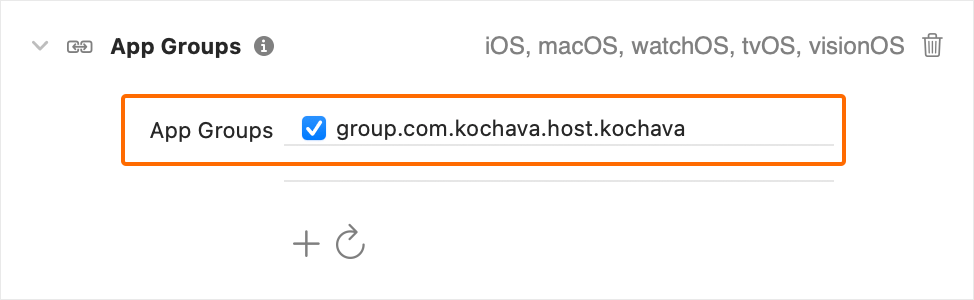
Configure the SDK
You will need the App GUIDs from both your iOS and iOS – App Clip created in the prerequisite step for configuring the SDK here. Choose the correct App GUID when starting the SDK depending upon if it’s an app clip or the full app.
Estimated Time to Complete
15 Minutes
Adding support for measuring the attribution flow from App Clip conversions can be done by first ensuring the prerequisite steps are taken and then adding an app group identifier, configuring the SDK, and processing the invocation deeplink with the SDK.
Prerequisites
- Follow the App Clip Setup guide to prepare for SDK integration.
Add an App Group Identifier
You will need to provide an app group identifier string which facilitates shared storage between the app clip and full app. To accomplish this, in Xcode under the project Signing & Capabilities, add a new capability for App Groups if you do not have one already using the plus button. For the new identifier, start with your app’s bundle identifier and then prefix it with group. and suffix it with .kochava. Provide this identifier to the SDK prior to starting the SDK. This identifier must be the same between the app clip and full app.
Example (Add App Group Identifier) —
Configure the SDK
You will need the App GUIDs from both your iOS and iOS – App Clip created in the prerequisite step for configuring the SDK here. Choose the correct App GUID when starting the SDK depending upon if it’s an app clip or the full app.
Estimated Time to Complete
15 Minutes
Adding support for measuring the attribution flow from App Clip conversions can be done by first ensuring the prerequisite steps are taken and then adding an app group identifier, configuring the SDK, and processing the invocation deeplink with the SDK.
Prerequisites
- Follow the App Clip Setup guide to prepare for SDK integration.
Add an App Group Identifier
You will need to provide an app group identifier string which facilitates shared storage between the app clip and full app. To accomplish this, in Xcode under the project Signing & Capabilities, add a new capability for App Groups if you do not have one already using the plus button. For the new identifier, start with your app’s bundle identifier and then prefix it with group. and suffix it with .kochava. Provide this identifier to the SDK prior to starting the SDK. This identifier must be the same between the app clip and full app.
Example (Add App Group Identifier) —
Configure the SDK
You will need the App GUIDs from both your iOS and iOS – App Clip created in the prerequisite step for configuring the SDK here. Choose the correct App GUID when starting the SDK depending upon if it’s an app clip or the full app.
Estimated Time to Complete
15 Minutes
Adding support for measuring the attribution flow from App Clip conversions can be done by first ensuring the prerequisite steps are taken and then adding an app group identifier, configuring the SDK, and processing the invocation deeplink with the SDK.
Prerequisites
- Follow the App Clip Setup guide to prepare for SDK integration.
Add an App Group Identifier
You will need to provide an app group identifier string which facilitates shared storage between the app clip and full app. To accomplish this, in Xcode under the project Signing & Capabilities, add a new capability for App Groups if you do not have one already using the plus button. For the new identifier, start with your app’s bundle identifier and then prefix it with group. and suffix it with .kochava. Provide this identifier to the SDK prior to starting the SDK. This identifier must be the same between the app clip and full app.
Example (Add App Group Identifier) —
Configure the SDK
You will need the App GUIDs from both your iOS and iOS – App Clip created in the prerequisite step for configuring the SDK here. Choose the correct App GUID when starting the SDK depending upon if it’s an app clip or the full app.
Example (Configuring and Starting the SDK in the Full App)
// Set the shared generalAppGroupIdentifier. This facilitates shared storage between the app and the app clip.
AppGroups.shared.generalAppGroupIdentifier = "group.com.kochava.host.kochava"

// Start. Pass the Kochava app guid for the app.
let measurement = Measurement.shared
measurement.start(appGUIDString: "YOUR_APP_GUID")
Example (Configuring and Starting the SDK in the Full App)
// Set the shared generalAppGroupIdentifier. This facilitates shared storage between the app and the app clip.
AppGroups.shared.generalAppGroupIdentifier = "group.com.kochava.host.kochava"

// Start. Pass the Kochava app guid for the app.
let measurement = Measurement.shared
measurement.start(appGUIDString: "YOUR_APP_GUID")
Example (Configuring and Starting the SDK in the Full App)
// Set the shared generalAppGroupIdentifier. This facilitates shared storage between the app and the app clip.
AppGroups.shared.generalAppGroupIdentifier = "group.com.kochava.host.kochava"

// Start. Pass the Kochava app guid for the app.
let measurement = Measurement.shared
measurement.start(appGUIDString: "YOUR_APP_GUID")
Example (Configuring and Starting the SDK in the Full App)
// Set the shared generalAppGroupIdentifier. This facilitates shared storage between the app and the app clip.
AppGroups.shared.generalAppGroupIdentifier = "group.com.kochava.host.kochava"

// Start. Pass the Kochava app guid for the app.
let measurement = Measurement.shared
measurement.start(appGUIDString: "YOUR_APP_GUID")
Example (Configuring and Starting the SDK in the App Clip App)
// Set the shared generalAppGroupIdentifier. This facilitates shared storage between the app and the app clip.
AppGroups.shared.generalAppGroupIdentifier = "group.com.kochava.host.kochava"

// Start. Pass the Kochava app guid for the app clip.
let measurement = Measurement.shared
measurement.start(appGUIDString: "YOUR_APP_CLIP_APP_GUID")
Example (Configuring and Starting the SDK in the App Clip App)
// Set the shared generalAppGroupIdentifier. This facilitates shared storage between the app and the app clip.
AppGroups.shared.generalAppGroupIdentifier = "group.com.kochava.host.kochava"

// Start. Pass the Kochava app guid for the app clip.
let measurement = Measurement.shared
measurement.start(appGUIDString: "YOUR_APP_CLIP_APP_GUID")
Example (Configuring and Starting the SDK in the App Clip App)
// Set the shared generalAppGroupIdentifier. This facilitates shared storage between the app and the app clip.
AppGroups.shared.generalAppGroupIdentifier = "group.com.kochava.host.kochava"

// Start. Pass the Kochava app guid for the app clip.
let measurement = Measurement.shared
measurement.start(appGUIDString: "YOUR_APP_CLIP_APP_GUID")
Example (Configuring and Starting the SDK in the App Clip App)
// Set the shared generalAppGroupIdentifier. This facilitates shared storage between the app and the app clip.
AppGroups.shared.generalAppGroupIdentifier = "group.com.kochava.host.kochava"

// Start. Pass the Kochava app guid for the app clip.
let measurement = Measurement.shared
measurement.start(appGUIDString: "YOUR_APP_CLIP_APP_GUID")Process the Deeplink
When the app clip is launched, pass the invocation URL to the SDK’s Process Deeplink API as soon as possible, just as you would any other deeplink. See the topic Deeplinking with Smartlinks for complete instructions on how to use the Process Deeplink API.
By taking these steps, all functionality related to attribution, analytics, and measurement will be properly implemented between the app clip and full app.
Process the Deeplink
When the app clip is launched, pass the invocation URL to the SDK’s Process Deeplink API as soon as possible, just as you would any other deeplink. See the topic Deeplinking with Smartlinks for complete instructions on how to use the Process Deeplink API.
By taking these steps, all functionality related to attribution, analytics, and measurement will be properly implemented between the app clip and full app.
Process the Deeplink
When the app clip is launched, pass the invocation URL to the SDK’s Process Deeplink API as soon as possible, just as you would any other deeplink. See the topic Deeplinking with Smartlinks for complete instructions on how to use the Process Deeplink API.
By taking these steps, all functionality related to attribution, analytics, and measurement will be properly implemented between the app clip and full app.
Process the Deeplink
When the app clip is launched, pass the invocation URL to the SDK’s Process Deeplink API as soon as possible, just as you would any other deeplink. See the topic Deeplinking with Smartlinks for complete instructions on how to use the Process Deeplink API.
By taking these steps, all functionality related to attribution, analytics, and measurement will be properly implemented between the app clip and full app.
Enabling App Limit Ad Tracking
Limit the ad tracking at the application level:
Estimated Time to Complete
1 Minute
If you wish to limit ad tracking at the application level, with respect to Kochava conversions, you can set this value at any time but generally it should be done before starting the SDK. By default the limit ad tracking value is set to false indicating no limitation.
For example, you might provide an option for a user to indicate whether or not they wish to allow this app to use their advertising identifier for tracking purposes. If they do not wish to be tracked, this value would be set to true.
Estimated Time to Complete
1 Minute
If you wish to limit ad tracking at the application level, with respect to Kochava conversions, you can set this value at any time but generally it should be done before starting the SDK. By default the limit ad tracking value is set to false indicating no limitation.
For example, you might provide an option for a user to indicate whether or not they wish to allow this app to use their advertising identifier for tracking purposes. If they do not wish to be tracked, this value would be set to true.
Estimated Time to Complete
1 Minute
If you wish to limit ad tracking at the application level, with respect to Kochava conversions, you can set this value at any time but generally it should be done before starting the SDK. By default the limit ad tracking value is set to false indicating no limitation.
For example, you might provide an option for a user to indicate whether or not they wish to allow this app to use their advertising identifier for tracking purposes. If they do not wish to be tracked, this value would be set to true.
Estimated Time to Complete
1 Minute
If you wish to limit ad tracking at the application level, with respect to Kochava conversions, you can set this value at any time but generally it should be done before starting the SDK. By default the limit ad tracking value is set to false indicating no limitation.
For example, you might provide an option for a user to indicate whether or not they wish to allow this app to use their advertising identifier for tracking purposes. If they do not wish to be tracked, this value would be set to true.
Example (Enable App Limit Ad Tracking)
let measurement = Measurement.shared
measurement.appLimitAdTracking.bool = trueKVAMeasurement *measurement = KVAMeasurement.shared;
measurement.appLimitAdTracking.boolean = @(YES)Example (Enable App Limit Ad Tracking)
let measurement = Measurement.shared
measurement.appLimitAdTracking.bool = trueKVAMeasurement *measurement = KVAMeasurement.shared;
measurement.appLimitAdTracking.boolean = @(YES)Example (Enable App Limit Ad Tracking)
let measurement = Measurement.shared
measurement.appLimitAdTracking.bool = trueKVAMeasurement *measurement = KVAMeasurement.shared;
measurement.appLimitAdTracking.boolean = @(YES)Example (Enable App Limit Ad Tracking)
let measurement = Measurement.shared
measurement.appLimitAdTracking.bool = trueKVAMeasurement *measurement = KVAMeasurement.shared;
measurement.appLimitAdTracking.boolean = @(YES)Handling Consent
Kochava’s Intelligent Consent Manager and self-managed consent solutions:
Estimated Time to Complete
30 Minutes
The Kochava SDK deals with potentially sensitive data such as device identifiers, care should be taken to ensure that your use of the Kochava SDK remains compliant with any applicable laws and regulations.
Estimated Time to Complete
30 Minutes
The Kochava SDK deals with potentially sensitive data such as device identifiers, care should be taken to ensure that your use of the Kochava SDK remains compliant with any applicable laws and regulations.
Estimated Time to Complete
30 Minutes
The Kochava SDK deals with potentially sensitive data such as device identifiers, care should be taken to ensure that your use of the Kochava SDK remains compliant with any applicable laws and regulations.
Estimated Time to Complete
30 Minutes
The Kochava SDK deals with potentially sensitive data such as device identifiers, care should be taken to ensure that your use of the Kochava SDK remains compliant with any applicable laws and regulations.
CCPA
For purposes of CCPA, the Kochava SDK follows IAB’s CCPA Compliance Framework by reading the U.S. Privacy String from local storage, when present. You do not need to take any action in the Kochava SDK for this functionality. However, it is your responsibility to ensure the U.S. Privacy String has been set within local storage when appropriate. The SDK will look for the U.S. Privacy String in local app storage under the key ‘IABUSPrivacy_String’ within default shared preferences on Android and default NSUserDefaults on iOS. As long as the value is present, the SDK will pick it up.
CCPA
For purposes of CCPA, the Kochava SDK follows IAB’s CCPA Compliance Framework by reading the U.S. Privacy String from local storage, when present. You do not need to take any action in the Kochava SDK for this functionality. However, it is your responsibility to ensure the U.S. Privacy String has been set within local storage when appropriate. The SDK will look for the U.S. Privacy String in local app storage under the key ‘IABUSPrivacy_String’ within default shared preferences on Android and default NSUserDefaults on iOS. As long as the value is present, the SDK will pick it up.
CCPA
For purposes of CCPA, the Kochava SDK follows IAB’s CCPA Compliance Framework by reading the U.S. Privacy String from local storage, when present. You do not need to take any action in the Kochava SDK for this functionality. However, it is your responsibility to ensure the U.S. Privacy String has been set within local storage when appropriate. The SDK will look for the U.S. Privacy String in local app storage under the key ‘IABUSPrivacy_String’ within default shared preferences on Android and default NSUserDefaults on iOS. As long as the value is present, the SDK will pick it up.
CCPA
For purposes of CCPA, the Kochava SDK follows IAB’s CCPA Compliance Framework by reading the U.S. Privacy String from local storage, when present. You do not need to take any action in the Kochava SDK for this functionality. However, it is your responsibility to ensure the U.S. Privacy String has been set within local storage when appropriate. The SDK will look for the U.S. Privacy String in local app storage under the key ‘IABUSPrivacy_String’ within default shared preferences on Android and default NSUserDefaults on iOS. As long as the value is present, the SDK will pick it up.
GDPR
GDPR applies to users within the EU and requires users to opt-in to data collection. By using this feature, the Kochava SDK will handle determining when consent is required for any user. It is your responsibility to use that information to determine if and when to prompt for consent and to report the results back to the SDK. The SDK will automatically restrict the sending of data to Kochava’s servers unless consent is not required or has been granted.
GDPR
GDPR applies to users within the EU and requires users to opt-in to data collection. By using this feature, the Kochava SDK will handle determining when consent is required for any user. It is your responsibility to use that information to determine if and when to prompt for consent and to report the results back to the SDK. The SDK will automatically restrict the sending of data to Kochava’s servers unless consent is not required or has been granted.
GDPR
GDPR applies to users within the EU and requires users to opt-in to data collection. By using this feature, the Kochava SDK will handle determining when consent is required for any user. It is your responsibility to use that information to determine if and when to prompt for consent and to report the results back to the SDK. The SDK will automatically restrict the sending of data to Kochava’s servers unless consent is not required or has been granted.
GDPR
GDPR applies to users within the EU and requires users to opt-in to data collection. By using this feature, the Kochava SDK will handle determining when consent is required for any user. It is your responsibility to use that information to determine if and when to prompt for consent and to report the results back to the SDK. The SDK will automatically restrict the sending of data to Kochava’s servers unless consent is not required or has been granted.
Configure Dashboard Settings
Within the Kochava dashboard, enable Intelligent Consent Management GDPR for this app and adjust other related settings. The SDK’s consent related features and API calls will only have any effect if the feature is enabled on the Kochava dashboard.
Configure Dashboard Settings
Within the Kochava dashboard, enable Intelligent Consent Management GDPR for this app and adjust other related settings. The SDK’s consent related features and API calls will only have any effect if the feature is enabled on the Kochava dashboard.
Configure Dashboard Settings
Within the Kochava dashboard, enable Intelligent Consent Management GDPR for this app and adjust other related settings. The SDK’s consent related features and API calls will only have any effect if the feature is enabled on the Kochava dashboard.
Configure Dashboard Settings
Within the Kochava dashboard, enable Intelligent Consent Management GDPR for this app and adjust other related settings. The SDK’s consent related features and API calls will only have any effect if the feature is enabled on the Kochava dashboard.
Subscribe to Consent Changes
Subscribe to updates from the SDK on when the user is in an applicable consent region. This will be called once shortly after starting the SDK and may be called periodically thereafter. This listener is dependent on an active internet connection and may get delayed if it is not available.
Use this information to inform your consent logic on if the user should be prompted. Exact timing and location of prompting is application specific and left up to your implementation. If your consent logic already handles the if and when of prompting, this listener can be omitted.
Subscribe to Consent Changes
Subscribe to updates from the SDK on when the user is in an applicable consent region. This will be called once shortly after starting the SDK and may be called periodically thereafter. This listener is dependent on an active internet connection and may get delayed if it is not available.
Use this information to inform your consent logic on if the user should be prompted. Exact timing and location of prompting is application specific and left up to your implementation. If your consent logic already handles the if and when of prompting, this listener can be omitted.
Subscribe to Consent Changes
Subscribe to updates from the SDK on when the user is in an applicable consent region. This will be called once shortly after starting the SDK and may be called periodically thereafter. This listener is dependent on an active internet connection and may get delayed if it is not available.
Use this information to inform your consent logic on if the user should be prompted. Exact timing and location of prompting is application specific and left up to your implementation. If your consent logic already handles the if and when of prompting, this listener can be omitted.
Subscribe to Consent Changes
Subscribe to updates from the SDK on when the user is in an applicable consent region. This will be called once shortly after starting the SDK and may be called periodically thereafter. This listener is dependent on an active internet connection and may get delayed if it is not available.
Use this information to inform your consent logic on if the user should be prompted. Exact timing and location of prompting is application specific and left up to your implementation. If your consent logic already handles the if and when of prompting, this listener can be omitted.
Example (Config Completed Listener)
let measurement = Measurement.shared
measurement.config.closure_didComplete =
{
    config in

    let consentGDPRAppliesBool = config.consentGDPRAppliesBool
}

// Start the SDK
// ...KVAMeasurement *measurement = KVAMeasurement.shared;
measurement.config.closure_didComplete = ^(KVANetworking_Config * _Nonnull config)
{
BOOL consentGDPRAppliesBool = config.consentGDPRAppliesBool
};
// Start the SDK
// ...Example (Config Completed Listener)
let measurement = Measurement.shared
measurement.config.closure_didComplete =
{
    config in

    let consentGDPRAppliesBool = config.consentGDPRAppliesBool
}

// Start the SDK
// ...KVAMeasurement *measurement = KVAMeasurement.shared;
measurement.config.closure_didComplete = ^(KVANetworking_Config * _Nonnull config)
{
BOOL consentGDPRAppliesBool = config.consentGDPRAppliesBool
};
// Start the SDK
// ...Example (Config Completed Listener)
let measurement = Measurement.shared
measurement.config.closure_didComplete =
{
    config in

    let consentGDPRAppliesBool = config.consentGDPRAppliesBool
}

// Start the SDK
// ...KVAMeasurement *measurement = KVAMeasurement.shared;
measurement.config.closure_didComplete = ^(KVANetworking_Config * _Nonnull config)
{
BOOL consentGDPRAppliesBool = config.consentGDPRAppliesBool
};
// Start the SDK
// ...Example (Config Completed Listener)
let measurement = Measurement.shared
measurement.config.closure_didComplete =
{
    config in

    let consentGDPRAppliesBool = config.consentGDPRAppliesBool
}

// Start the SDK
// ...KVAMeasurement *measurement = KVAMeasurement.shared;
measurement.config.closure_didComplete = ^(KVANetworking_Config * _Nonnull config)
{
BOOL consentGDPRAppliesBool = config.consentGDPRAppliesBool
};
// Start the SDK
// ...Reporting Consent Results
When the user responds to your consent prompt dialog or if the user otherwise grants or declines consent, the Kochava SDK must be notified of the result. If the user dismisses or ignores the dialog and does not provide a response, no action should be taken.
Reporting Consent Results
When the user responds to your consent prompt dialog or if the user otherwise grants or declines consent, the Kochava SDK must be notified of the result. If the user dismisses or ignores the dialog and does not provide a response, no action should be taken.
Reporting Consent Results
When the user responds to your consent prompt dialog or if the user otherwise grants or declines consent, the Kochava SDK must be notified of the result. If the user dismisses or ignores the dialog and does not provide a response, no action should be taken.
Reporting Consent Results
When the user responds to your consent prompt dialog or if the user otherwise grants or declines consent, the Kochava SDK must be notified of the result. If the user dismisses or ignores the dialog and does not provide a response, no action should be taken.
Example (User Granted Consent)
let measurement = Measurement.shared
measurement.privacy.intelligentConsent.grantedBool = trueKVAMeasurement *measurement = KVAMeasurement.shared;
measurement.privacy.intelligentConsent.grantedBoolNumber = @(YES);Example (User Granted Consent)
let measurement = Measurement.shared
measurement.privacy.intelligentConsent.grantedBool = trueKVAMeasurement *measurement = KVAMeasurement.shared;
measurement.privacy.intelligentConsent.grantedBoolNumber = @(YES);Example (User Granted Consent)
let measurement = Measurement.shared
measurement.privacy.intelligentConsent.grantedBool = trueKVAMeasurement *measurement = KVAMeasurement.shared;
measurement.privacy.intelligentConsent.grantedBoolNumber = @(YES);Example (User Granted Consent)
let measurement = Measurement.shared
measurement.privacy.intelligentConsent.grantedBool = trueKVAMeasurement *measurement = KVAMeasurement.shared;
measurement.privacy.intelligentConsent.grantedBoolNumber = @(YES);Example (User Declined Consent)
let measurement = Measurement.shared
measurement.privacy.intelligentConsent.grantedBool = falseKVAMeasurement *measurement = KVAMeasurement.shared;
measurement.privacy.intelligentConsent.grantedBoolNumber = @(NO);Example (User Declined Consent)
let measurement = Measurement.shared
measurement.privacy.intelligentConsent.grantedBool = falseKVAMeasurement *measurement = KVAMeasurement.shared;
measurement.privacy.intelligentConsent.grantedBoolNumber = @(NO);Example (User Declined Consent)
let measurement = Measurement.shared
measurement.privacy.intelligentConsent.grantedBool = falseKVAMeasurement *measurement = KVAMeasurement.shared;
measurement.privacy.intelligentConsent.grantedBoolNumber = @(NO);Example (User Declined Consent)
let measurement = Measurement.shared
measurement.privacy.intelligentConsent.grantedBool = falseKVAMeasurement *measurement = KVAMeasurement.shared;
measurement.privacy.intelligentConsent.grantedBoolNumber = @(NO);Self-Managed
If you are handling consent on your own or using a 3rd party tool, startup and all usage of the SDK should be gated by your consent check. Also if consent is revoked after the SDK has been started you should shutdown the SDK and optionally delete local data.
Self-Managed
If you are handling consent on your own or using a 3rd party tool, startup and all usage of the SDK should be gated by your consent check. Also if consent is revoked after the SDK has been started you should shutdown the SDK and optionally delete local data.
Self-Managed
If you are handling consent on your own or using a 3rd party tool, startup and all usage of the SDK should be gated by your consent check. Also if consent is revoked after the SDK has been started you should shutdown the SDK and optionally delete local data.
Self-Managed
If you are handling consent on your own or using a 3rd party tool, startup and all usage of the SDK should be gated by your consent check. Also if consent is revoked after the SDK has been started you should shutdown the SDK and optionally delete local data.
Example (Starting the SDK Only When Consent Allows)
if !consentRequired || consentGranted {
let measurement = Measurement.shared
measurement.start(appGUIDString: "_YOUR_APP_GUID_")
}if (!consentRequired || consentGranted) {
KVAMeasurement *measurement = KVAMeasurement.shared;
[measurement startWithAppGUIDString:@"_YOUR_APP_GUID_"];
}Example (Starting the SDK Only When Consent Allows)
if !consentRequired || consentGranted {
let measurement = Measurement.shared
measurement.start(appGUIDString: "_YOUR_APP_GUID_")
}if (!consentRequired || consentGranted) {
KVAMeasurement *measurement = KVAMeasurement.shared;
[measurement startWithAppGUIDString:@"_YOUR_APP_GUID_"];
}Example (Starting the SDK Only When Consent Allows)
if !consentRequired || consentGranted {
let measurement = Measurement.shared
measurement.start(appGUIDString: "_YOUR_APP_GUID_")
}if (!consentRequired || consentGranted) {
KVAMeasurement *measurement = KVAMeasurement.shared;
[measurement startWithAppGUIDString:@"_YOUR_APP_GUID_"];
}Example (Starting the SDK Only When Consent Allows)
if !consentRequired || consentGranted {
let measurement = Measurement.shared
measurement.start(appGUIDString: "_YOUR_APP_GUID_")
}if (!consentRequired || consentGranted) {
KVAMeasurement *measurement = KVAMeasurement.shared;
[measurement startWithAppGUIDString:@"_YOUR_APP_GUID_"];
}Example (Calling SDK Methods Only When Consent Allows)
if !consentRequired || consentGranted {
Event.sendCustom(eventName: "My Event")
}if (!consentRequired || consentGranted) {
[KVAEvent sendCustomWithEventName:@"My Event"];
}Example (Calling SDK Methods Only When Consent Allows)
if !consentRequired || consentGranted {
Event.sendCustom(eventName: "My Event")
}if (!consentRequired || consentGranted) {
[KVAEvent sendCustomWithEventName:@"My Event"];
}Example (Calling SDK Methods Only When Consent Allows)
if !consentRequired || consentGranted {
Event.sendCustom(eventName: "My Event")
}if (!consentRequired || consentGranted) {
[KVAEvent sendCustomWithEventName:@"My Event"];
}Example (Calling SDK Methods Only When Consent Allows)
if !consentRequired || consentGranted {
Event.sendCustom(eventName: "My Event")
}if (!consentRequired || consentGranted) {
[KVAEvent sendCustomWithEventName:@"My Event"];
}Example (Shutdown the SDK if Consent Is Revoked)
func didRevokeConsent() {
// Shutdown and delete data
KochavaMeasurement.Product.shared.shutdown(deleteLocalDataBool: true)
}- (void)didRevokeConsent {
// Shutdown and delete data
[KochavaMeasurement_Product.shared shutdownWithDeleteLocalDataBool:true];
}Example (Shutdown the SDK if Consent Is Revoked)
func didRevokeConsent() {
// Shutdown and delete data
KochavaMeasurement.Product.shared.shutdown(deleteLocalDataBool: true)
}- (void)didRevokeConsent {
// Shutdown and delete data
[KochavaMeasurement_Product.shared shutdownWithDeleteLocalDataBool:true];
}Example (Shutdown the SDK if Consent Is Revoked)
func didRevokeConsent() {
// Shutdown and delete data
KochavaMeasurement.Product.shared.shutdown(deleteLocalDataBool: true)
}- (void)didRevokeConsent {
// Shutdown and delete data
[KochavaMeasurement_Product.shared shutdownWithDeleteLocalDataBool:true];
}Example (Shutdown the SDK if Consent Is Revoked)
func didRevokeConsent() {
// Shutdown and delete data
KochavaMeasurement.Product.shared.shutdown(deleteLocalDataBool: true)
}- (void)didRevokeConsent {
// Shutdown and delete data
[KochavaMeasurement_Product.shared shutdownWithDeleteLocalDataBool:true];
}Privacy and Restricting Data Collection
How to prevent transmission of certain data from the device:
Estimated Time to Complete
10 Minutes
For purposes of measurement and attribution, the SDK automatically transmits certain device information and device identifiers which are commonly referred to as ‘datapoints’. For privacy reasons or otherwise, there may be times you wish to restrict these datapoints from egressing from the device. For more information around what datapoints the SDK transmits, view the Data Privacy and Safety document.
Restricting the egress of a datapoint can be done one of two ways and is dependent on whether you want the restriction to apply to all users of the app or conditionally on a per-user basis.
Estimated Time to Complete
10 Minutes
For purposes of measurement and attribution, the SDK automatically transmits certain device information and device identifiers which are commonly referred to as ‘datapoints’. For privacy reasons or otherwise, there may be times you wish to restrict these datapoints from egressing from the device. For more information around what datapoints the SDK transmits, view the Data Privacy and Safety document.
Restricting the egress of a datapoint can be done one of two ways and is dependent on whether you want the restriction to apply to all users of the app or conditionally on a per-user basis.
Estimated Time to Complete
10 Minutes
For purposes of measurement and attribution, the SDK automatically transmits certain device information and device identifiers which are commonly referred to as ‘datapoints’. For privacy reasons or otherwise, there may be times you wish to restrict these datapoints from egressing from the device. For more information around what datapoints the SDK transmits, view the Data Privacy and Safety document.
Restricting the egress of a datapoint can be done one of two ways and is dependent on whether you want the restriction to apply to all users of the app or conditionally on a per-user basis.
Estimated Time to Complete
10 Minutes
For purposes of measurement and attribution, the SDK automatically transmits certain device information and device identifiers which are commonly referred to as ‘datapoints’. For privacy reasons or otherwise, there may be times you wish to restrict these datapoints from egressing from the device. For more information around what datapoints the SDK transmits, view the Data Privacy and Safety document.
Restricting the egress of a datapoint can be done one of two ways and is dependent on whether you want the restriction to apply to all users of the app or conditionally on a per-user basis.
App Wide Restriction
If you wish to unconditionally prevent the collection and egress of a datapoint for all users of your app, this can be done by disabling the desired datapoint within the Advanced section of the edit app page in your Kochava dashboard. Disabling a datapoint in this manner will automatically instruct the SDK not to collect or allow egress of said datapoint from the device for all users. No code is required for this approach and if this satisfies your requirements there is no need to read any further.
App Wide Restriction
If you wish to unconditionally prevent the collection and egress of a datapoint for all users of your app, this can be done by disabling the desired datapoint within the Advanced section of the edit app page in your Kochava dashboard. Disabling a datapoint in this manner will automatically instruct the SDK not to collect or allow egress of said datapoint from the device for all users. No code is required for this approach and if this satisfies your requirements there is no need to read any further.
App Wide Restriction
If you wish to unconditionally prevent the collection and egress of a datapoint for all users of your app, this can be done by disabling the desired datapoint within the Advanced section of the edit app page in your Kochava dashboard. Disabling a datapoint in this manner will automatically instruct the SDK not to collect or allow egress of said datapoint from the device for all users. No code is required for this approach and if this satisfies your requirements there is no need to read any further.
App Wide Restriction
If you wish to unconditionally prevent the collection and egress of a datapoint for all users of your app, this can be done by disabling the desired datapoint within the Advanced section of the edit app page in your Kochava dashboard. Disabling a datapoint in this manner will automatically instruct the SDK not to collect or allow egress of said datapoint from the device for all users. No code is required for this approach and if this satisfies your requirements there is no need to read any further.
Conditional Restriction
If you wish to conditionally restrict datapoint egress on a per-user basis, or you wish to restrict egress of a datapoint not available in your Kochava dashboard, follow the steps below. For example, you may wish to restrict the egress of the device identifiers only for child users or only for users who do not meet other criteria.
Conditionally restricting datapoint egress requires two steps in code:
- Create a privacy profile with a list of datapoint key names to restrict.
- Enable the privacy profile if restrictions should apply to this user.
Conditional Restriction
If you wish to conditionally restrict datapoint egress on a per-user basis, or you wish to restrict egress of a datapoint not available in your Kochava dashboard, follow the steps below. For example, you may wish to restrict the egress of the device identifiers only for child users or only for users who do not meet other criteria.
Conditionally restricting datapoint egress requires two steps in code:
- Create a privacy profile with a list of datapoint key names to restrict.
- Enable the privacy profile if restrictions should apply to this user.
Conditional Restriction
If you wish to conditionally restrict datapoint egress on a per-user basis, or you wish to restrict egress of a datapoint not available in your Kochava dashboard, follow the steps below. For example, you may wish to restrict the egress of the device identifiers only for child users or only for users who do not meet other criteria.
Conditionally restricting datapoint egress requires two steps in code:
- Create a privacy profile with a list of datapoint key names to restrict.
- Enable the privacy profile if restrictions should apply to this user.
Conditional Restriction
If you wish to conditionally restrict datapoint egress on a per-user basis, or you wish to restrict egress of a datapoint not available in your Kochava dashboard, follow the steps below. For example, you may wish to restrict the egress of the device identifiers only for child users or only for users who do not meet other criteria.
Conditionally restricting datapoint egress requires two steps in code:
- Create a privacy profile with a list of datapoint key names to restrict.
- Enable the privacy profile if restrictions should apply to this user.
Create a Privacy Profile
A privacy profile is a named collection of datapoints which may be restricted for the current user. Privacy profiles must be both created and then enabled before datapoint restriction will take place. Typically, you will create all possible privacy profiles when starting the SDK, and then enable only those which apply to the current user. Privacy profiles are not persisted by the SDK and must be created in code every time you start the SDK.
You may create multiple privacy profiles, one for each category of restriction you would like to apply. For example, you might create a privacy profile named “child” which includes datapoints you would like to restrict for children. Or, you might create a privacy profile named “always” which includes datapoints you’d like to always restrict for all users. The name of the privacy profile may not begin with an underscore “_” and must be a non-empty string, but is otherwise arbitrary and may be anything you like.
Create a Privacy Profile
A privacy profile is a named collection of datapoints which may be restricted for the current user. Privacy profiles must be both created and then enabled before datapoint restriction will take place. Typically, you will create all possible privacy profiles when starting the SDK, and then enable only those which apply to the current user. Privacy profiles are not persisted by the SDK and must be created in code every time you start the SDK.
You may create multiple privacy profiles, one for each category of restriction you would like to apply. For example, you might create a privacy profile named “child” which includes datapoints you would like to restrict for children. Or, you might create a privacy profile named “always” which includes datapoints you’d like to always restrict for all users. The name of the privacy profile may not begin with an underscore “_” and must be a non-empty string, but is otherwise arbitrary and may be anything you like.
Create a Privacy Profile
A privacy profile is a named collection of datapoints which may be restricted for the current user. Privacy profiles must be both created and then enabled before datapoint restriction will take place. Typically, you will create all possible privacy profiles when starting the SDK, and then enable only those which apply to the current user. Privacy profiles are not persisted by the SDK and must be created in code every time you start the SDK.
You may create multiple privacy profiles, one for each category of restriction you would like to apply. For example, you might create a privacy profile named “child” which includes datapoints you would like to restrict for children. Or, you might create a privacy profile named “always” which includes datapoints you’d like to always restrict for all users. The name of the privacy profile may not begin with an underscore “_” and must be a non-empty string, but is otherwise arbitrary and may be anything you like.
Create a Privacy Profile
A privacy profile is a named collection of datapoints which may be restricted for the current user. Privacy profiles must be both created and then enabled before datapoint restriction will take place. Typically, you will create all possible privacy profiles when starting the SDK, and then enable only those which apply to the current user. Privacy profiles are not persisted by the SDK and must be created in code every time you start the SDK.
You may create multiple privacy profiles, one for each category of restriction you would like to apply. For example, you might create a privacy profile named “child” which includes datapoints you would like to restrict for children. Or, you might create a privacy profile named “always” which includes datapoints you’d like to always restrict for all users. The name of the privacy profile may not begin with an underscore “_” and must be a non-empty string, but is otherwise arbitrary and may be anything you like.
Example (Create Privacy Profiles)
// Create the privacy profiles
PrivacyProfile.register(
name: "always",
datapointKeyArray: ["device", "language"]
)
PrivacyProfile.register(
name: "child",
datapointKeyArray: ["adid", "idfa"]
)
// Start the SDK
// ...// Create the privacy profiles
KVAPrivacyProfile registerWithName:@"always" datapointKeyArray:@[@"device", @"language"]];
KVAPrivacyProfile registerWithName:@"child" datapointKeyArray:@[@"adid", @"idfa"]];
// Start the SDK
// ...Example (Create Privacy Profiles)
// Create the privacy profiles
PrivacyProfile.register(
name: "always",
datapointKeyArray: ["device", "language"]
)
PrivacyProfile.register(
name: "child",
datapointKeyArray: ["adid", "idfa"]
)
// Start the SDK
// ...// Create the privacy profiles
KVAPrivacyProfile registerWithName:@"always" datapointKeyArray:@[@"device", @"language"]];
KVAPrivacyProfile registerWithName:@"child" datapointKeyArray:@[@"adid", @"idfa"]];
// Start the SDK
// ...Example (Create Privacy Profiles)
// Create the privacy profiles
PrivacyProfile.register(
name: "always",
datapointKeyArray: ["device", "language"]
)
PrivacyProfile.register(
name: "child",
datapointKeyArray: ["adid", "idfa"]
)
// Start the SDK
// ...// Create the privacy profiles
KVAPrivacyProfile registerWithName:@"always" datapointKeyArray:@[@"device", @"language"]];
KVAPrivacyProfile registerWithName:@"child" datapointKeyArray:@[@"adid", @"idfa"]];
// Start the SDK
// ...Example (Create Privacy Profiles)
// Create the privacy profiles
PrivacyProfile.register(
name: "always",
datapointKeyArray: ["device", "language"]
)
PrivacyProfile.register(
name: "child",
datapointKeyArray: ["adid", "idfa"]
)
// Start the SDK
// ...// Create the privacy profiles
KVAPrivacyProfile registerWithName:@"always" datapointKeyArray:@[@"device", @"language"]];
KVAPrivacyProfile registerWithName:@"child" datapointKeyArray:@[@"adid", @"idfa"]];
// Start the SDK
// ...Enable a Privacy Profile
Privacy profiles are not enabled by default, and datapoint egress is not restricted until the privacy profile is enabled. Once you have created a privacy profile, at some point you must also enable it in order to restrict datapoint egress for the current user. A privacy profile is enabled or disabled through a single API call by referencing its name.
Enable a Privacy Profile
Privacy profiles are not enabled by default, and datapoint egress is not restricted until the privacy profile is enabled. Once you have created a privacy profile, at some point you must also enable it in order to restrict datapoint egress for the current user. A privacy profile is enabled or disabled through a single API call by referencing its name.
Enable a Privacy Profile
Privacy profiles are not enabled by default, and datapoint egress is not restricted until the privacy profile is enabled. Once you have created a privacy profile, at some point you must also enable it in order to restrict datapoint egress for the current user. A privacy profile is enabled or disabled through a single API call by referencing its name.
Enable a Privacy Profile
Privacy profiles are not enabled by default, and datapoint egress is not restricted until the privacy profile is enabled. Once you have created a privacy profile, at some point you must also enable it in order to restrict datapoint egress for the current user. A privacy profile is enabled or disabled through a single API call by referencing its name.
Once a privacy profile is enabled, from that moment on its datapoints will no longer egress from the device. Restrictions are enforced from the moment a privacy profile is enabled and are not applied retroactively; it is your responsibility to ensure applicable privacy profiles are enabled prior to the moment when datapoint egress would take place. For example, if you queue an event but do not enable a privacy profile until after queuing the event, the event will egress with all datapoints intact because the privacy profile was not enabled at the time of egress.
If necessary, a privacy profile may be disabled via the same API call used to enable it.
Once a privacy profile is enabled, from that moment on its datapoints will no longer egress from the device. Restrictions are enforced from the moment a privacy profile is enabled and are not applied retroactively; it is your responsibility to ensure applicable privacy profiles are enabled prior to the moment when datapoint egress would take place. For example, if you queue an event but do not enable a privacy profile until after queuing the event, the event will egress with all datapoints intact because the privacy profile was not enabled at the time of egress.
If necessary, a privacy profile may be disabled via the same API call used to enable it.
Once a privacy profile is enabled, from that moment on its datapoints will no longer egress from the device. Restrictions are enforced from the moment a privacy profile is enabled and are not applied retroactively; it is your responsibility to ensure applicable privacy profiles are enabled prior to the moment when datapoint egress would take place. For example, if you queue an event but do not enable a privacy profile until after queuing the event, the event will egress with all datapoints intact because the privacy profile was not enabled at the time of egress.
If necessary, a privacy profile may be disabled via the same API call used to enable it.
Once a privacy profile is enabled, from that moment on its datapoints will no longer egress from the device. Restrictions are enforced from the moment a privacy profile is enabled and are not applied retroactively; it is your responsibility to ensure applicable privacy profiles are enabled prior to the moment when datapoint egress would take place. For example, if you queue an event but do not enable a privacy profile until after queuing the event, the event will egress with all datapoints intact because the privacy profile was not enabled at the time of egress.
If necessary, a privacy profile may be disabled via the same API call used to enable it.
Example (Enable Privacy Profiles)
// Enable applicable privacy profiles
let measurement = Measurement.shared
measurement.privacy.setEnabledBool(forProfileName: "always", enabledBool: true)
measurement.privacy.setEnabledBool(forProfileName: "child", enabledBool: isUserAChild)// Enable applicable privacy profiles
KVAMeasurement *measurement = KVAMeasurement.shared;
[measurement.privacy setEnabledBoolForProfileName:@"always" enabledBool:YES];
[measurement.privacy setEnabledBoolForProfileName:@"child" enabledBool:isUserAChild];Example (Enable Privacy Profiles)
// Enable applicable privacy profiles
let measurement = Measurement.shared
measurement.privacy.setEnabledBool(forProfileName: "always", enabledBool: true)
measurement.privacy.setEnabledBool(forProfileName: "child", enabledBool: isUserAChild)// Enable applicable privacy profiles
KVAMeasurement *measurement = KVAMeasurement.shared;
[measurement.privacy setEnabledBoolForProfileName:@"always" enabledBool:YES];
[measurement.privacy setEnabledBoolForProfileName:@"child" enabledBool:isUserAChild];Example (Enable Privacy Profiles)
// Enable applicable privacy profiles
let measurement = Measurement.shared
measurement.privacy.setEnabledBool(forProfileName: "always", enabledBool: true)
measurement.privacy.setEnabledBool(forProfileName: "child", enabledBool: isUserAChild)// Enable applicable privacy profiles
KVAMeasurement *measurement = KVAMeasurement.shared;
[measurement.privacy setEnabledBoolForProfileName:@"always" enabledBool:YES];
[measurement.privacy setEnabledBoolForProfileName:@"child" enabledBool:isUserAChild];Example (Enable Privacy Profiles)
// Enable applicable privacy profiles
let measurement = Measurement.shared
measurement.privacy.setEnabledBool(forProfileName: "always", enabledBool: true)
measurement.privacy.setEnabledBool(forProfileName: "child", enabledBool: isUserAChild)// Enable applicable privacy profiles
KVAMeasurement *measurement = KVAMeasurement.shared;
[measurement.privacy setEnabledBoolForProfileName:@"always" enabledBool:YES];
[measurement.privacy setEnabledBoolForProfileName:@"child" enabledBool:isUserAChild];Utilization from a WebView
Call SDK APIs from within an embedded WebView:
Estimated Time to Complete
10 Minutes
The Kochava SDK APIs can be used from within a WebView for scenarios where you have a native app with an embedded WebView. The examples provided in this topic shows the most common usage but additional APIs can be added by following the same pattern.
Calling the SDK from within your WebView requires the following steps.
- Include the JavaScript snippet within your WebView
- Add a handler that intercepts the API calls in your native code
- Call the JavaScript APIs in your WebView
1. Include the JavaScript Snippet
Place the following JavaScript snippet within your website. This must be available in a way where it can be called from your own JavaScript.
Example (JavaScript Snippet)
function registerIdentityLink(name, value) {
postUrl('kochavameasurement://registerIdentityLink?name='+encodeURIComponent(name)+'&value='+encodeURIComponent(value));
}
function sendEvent(eventName, eventData) {
postUrl('kochavameasurement://sendEvent?eventName='+encodeURIComponent(eventName)+'&eventData='+encodeURIComponent(JSON.stringify(eventData)));
}
function postUrl(url) {
var i = document.createElement('iframe');
i.style.display = 'none';
i.onload = function() { i.parentNode.removeChild(i); };
i.src = url;
document.body.appendChild(i);
}
Estimated Time to Complete
10 Minutes
The Kochava SDK APIs can be used from within a WebView for scenarios where you have a native app with an embedded WebView. The examples provided in this topic shows the most common usage but additional APIs can be added by following the same pattern.
Calling the SDK from within your WebView requires the following steps.
- Include the JavaScript snippet within your WebView
- Add a handler that intercepts the API calls in your native code
- Call the JavaScript APIs in your WebView
1. Include the JavaScript Snippet
Place the following JavaScript snippet within your website. This must be available in a way where it can be called from your own JavaScript.
Example (JavaScript Snippet)
function registerIdentityLink(name, value) {
postUrl('kochavameasurement://registerIdentityLink?name='+encodeURIComponent(name)+'&value='+encodeURIComponent(value));
}
function sendEvent(eventName, eventData) {
postUrl('kochavameasurement://sendEvent?eventName='+encodeURIComponent(eventName)+'&eventData='+encodeURIComponent(JSON.stringify(eventData)));
}
function postUrl(url) {
var i = document.createElement('iframe');
i.style.display = 'none';
i.onload = function() { i.parentNode.removeChild(i); };
i.src = url;
document.body.appendChild(i);
}
Estimated Time to Complete
10 Minutes
The Kochava SDK APIs can be used from within a WebView for scenarios where you have a native app with an embedded WebView. The examples provided in this topic shows the most common usage but additional APIs can be added by following the same pattern.
Calling the SDK from within your WebView requires the following steps.
- Include the JavaScript snippet within your WebView
- Add a handler that intercepts the API calls in your native code
- Call the JavaScript APIs in your WebView
1. Include the JavaScript Snippet
Place the following JavaScript snippet within your website. This must be available in a way where it can be called from your own JavaScript.
Example (JavaScript Snippet)
function registerIdentityLink(name, value) {
postUrl('kochavameasurement://registerIdentityLink?name='+encodeURIComponent(name)+'&value='+encodeURIComponent(value));
}
function sendEvent(eventName, eventData) {
postUrl('kochavameasurement://sendEvent?eventName='+encodeURIComponent(eventName)+'&eventData='+encodeURIComponent(JSON.stringify(eventData)));
}
function postUrl(url) {
var i = document.createElement('iframe');
i.style.display = 'none';
i.onload = function() { i.parentNode.removeChild(i); };
i.src = url;
document.body.appendChild(i);
}
Estimated Time to Complete
10 Minutes
The Kochava SDK APIs can be used from within a WebView for scenarios where you have a native app with an embedded WebView. The examples provided in this topic shows the most common usage but additional APIs can be added by following the same pattern.
Calling the SDK from within your WebView requires the following steps.
- Include the JavaScript snippet within your WebView
- Add a handler that intercepts the API calls in your native code
- Call the JavaScript APIs in your WebView
1. Include the JavaScript Snippet
Place the following JavaScript snippet within your website. This must be available in a way where it can be called from your own JavaScript.
Example (JavaScript Snippet)
function registerIdentityLink(name, value) {
postUrl('kochavameasurement://registerIdentityLink?name='+encodeURIComponent(name)+'&value='+encodeURIComponent(value));
}
function sendEvent(eventName, eventData) {
postUrl('kochavameasurement://sendEvent?eventName='+encodeURIComponent(eventName)+'&eventData='+encodeURIComponent(JSON.stringify(eventData)));
}
function postUrl(url) {
var i = document.createElement('iframe');
i.style.display = 'none';
i.onload = function() { i.parentNode.removeChild(i); };
i.src = url;
document.body.appendChild(i);
}
2. Add Native Handler
Add the native code which interacts with the WebView. This code will handle the API calls from the JavaScript snippet in the WebView and route them to the appropriate native API.
2. Add Native Handler
Add the native code which interacts with the WebView. This code will handle the API calls from the JavaScript snippet in the WebView and route them to the appropriate native API.
2. Add Native Handler
Add the native code which interacts with the WebView. This code will handle the API calls from the JavaScript snippet in the WebView and route them to the appropriate native API.
2. Add Native Handler
Add the native code which interacts with the WebView. This code will handle the API calls from the JavaScript snippet in the WebView and route them to the appropriate native API.
Example (Native Handler)
class MyViewController: UIViewController, WKNavigationDelegate
{
// MARK: - WKNavigationDelegate
func webView(_ webView: WKWebView, decidePolicyFor navigationAction: WKNavigationAction,
decisionHandler: @escaping (WKNavigationActionPolicy) -> Void)
{
guard !self.webView(
webView,
kochavaDidDecidePolicyFor: navigationAction,
decisionHandler: decisionHandler
)
else { return }
decisionHandler(.allow)
}
func webView(_ webView: WKWebView, kochavaDidDecidePolicyFor navigationAction: WKNavigationAction,
decisionHandler: @escaping (WKNavigationActionPolicy) -> Void) -> Bool
{
// VALIDATE ELSE RETURN
guard
let url = navigationAction.request.url,
let urlComponents = URLComponents(url: url, resolvingAgainstBaseURL: false)
else { return false }
let urlString = url.absoluteString
guard urlString.hasPrefix("kochavameasurement://") else { return false }
// MAIN
let queryItems = urlComponents.queryItems
switch urlString {
case _ where urlString.hasPrefix("kochavameasurement://sendEvent"):
let event = Event(type: .custom)
event.customEventName = KochavaMeasurement.Event.EventName.from(queryItems?.first {$0.name == "eventName"}?.value)
event.infoDictionary = Dictionary<AnyHashable, Any>.from(queryItems?.first {$0.name == "eventData"}?.value)
event.send()
case _ where urlString.hasPrefix("kochavameasurement://registerIdentityLink"):
IdentityLink.register(
name: IdentityLink.Name.from(queryItems?.first {$0.name == "name"}?.value) ?? "",
identifier: IdentityLink.Identifier.from(queryItems?.first {$0.name == "value"}?.value)
)
default:
break // Unknown Kochava command. Handle silently.
}
decisionHandler(.cancel)
return true
}
}Example (Native Handler)
class MyViewController: UIViewController, WKNavigationDelegate
{
// MARK: - WKNavigationDelegate
func webView(_ webView: WKWebView, decidePolicyFor navigationAction: WKNavigationAction,
decisionHandler: @escaping (WKNavigationActionPolicy) -> Void)
{
guard !self.webView(
webView,
kochavaDidDecidePolicyFor: navigationAction,
decisionHandler: decisionHandler
)
else { return }
decisionHandler(.allow)
}
func webView(_ webView: WKWebView, kochavaDidDecidePolicyFor navigationAction: WKNavigationAction,
decisionHandler: @escaping (WKNavigationActionPolicy) -> Void) -> Bool
{
// VALIDATE ELSE RETURN
guard
let url = navigationAction.request.url,
let urlComponents = URLComponents(url: url, resolvingAgainstBaseURL: false)
else { return false }
let urlString = url.absoluteString
guard urlString.hasPrefix("kochavameasurement://") else { return false }
// MAIN
let queryItems = urlComponents.queryItems
switch urlString {
case _ where urlString.hasPrefix("kochavameasurement://sendEvent"):
let event = Event(type: .custom)
event.customEventName = KochavaMeasurement.Event.EventName.from(queryItems?.first {$0.name == "eventName"}?.value)
event.infoDictionary = Dictionary<AnyHashable, Any>.from(queryItems?.first {$0.name == "eventData"}?.value)
event.send()
case _ where urlString.hasPrefix("kochavameasurement://registerIdentityLink"):
IdentityLink.register(
name: IdentityLink.Name.from(queryItems?.first {$0.name == "name"}?.value) ?? "",
identifier: IdentityLink.Identifier.from(queryItems?.first {$0.name == "value"}?.value)
)
default:
break // Unknown Kochava command. Handle silently.
}
decisionHandler(.cancel)
return true
}
}Example (Native Handler)
class MyViewController: UIViewController, WKNavigationDelegate
{
// MARK: - WKNavigationDelegate
func webView(_ webView: WKWebView, decidePolicyFor navigationAction: WKNavigationAction,
decisionHandler: @escaping (WKNavigationActionPolicy) -> Void)
{
guard !self.webView(
webView,
kochavaDidDecidePolicyFor: navigationAction,
decisionHandler: decisionHandler
)
else { return }
decisionHandler(.allow)
}
func webView(_ webView: WKWebView, kochavaDidDecidePolicyFor navigationAction: WKNavigationAction,
decisionHandler: @escaping (WKNavigationActionPolicy) -> Void) -> Bool
{
// VALIDATE ELSE RETURN
guard
let url = navigationAction.request.url,
let urlComponents = URLComponents(url: url, resolvingAgainstBaseURL: false)
else { return false }
let urlString = url.absoluteString
guard urlString.hasPrefix("kochavameasurement://") else { return false }
// MAIN
let queryItems = urlComponents.queryItems
switch urlString {
case _ where urlString.hasPrefix("kochavameasurement://sendEvent"):
let event = Event(type: .custom)
event.customEventName = KochavaMeasurement.Event.EventName.from(queryItems?.first {$0.name == "eventName"}?.value)
event.infoDictionary = Dictionary<AnyHashable, Any>.from(queryItems?.first {$0.name == "eventData"}?.value)
event.send()
case _ where urlString.hasPrefix("kochavameasurement://registerIdentityLink"):
IdentityLink.register(
name: IdentityLink.Name.from(queryItems?.first {$0.name == "name"}?.value) ?? "",
identifier: IdentityLink.Identifier.from(queryItems?.first {$0.name == "value"}?.value)
)
default:
break // Unknown Kochava command. Handle silently.
}
decisionHandler(.cancel)
return true
}
}Example (Native Handler)
class MyViewController: UIViewController, WKNavigationDelegate
{
// MARK: - WKNavigationDelegate
func webView(_ webView: WKWebView, decidePolicyFor navigationAction: WKNavigationAction,
decisionHandler: @escaping (WKNavigationActionPolicy) -> Void)
{
guard !self.webView(
webView,
kochavaDidDecidePolicyFor: navigationAction,
decisionHandler: decisionHandler
)
else { return }
decisionHandler(.allow)
}
func webView(_ webView: WKWebView, kochavaDidDecidePolicyFor navigationAction: WKNavigationAction,
decisionHandler: @escaping (WKNavigationActionPolicy) -> Void) -> Bool
{
// VALIDATE ELSE RETURN
guard
let url = navigationAction.request.url,
let urlComponents = URLComponents(url: url, resolvingAgainstBaseURL: false)
else { return false }
let urlString = url.absoluteString
guard urlString.hasPrefix("kochavameasurement://") else { return false }
// MAIN
let queryItems = urlComponents.queryItems
switch urlString {
case _ where urlString.hasPrefix("kochavameasurement://sendEvent"):
let event = Event(type: .custom)
event.customEventName = KochavaMeasurement.Event.EventName.from(queryItems?.first {$0.name == "eventName"}?.value)
event.infoDictionary = Dictionary<AnyHashable, Any>.from(queryItems?.first {$0.name == "eventData"}?.value)
event.send()
case _ where urlString.hasPrefix("kochavameasurement://registerIdentityLink"):
IdentityLink.register(
name: IdentityLink.Name.from(queryItems?.first {$0.name == "name"}?.value) ?? "",
identifier: IdentityLink.Identifier.from(queryItems?.first {$0.name == "value"}?.value)
)
default:
break // Unknown Kochava command. Handle silently.
}
decisionHandler(.cancel)
return true
}
}3. Call the JavaScript APIs
From your code in the WebView you can now call the SDK’s JavaScript API as defined in the snippet included above.
Example (Basic Usage) —
<button style="width: 100%; font-size: 16pt" onclick='
registerIdentityLink("user_id", "abcdefg");
'>Register Identity Link</button>
<p/>
<button style="width: 100%; font-size: 16pt" onclick='
var eventData = {};
eventData["user_id"] = "abcdefg";
eventData["user_name"] = "user_123";
sendEvent("Registration Complete", eventData);
'>Send Event</button>3. Call the JavaScript APIs
From your code in the WebView you can now call the SDK’s JavaScript API as defined in the snippet included above.
Example (Basic Usage) —
<button style="width: 100%; font-size: 16pt" onclick='
registerIdentityLink("user_id", "abcdefg");
'>Register Identity Link</button>
<p/>
<button style="width: 100%; font-size: 16pt" onclick='
var eventData = {};
eventData["user_id"] = "abcdefg";
eventData["user_name"] = "user_123";
sendEvent("Registration Complete", eventData);
'>Send Event</button>3. Call the JavaScript APIs
From your code in the WebView you can now call the SDK’s JavaScript API as defined in the snippet included above.
Example (Basic Usage) —
<button style="width: 100%; font-size: 16pt" onclick='
registerIdentityLink("user_id", "abcdefg");
'>Register Identity Link</button>
<p/>
<button style="width: 100%; font-size: 16pt" onclick='
var eventData = {};
eventData["user_id"] = "abcdefg";
eventData["user_name"] = "user_123";
sendEvent("Registration Complete", eventData);
'>Send Event</button>3. Call the JavaScript APIs
From your code in the WebView you can now call the SDK’s JavaScript API as defined in the snippet included above.
Example (Basic Usage) —
<button style="width: 100%; font-size: 16pt" onclick='
registerIdentityLink("user_id", "abcdefg");
'>Register Identity Link</button>
<p/>
<button style="width: 100%; font-size: 16pt" onclick='
var eventData = {};
eventData["user_id"] = "abcdefg";
eventData["user_name"] = "user_123";
sendEvent("Registration Complete", eventData);
'>Send Event</button>Example (Basic Usage)
*Author reference only — does not render. Each SDK provides its real code in its per-SDK file (03-android.md, 04-apple.md, etc.), matching this example heading as the join key.*
<button style="width: 100%; font-size: 16pt" onclick='
registerIdentityLink("user_id", "abcdefg");
'>Register Identity Link</button>
<p/>
<button style="width: 100%; font-size: 16pt" onclick='
var eventData = {};
eventData["user_id"] = "abcdefg";
eventData["user_name"] = "user_123";
sendEvent("Registration Complete", eventData);
'>Send Event</button>Example (Basic Usage)
*Author reference only — does not render. Each SDK provides its real code in its per-SDK file (03-android.md, 04-apple.md, etc.), matching this example heading as the join key.*
<button style="width: 100%; font-size: 16pt" onclick='
registerIdentityLink("user_id", "abcdefg");
'>Register Identity Link</button>
<p/>
<button style="width: 100%; font-size: 16pt" onclick='
var eventData = {};
eventData["user_id"] = "abcdefg";
eventData["user_name"] = "user_123";
sendEvent("Registration Complete", eventData);
'>Send Event</button>Example (Basic Usage)
*Author reference only — does not render. Each SDK provides its real code in its per-SDK file (03-android.md, 04-apple.md, etc.), matching this example heading as the join key.*
<button style="width: 100%; font-size: 16pt" onclick='
registerIdentityLink("user_id", "abcdefg");
'>Register Identity Link</button>
<p/>
<button style="width: 100%; font-size: 16pt" onclick='
var eventData = {};
eventData["user_id"] = "abcdefg";
eventData["user_name"] = "user_123";
sendEvent("Registration Complete", eventData);
'>Send Event</button>Example (Basic Usage)
*Author reference only — does not render. Each SDK provides its real code in its per-SDK file (03-android.md, 04-apple.md, etc.), matching this example heading as the join key.*
<button style="width: 100%; font-size: 16pt" onclick='
registerIdentityLink("user_id", "abcdefg");
'>Register Identity Link</button>
<p/>
<button style="width: 100%; font-size: 16pt" onclick='
var eventData = {};
eventData["user_id"] = "abcdefg";
eventData["user_name"] = "user_123";
sendEvent("Registration Complete", eventData);
'>Send Event</button>Integrating with Adobe Analytics
Integrate Kochava with Adobe Analytics to send data to an Adobe Analytics account:
Estimated Time to Complete
10 Minutes
Integrate Kochava with Adobe Analytics to send data to an Adobe Analytics account. The benefit of this integration is that developers utilizing Adobe Analytics can tie unique Adobe IDs to attribution meta-data creating a seamless way to properly track all campaign data with the Adobe Analytics platform.
Before proceeding ensure you have the Adobe Analytics SDK fully integrated in your app. Then register the Adobe identity values as an IdentityLink with the Kochava SDK and then finally set up a postback configuration on the dashboard.
Estimated Time to Complete
10 Minutes
Integrate Kochava with Adobe Analytics to send data to an Adobe Analytics account. The benefit of this integration is that developers utilizing Adobe Analytics can tie unique Adobe IDs to attribution meta-data creating a seamless way to properly track all campaign data with the Adobe Analytics platform.
Before proceeding ensure you have the Adobe Analytics SDK fully integrated in your app. Then register the Adobe identity values as an IdentityLink with the Kochava SDK and then finally set up a postback configuration on the dashboard.
Estimated Time to Complete
10 Minutes
Integrate Kochava with Adobe Analytics to send data to an Adobe Analytics account. The benefit of this integration is that developers utilizing Adobe Analytics can tie unique Adobe IDs to attribution meta-data creating a seamless way to properly track all campaign data with the Adobe Analytics platform.
Before proceeding ensure you have the Adobe Analytics SDK fully integrated in your app. Then register the Adobe identity values as an IdentityLink with the Kochava SDK and then finally set up a postback configuration on the dashboard.
Estimated Time to Complete
10 Minutes
Integrate Kochava with Adobe Analytics to send data to an Adobe Analytics account. The benefit of this integration is that developers utilizing Adobe Analytics can tie unique Adobe IDs to attribution meta-data creating a seamless way to properly track all campaign data with the Adobe Analytics platform.
Before proceeding ensure you have the Adobe Analytics SDK fully integrated in your app. Then register the Adobe identity values as an IdentityLink with the Kochava SDK and then finally set up a postback configuration on the dashboard.
Prerequisites
- Integrate the Adobe Analytics SDK in your app
Prerequisites
- Integrate the Adobe Analytics SDK in your app
Prerequisites
- Integrate the Adobe Analytics SDK in your app
Prerequisites
- Integrate the Adobe Analytics SDK in your app
Register IdentityLink
Retrieve Adobe specific identity values and register them as an IdentityLink with the Kochava SDK.
Register IdentityLink
Retrieve Adobe specific identity values and register them as an IdentityLink with the Kochava SDK.
Register IdentityLink
Retrieve Adobe specific identity values and register them as an IdentityLink with the Kochava SDK.
Register IdentityLink
Retrieve Adobe specific identity values and register them as an IdentityLink with the Kochava SDK.
Example (Register Identity Values)
// Start Adobe SDK
// ...
// Retrieve Adobe identity values and register them with the Kochava SDK
Identity.getExperienceCloudId
{
ecid, error in
if let error = error {
// handle error here
return
}
guard let ecid else { return }
// Current Key: Use for new integrations
IdentityLink.register(
name: "experiencecloudid",
identifier: ecid
)
// Legacy Key: Use if custom postbacks are already expecting this
IdentityLink.register(
name: "marketingcloudvisitorid",
identifier: ecid
)
}Example (Register Identity Values)
// Start Adobe SDK
// ...
// Retrieve Adobe identity values and register them with the Kochava SDK
Identity.getExperienceCloudId
{
ecid, error in
if let error = error {
// handle error here
return
}
guard let ecid else { return }
// Current Key: Use for new integrations
IdentityLink.register(
name: "experiencecloudid",
identifier: ecid
)
// Legacy Key: Use if custom postbacks are already expecting this
IdentityLink.register(
name: "marketingcloudvisitorid",
identifier: ecid
)
}Example (Register Identity Values)
// Start Adobe SDK
// ...
// Retrieve Adobe identity values and register them with the Kochava SDK
Identity.getExperienceCloudId
{
ecid, error in
if let error = error {
// handle error here
return
}
guard let ecid else { return }
// Current Key: Use for new integrations
IdentityLink.register(
name: "experiencecloudid",
identifier: ecid
)
// Legacy Key: Use if custom postbacks are already expecting this
IdentityLink.register(
name: "marketingcloudvisitorid",
identifier: ecid
)
}Example (Register Identity Values)
// Start Adobe SDK
// ...
// Retrieve Adobe identity values and register them with the Kochava SDK
Identity.getExperienceCloudId
{
ecid, error in
if let error = error {
// handle error here
return
}
guard let ecid else { return }
// Current Key: Use for new integrations
IdentityLink.register(
name: "experiencecloudid",
identifier: ecid
)
// Legacy Key: Use if custom postbacks are already expecting this
IdentityLink.register(
name: "marketingcloudvisitorid",
identifier: ecid
)
}Add A Postback Configuration
- Log in to Kochava.
- Select the desired Account and App.
- Select App Configurations > Partner Configuration.
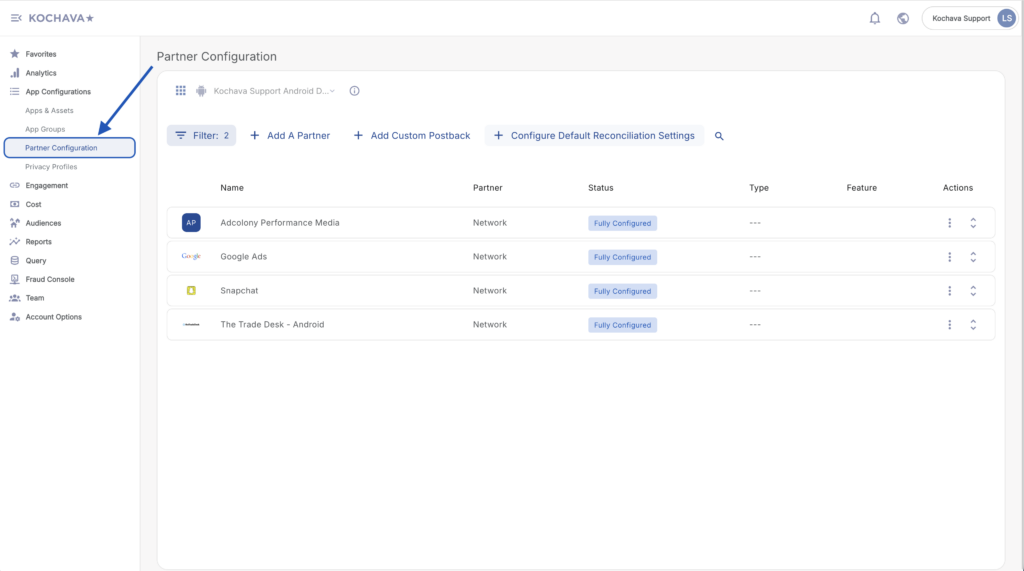
- Click + Add a Configuration.
- Select Adobe Analytics.
- Click Save.
- Locate the desired event and Click + for a new configuration or 🖉 (Edit) for an existing configuration.
- Select the Delivery Type:
- HTTP
- HTTPS
- Enter the Event Name.
- Check Restrict Timestamp Delivery. (optional)
- Select whether to Supply Network Data to Analytics Partner:
- True
- False
- Select the Delivery Method:
- All
- Network Only
- Click Save.
Add A Postback Configuration
- Log in to Kochava.
- Select the desired Account and App.
- Select App Configurations > Partner Configuration.
- Click + Add a Configuration.
- Select Adobe Analytics.
- Click Save.
- Locate the desired event and Click + for a new configuration or 🖉 (Edit) for an existing configuration.
- Select the Delivery Type:
- HTTP
- HTTPS
- Enter the Event Name.
- Check Restrict Timestamp Delivery. (optional)
- Select whether to Supply Network Data to Analytics Partner:
- True
- False
- Select the Delivery Method:
- All
- Network Only
- Click Save.
Add A Postback Configuration
- Log in to Kochava.
- Select the desired Account and App.
- Select App Configurations > Partner Configuration.
- Click + Add a Configuration.
- Select Adobe Analytics.
- Click Save.
- Locate the desired event and Click + for a new configuration or 🖉 (Edit) for an existing configuration.
- Select the Delivery Type:
- HTTP
- HTTPS
- Enter the Event Name.
- Check Restrict Timestamp Delivery. (optional)
- Select whether to Supply Network Data to Analytics Partner:
- True
- False
- Select the Delivery Method:
- All
- Network Only
- Click Save.
Add A Postback Configuration
- Log in to Kochava.
- Select the desired Account and App.
- Select App Configurations > Partner Configuration.
- Click + Add a Configuration.
- Select Adobe Analytics.
- Click Save.
- Locate the desired event and Click + for a new configuration or 🖉 (Edit) for an existing configuration.
- Select the Delivery Type:
- HTTP
- HTTPS
- Enter the Event Name.
- Check Restrict Timestamp Delivery. (optional)
- Select whether to Supply Network Data to Analytics Partner:
- True
- False
- Select the Delivery Method:
- All
- Network Only
- Click Save.
Example (Sample Integration)
<?xml version="1.0" encoding="UTF-8"?>
<request>
<scXmlVer>1.0</scXmlVer>
<reportSuiteID>RRMmobileintegrationtest</reportSuiteID>
<visitorID>1234567890123456-6543210987654321</visitorID>
<channel></channel>
<timestamp>2015-04-03T09:47:44-07</timestamp>
<ContextData>
<KochavaCampaignID>12345</KochavaCampaignID>
<KochavaCampaignName>Summer Collection</KochavaCampaignName>
<KochavaInstallEvent>1</KovhavaInstallEvent>
<KochavaNetworkName>Facebook</KochavaNetworkName>
<KochavaTrackingPartner>??</KochavaTrackingPartner>
</ContextData>
</request>Example (Sample Integration)
<?xml version="1.0" encoding="UTF-8"?>
<request>
<scXmlVer>1.0</scXmlVer>
<reportSuiteID>RRMmobileintegrationtest</reportSuiteID>
<visitorID>1234567890123456-6543210987654321</visitorID>
<channel></channel>
<timestamp>2015-04-03T09:47:44-07</timestamp>
<ContextData>
<KochavaCampaignID>12345</KochavaCampaignID>
<KochavaCampaignName>Summer Collection</KochavaCampaignName>
<KochavaInstallEvent>1</KovhavaInstallEvent>
<KochavaNetworkName>Facebook</KochavaNetworkName>
<KochavaTrackingPartner>??</KochavaTrackingPartner>
</ContextData>
</request>Example (Sample Integration)
<?xml version="1.0" encoding="UTF-8"?>
<request>
<scXmlVer>1.0</scXmlVer>
<reportSuiteID>RRMmobileintegrationtest</reportSuiteID>
<visitorID>1234567890123456-6543210987654321</visitorID>
<channel></channel>
<timestamp>2015-04-03T09:47:44-07</timestamp>
<ContextData>
<KochavaCampaignID>12345</KochavaCampaignID>
<KochavaCampaignName>Summer Collection</KochavaCampaignName>
<KochavaInstallEvent>1</KovhavaInstallEvent>
<KochavaNetworkName>Facebook</KochavaNetworkName>
<KochavaTrackingPartner>??</KochavaTrackingPartner>
</ContextData>
</request>Example (Sample Integration)
<?xml version="1.0" encoding="UTF-8"?>
<request>
<scXmlVer>1.0</scXmlVer>
<reportSuiteID>RRMmobileintegrationtest</reportSuiteID>
<visitorID>1234567890123456-6543210987654321</visitorID>
<channel></channel>
<timestamp>2015-04-03T09:47:44-07</timestamp>
<ContextData>
<KochavaCampaignID>12345</KochavaCampaignID>
<KochavaCampaignName>Summer Collection</KochavaCampaignName>
<KochavaInstallEvent>1</KovhavaInstallEvent>
<KochavaNetworkName>Facebook</KochavaNetworkName>
<KochavaTrackingPartner>??</KochavaTrackingPartner>
</ContextData>
</request>